
From “No Results” to Real Answers: Meet the HelpCenter.io MCP Server
Connect Claude or another MCP-compatible agent to HelpCenter.io, find what your customers could not find, and turn those gaps into useful articles.
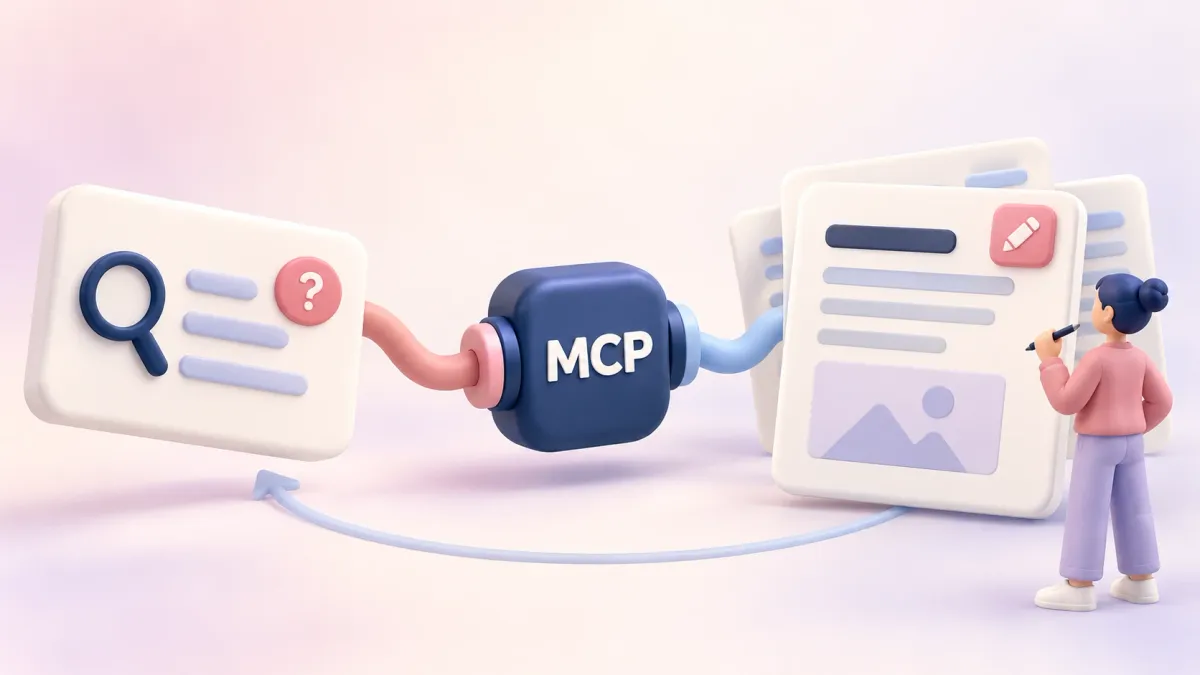
We live in amazing times. The advances in AI are fundamentally changing the way we work. Some apps are becoming obsolete, and it is now a lot easier to ask your AI agent to write something for you or to review work you did before.
The blank canvas is no longer a thing.
For years, one of the biggest blockers for businesses was the time and effort it takes to write knowledge base content in the first place. Keeping it up to date afterwards was even harder.
We heard this a lot during the seven years HelpCenter.io has been around. We met lots of businesses who liked the platform and were ready to build their knowledge base, but struggled to find the resources to write any content. Others wrote a first batch of articles and then left them untouched for years.
In fact, we were in the same boat. We sell help center software, and our own help center held very little information. We have been shipping fast and iterating on HelpCenter.io based on customer feedback, but we could not keep up with adding new content and updating the existing articles by hand. A screen in the app changed? The help article still showed a GIF of a UI that was at least three iterations behind.
This hit us hardest with the new dashboard design. It offers a lot more functionality in a UI built for productivity. Then we heard from people who switched back to the old dashboard simply because we had a help article for the old UI and none for the new one. That is when I decided it was time to change this. Small team or not, we would make the most of AI and build a great help center: one that gives our existing customers the care they need and helps new prospects understand what HelpCenter.io can do.
So we did. With the help of AI, we rebuilt our help center from scratch, close to 200 articles with fresh GIFs of the current UI, and put it into an auto-maintenance loop. The loop keeps track of the performance data (analytics, missed searches, disliked articles) and of every change we ship in the app, and it suggests content updates that we review and apply. Now you can run the same workflow, too.
You have probably seen MCP servers appear next to every popular product lately. They are a toolbox that lets AI agents work with software on your behalf.
MCP, or Model Context Protocol, is an open standard that lets an AI assistant use tools outside the chat. Once connected, your agent works with the same HelpCenter.io content and analytics you use, within the permissions you grant it.
Intro to the HelpCenter.io MCP server
The HelpCenter.io MCP server is live and included with every Growth and Catalyst subscription, out of the box. Connect Claude, ChatGPT or another MCP-compatible agent and ask it to review your existing content, your help center's structure, and what people searched for and could not find. Then turn the answers into useful content by combining your sources with everything you already know about what you sell.
Most of that context probably already lives with your AI agent. Now you can turn it into useful knowledge for your customers.
Your team works through the private MCP server, and every public help center also comes with a built-in public MCP server of its own. It lets your customers' AI assistants search and read your articles directly and cite them in their answers. That is a real step for your AEO (answer engine optimization), and it makes your help center an even more valuable, indispensable part of your business. The public server does not depend on your subscription, only on your help center being public.
And yes, you read that right: not one but two MCP servers now come with your help center.
Here is one thing to try once your agent is connected:
What did our customers search for last month and not find?
Your agent brings back the missing topics ranked by demand, checks what you already have, and drafts the articles worth adding. The next customer who asks gets an answer instead of a dead end. Your team gets one less repeat question to handle.
That is the release in one small loop: find the gap, write the answer, make the knowledge base better.
A question instead of another dashboard
HelpCenter.io has recorded the searches that came back empty for years. The signal was always there. Turning it into an article still meant jumping between your statistics, a search of your own content and the editor, by hand. Spotting the gap was never the hard part. Closing it was.
The MCP server puts all of those steps into one conversation. Here is how the loop runs when I do it on our own help center:
- Find the gaps. The agent reads what people searched for and didn't find, ranked by how many people asked. These are totals refreshed once a day, never a trail of individual visitors.
- Check what already exists. It searches your articles for overlap first, so a weak article gets a better answer instead of a duplicate sitting next to it.
- Look at what readers didn't like. It pulls your most-viewed articles with the lowest ratings, so the fixes go where readers feel them most.
- Write the first draft. New articles land in your help center as drafts, in the right category. Edits to published articles can wait as staged changes on Catalyst, invisible to readers until you release them.
- Hand it back to you. You read, tweak and publish. Or you tell the agent to publish once you are happy.
A week later, ask again. The searches that used to fail should now land on an article.
This is the prompt I start with:
Look at what people searched for in our help center in the last 30 days and didn't find. Group the searches by topic, check which ones our existing articles already cover, and propose a content plan: new articles to write and existing articles to improve. Then draft the top three new articles in the right categories and leave them unpublished.
And this one once the gaps are under control:
Find our ten most-viewed articles with the worst ratings. For each one, tell me what a reader is probably missing, then stage a clearer version for me to review.
You get the conclusion and the next useful action in the same conversation. No exporting a report, no copying search terms into a spreadsheet, no blank editor.
Thirty-eight tools, built around the work
The MCP server now gives your agent 38 HelpCenter.io tools. The number matters less than the jobs they connect: almost everything your team does on the Articles and Comments pages and in the template editor, plus your statistics.
| Area | What your agent can do | Permission it needs |
|---|---|---|
| Articles (6 tools) | Search the way a reader does, list everything including drafts and private articles, read an article in full, write in HTML or Markdown, update, and import up to 50 articles per batch | Read content, change content |
| Statistics (3) | Traffic, searches, views, ratings and team activity against the previous period, views and ratings per article, and the searches that found nothing | Statistics |
| Staged changes and versions (6) | Stage an edit to a live article, then publish it or throw it away, and put an earlier version back live | Read content, change content (staging is part of Catalyst) |
| Categories (6) | Create, rename, nest, reorder and delete categories, and set the reading order inside one | Read content, change content |
| Reader comments (4) | Work through the moderation queue, read threaded conversations, approve or unpublish, and reply | Read content, change content |
| Team notes (3) | Read the private notes your team pins to a passage, reply to them and resolve them | Team notes |
| Design (9), new | Read the design, browse and apply themes, change colors, fonts, layouts, components and custom CSS in the draft, publish, and restore an earlier design | Design |
| Help centers (1), new | List every help center the connection reaches, then work on the one you name | Read content |
A few of these deserve a closer look.
Design is now on the table. Ask your agent to match the help center to your new brand colors, rearrange the home page or start from a theme in the gallery. It edits the same draft the template editor uses, so you can open the live preview, check every page and publish when you are happy (or ask the agent to). Nothing changes for readers before that, and an earlier design is always one step away.
One connection, every help center. Run more than one help center? Agencies, I am looking at you. One connection reaches every help center you tick, and the agent picks the right one for each request. Name the help center you mean, and it keeps to it for the whole task.
Migrations that survive a bad day. Give each imported article a stable external ID and a batch that dies halfway can simply run again: what exists is updated, what is missing is created, nothing is duplicated. Images in the article text that live on other websites are copied into your help center as the agent writes.
Every tool, with its settings, is in the MCP tool reference. For the plain-language version, read What AI agents can do in your help center.
Your whole support stack, in one conversation
Your help center is only one of the places where your product knowledge lives. The rest is scattered: in support conversations, in the Slack thread where someone finally explained the workaround, in the bug tracker, in the spec your product manager wrote three months ago, in your sales team's call notes.
This is where it gets exciting. Agents like Claude connect to many tools at once, and most of the tools in a support stack now ship an MCP server or a Claude connector of their own: Intercom, HubSpot, Slack, Linear, Jira, Notion, Google Drive and GitHub among them. Connect HelpCenter.io next to them, and your agent can read across everything your company already knows and write it down where your customers will look for it.
A few prompts to try:
Read last month's Intercom conversations tagged "billing". Find the questions our team answered more than three times, check our help center for each one, and draft the missing articles from the replies our team actually sent. Leave out customer names and anything personal.
Go through #support-escalations in Slack from the past two weeks. Wherever an engineer explained a workaround, check whether our help center covers it, and stage an update to the right article.
The spec for our new export feature is in Notion. Write the help article for it in the voice of our existing articles, and save it as a draft in the Data category.
The agent does the patient reading across all of those tools. Your team gets a ready draft built from the answers you have already given, once.
And the loop runs the other way too. HelpCenter.io's integrations with Zendesk, Intercom, HubSpot and Front put your articles inside every ticket and conversation, so your team can drop the link into the next reply instead of typing the answer again. With Intercom connected, Fin learns from your published articles automatically. Every article your agent helps you write makes all of those answers better. The integrations overview has the full list.
Building software? Your repository knows what changed
If you build software, the most accurate description of your product is the code. Every renamed button, new setting and reworded error message is in there, and in your pull requests, days before a customer runs into it.
Coding agents like Claude Code already work inside your repository. Connect HelpCenter.io to the same agent (the AI agents card in Settings has a ready-made command for Claude Code) and it can read what changed and update your help center in the same session.
This is the auto-maintenance loop I mentioned at the start. Every day, an agent reads what we shipped, lists the labels and messages we renamed or removed, finds the articles that still quote them and prepares the updates for us to review. The first time we ran that check, it caught an article still quoting an error message we had reworded in the release before. No customer had to tell us.
Try it on your own release:
Look at the pull requests merged since our last release tag. List every change a customer would notice: new settings, renamed buttons, changed limits, new error messages. For each one, search our help center for articles that describe the old behavior and stage an update. Draft a new article for anything that has no article yet.
Or get ahead of a launch:
We are shipping the new onboarding flow next week. Read the code and the PR descriptions, draft the help articles for it, keep them unpublished, and tell me which screenshots I need to take.
You can make that prompt part of your release checklist, or run it headless in your release pipeline with an API key. Either way, your help center stops being three iterations behind. It ships with the product.
Your team and your agent, on the same articles
The part I enjoy most is how the agent fits into the way your team already works.
Say a teammate spots an outdated step. They highlight the passage in the editor and leave a note for the team: "This changed with the new dashboard." Your agent reads the open notes, sees exactly which sentence each one points at, fixes it as a staged change and replies in the same thread: "Rewrote step 3 and staged it for review." Your teammate opens the staged change, checks it and publishes. Team notes stay internal the whole way. Readers never see them, and the agent is told never to quote them anywhere public.
Check the open team notes on our Billing articles. Fix what they ask for as staged changes, reply to each note with what you changed, and leave the notes open for me to resolve.
That is collaboration, with the agent as one more member of the team. And you stay the editor:
- Drafts first. New articles stay drafts until you, or the agent at your request, publish them.
- Staged changes for live articles. On Catalyst, an edit to a published article can wait privately until you release it. Without staging, an edit to a published article goes live at once, so ask for drafts or staged changes when you want a review. Staging is a workflow, not a lock: an agent with write access can publish when asked, so say "stage it, don't publish" when that is what you mean.
- A way back. When staged changes are published, the version they replaced is saved, and you can put an earlier version back in one step. Designs work the same way.
- Your role, your limits. An agent you sign in to acts with your role on each help center, so it can never do more there than you can in the dashboard. Change someone's role and their agent follows on its next request.
- Risky actions are marked. Every tool that can change or remove something that already exists says so, which tells assistants like Claude to ask you before running it.
- Some things stay in the dashboard. Agents can't delete articles, edit a reader's comment, change a category's privacy, or touch your settings, team or billing.
- Readers stay private. Statistics are totals, never data about individual visitors, and team notes never mix with reader comments.
Connect your agent in a few minutes
The MCP server is included in the Growth and Catalyst plans, free trials too. There is no add-on to buy and no charge per request.
- Claude. In HelpCenter.io, open Settings and find the AI agents card. Copy the connector URL, add it to Claude as a custom connector, sign in to HelpCenter.io, tick the help centers it may reach and review the permissions it asks for. There is no API key to copy.
- Claude Code. The same card has a ready-made command. Paste it in your terminal.
- ChatGPT and other apps. Every app adds connectors its own way. Connect an AI assistant to your help center has the steps for each one.
- Your own agent. Create a key under Settings → API keys. Pick Read only for an agent that audits and reports, or Read & write when it should make changes, and add team notes or design access only if it needs them. See Create an API key.
The full walkthrough, including how to see and revoke a connection, is in Connect Claude, ChatGPT and other AI agents.
Your public MCP server needs no setup at all. It is on by default for every public help center, and readers connect to it through Use with AI in the article Export menu, which you can add to any theme. The Public MCP server card in Settings shows its address and how many requests AI assistants made in the last 30 days. See Let readers use your help center in their AI assistant and Make your help center ready for AI.
The first habit I would build
Once a week, ask your agent for two lists: the searches that found nothing and the published articles with the weakest ratings. Let it search your help center before proposing anything, so it improves what exists when that is the better answer. Then ask for a short plan: maybe three missing articles and two that need a clearer explanation. New articles stay drafts, and on Catalyst the improvements wait as staged changes.
HelpCenter.io doesn't run the agent on a schedule for you. Set the weekly run up where your agent already lives, as a scheduled task or a job in your pipeline. HelpCenter.io provides the tools and the permissions. You decide when the work runs.
Your AI agent still needs a knowledge base
AI agents are getting better at answering questions and taking action. They still need a source of truth they can trust.
That source of truth is your knowledge base. It helps customers solve problems on their own, it feeds the AI that answers in your chat and your inbox, and now it can keep pace with your product, with your team making the calls.
I am excited about the 38 tools, but the part I care about most is much simpler. A customer searches. They don't find the answer. Your team learns from it. The answer exists for the next person.
What is the first help center job you would hand to an agent? Reply and tell me. What you try next will help decide what we build next.
Time to close a few content gaps.