SaaS Knowledge Base: 12 Best Practices for a Product That Ships Weekly
12 SaaS knowledge base best practices for teams that ship weekly: make docs part of every release, label plan-gated features, capture answers from support, and review failed searches.
A SaaS knowledge base that keeps up with your releases answers customers before they write to you and gives your AI answers something accurate to say. This guide covers the 12 practices we would put in place on a small SaaS team that ships every week, a 30-day plan to get there, and the mistakes that quietly make a help center go stale.
What is a SaaS knowledge base?
A SaaS knowledge base is the self-service library of help articles for a software product: how to set it up, how each feature works, what each plan includes, and how to fix common problems. The best ones stay in step with every release, are organized around what customers are trying to do, and show the right article inside the product, at the moment someone gets stuck.
Most knowledge base advice is the same whether you sell software, shoes or insurance. The practices below are the ones that change when your product changes every week.
What makes a SaaS knowledge base different
Three things make documentation for a SaaS product harder than documentation for a product that holds still.
- The product keeps moving. A renamed button or a moved setting breaks an article the day it ships, and nobody on the support team may notice until a customer writes in confused.
- Features depend on the plan. A customer on your entry plan who follows an article for a feature they do not have opens a ticket, and is often a little annoyed when they do.
- The reader is often mid-task, inside your app. They are not browsing. They want one answer, on the screen they are on, and then they want to get back to work.
There is a fourth, newer one. Your help center is now also the source that AI assistants read, including your own in-app AI and the answer engines your prospects use. A stale article used to confuse one reader at a time. Now it can be repeated, confidently, in every answer generated from it.
The 12 SaaS knowledge base best practices
1. Start from the questions you already get
Your first 20 articles are already written, in rough form, in your inbox. Export the last month of tickets and chats, tag each one with the reason the customer wrote, and rank the reasons by volume. Write for the top of that list first.
Knowledge-Centered Service (KCS), the support knowledge method published by the Consortium for Service Innovation, makes a point that matters here: keep the customer's own wording. Its guide lists "Words and phrases the requestor uses to describe the issue (even if technically inaccurate)" as content worth capturing (KCS v6 Practices Guide). If customers say "my invoice is wrong" and your product calls it a "billing statement", the article needs both phrases, or search will never connect them.
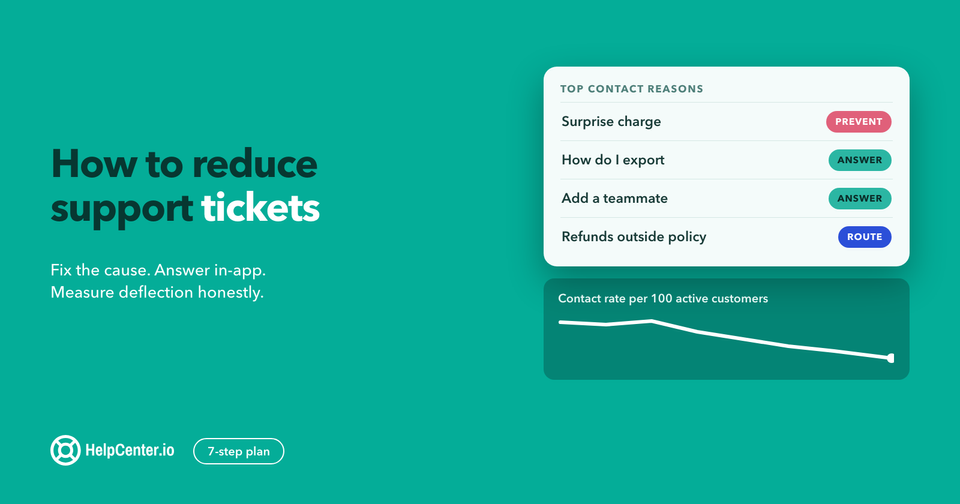
Do this first: tag one week of tickets by reason. Our 7-step plan to reduce support tickets walks through the tagging and how to rank what you find.
2. Organize by what customers are trying to do
Internal teams naturally organize docs the way the product is built: one category per module, named after the module. Customers do not think in modules. They think "get started", "invite my team", "connect my CRM", "change my plan", "fix a failed sync".
A structure that works for most SaaS products has five to eight top-level categories:
- Getting started (account setup and the first win)
- One category per core job customers hire the product for
- Integrations
- Account, billing and plans
- Troubleshooting
- Admin and security, if you sell to teams
Keep the hierarchy shallow. If a customer needs more than two clicks from the home page to reach an article, most will search instead, so make sure search works before you add a third level. The knowledgebase.dev guide on how to structure a customer knowledge base (a free resource from our team) goes deeper on naming categories.
Do this first: write your category names as the job, not the feature. "Send your first campaign" beats "Campaigns".
3. Make docs part of every release
This is the practice that separates a SaaS knowledge base that stays useful from one that decays. If updating the help center is a task someone remembers after launch, it will be skipped in the weeks that matter most.
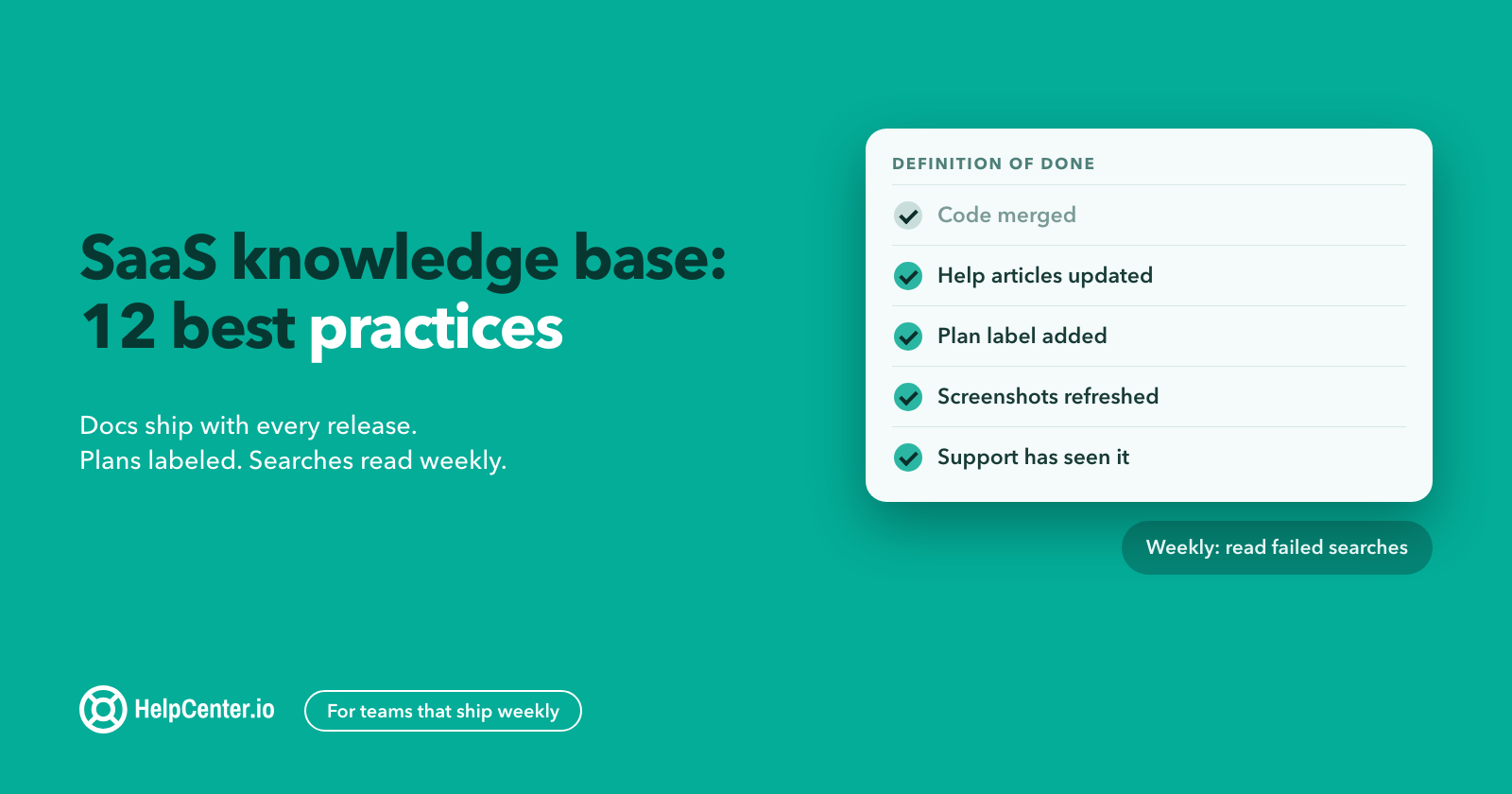
Put documentation in your definition of done. A feature is not shipped until:
- every article that mentions the changed screen, setting or label is updated;
- a new article exists if the feature adds a new task;
- the release note links to the article, not the other way round;
- support has seen the article before customers do.
The easiest way to find affected articles is to search your help center for the old label before you rename it. A renamed button is a documentation change, even if the code change is one line. Your code already knows what changed: every renamed button, new setting and reworded error message shows up in your pull requests days before a customer runs into it. Some teams now give a coding agent access to both the repository and the help center so it can draft those updates as part of the pull request. We describe that setup in our post on the HelpCenter.io MCP server.
Do this first: add one checkbox to your pull request or release template: "Help center articles updated (or none affected)".
4. Say which plan a feature needs
Plan gating is the SaaS-specific problem most knowledge bases ignore. A customer reads an article, goes looking for a setting their plan does not include, and assumes your product is broken.
Fix it in three places:
- In the first lines of the article. One plain sentence: "Available on the Growth and Enterprise plans." Put it before the steps, not in a footnote.
- In the steps. If a step looks different on different plans, say so where it happens.
- In one plan comparison article that every gated article links to, kept in sync with your pricing page on the day prices or limits change.
Being upfront here is also good selling. A customer who learns exactly what the next plan adds, from a calm help article, is far more likely to upgrade than one who hits a locked screen with no explanation.
Do this first: list every feature that is not on every plan, then check that each one's article says so in its opening lines.
5. One task per article, written to scan
People do not read help articles. They scan them, looking for the step they are on. When Jakob Nielsen studied how people read on the web, "79 percent of our test users always scanned any new page they came across; only 16 percent read word-by-word" (Nielsen Norman Group, 1997). The study is old. Watch a session recording of your own help center and you will see the same thing.
So write for scanning:
- One task or one problem per article. KCS puts it plainly: "Generally, there should be one KCS article per resolution and cause." Two tasks in one article means half the readers scroll past what they came for.
- Titles that name the task. Microsoft's style guide says "The headings should concisely describe what the instructions help customers do." "Connect Salesforce" beats "Salesforce integration overview".
- Numbered steps, one action each. The same guide: "Use a separate step for each instruction."
- The answer first. If the article answers a question, the first sentence is the answer. Background comes after.
- Bold the exact UI labels the customer will see, so they can match the screen to the text.
Our guide to writing knowledge base articles covers the seven article types and what each one should end with, and these free knowledge base article templates give you a starting structure.
Do this first: rewrite the titles of your ten most viewed articles so each one names a task or a problem.
6. Treat screenshots as code
Screenshots are the first thing to go stale in a SaaS help center, and the most visible. A customer sees an old interface in the article, a new one in the app, and stops trusting the article even if the text is still right.
- Use fewer of them. A screenshot earns its place when the customer has to find something on a busy screen. A screenshot of a single button with a label you already named in bold does not.
- Crop tight. A cropped image of one panel survives redesigns elsewhere on the page. A full-screen capture breaks when anything changes.
- Keep a list of which articles carry screenshots of which screens, so a redesign comes with a ready-made update list.
- Use sample data that contains no real customer names or emails.
- Write alt text that carries the meaning. More on that in practice 11.
Do this first: when your next release changes a screen, search your help center for images of that screen and update them in the same week.
7. Capture answers from support in the moment
The best knowledge bases are written by the people who answer customers, while they answer them. KCS is built on this idea: "Rather than being documented after the fact, KCS articles are created as part of the interaction and immediately made visible to others" (KCS v6, Capture). The reason is practical: "Once we know the answer, it is hard to ask the question in a way that reflects not knowing the answer." Written later, the article uses your vocabulary instead of the customer's.
For a small team, that becomes a simple routine:
- Before replying to a question, search the help center. KCS calls this out directly: "Searching is a form of capture." Every search that finds nothing is a missing article.
- If an article answers it, send the link. If the article is slightly wrong or unclear, fix it now or flag it. KCS calls this the rule of "flag it or fix it" (KCS v6, Flag It or Fix It).
- If nothing answers it and you have written the same reply twice, turn your reply into a draft article before you close the conversation.
- Give everyone who answers customers permission to edit articles. One person reviewing a weekly list of changes is enough control for most teams.
Do not worry about writing articles nobody reads. KCS found that "80% of the issues are solved by 20% of the knowledge base", and you cannot tell in advance which 20% it will be (KCS v6, Reuse Is Review). The articles customers actually use will show up in your analytics and earn the polish.
Do this first: agree on one rule with your team: the second time anyone writes the same answer, it becomes an article.
8. Put help inside the product
A SaaS customer who gets stuck is in your app, on a specific screen, halfway through a task. Sending them to a separate help center tab, where they have to search from scratch, loses many of them to the "Contact us" button.
The KCS guide describes the same shift: "many of the Consortium members are investing in integrating self-service into the user interface for the product, application, or service" (KCS v6, Self-Service Success). In practice that means:
- a help launcher in the app that searches your articles without leaving the screen;
- a "?" link next to complex settings that opens the exact article for that setting;
- contextual suggestions that change with the page, so the billing screen shows billing articles;
- links to setup articles in empty states and onboarding checklists;
- a clear path to a person when the article does not solve it.
That last point matters more than it looks. In our experience, self-service works best when customers trust that a human is one click away. Hiding the contact option rarely reduces tickets for long. It moves them to angrier channels.
Do this first: pick the three screens that generate the most tickets and link each one to its article.
9. Read your failed searches every week
Your help center's search box is the most honest feedback channel you have. Customers type what they want, in their own words, and every search that returns nothing tells you exactly which article is missing or mistitled.
Set a 30-minute weekly slot:
- Export searches with zero results, and searches where the reader clicked nothing.
- Group them. Five different phrasings of the same question count as one missing article with five keywords.
- For each group, decide: write a new article, retitle an existing one, or add the customer's wording to the article that already answers it.
- Check articles with the most negative ratings. A low rating on a popular article is usually one unclear step or one outdated screenshot.
Our post on knowledge base search covers how to make search itself work better.
Do this first: put the weekly failed-search review on the calendar, with a named owner.
10. Write so AI answers come out right
Your knowledge base now has two kinds of readers: people, and the AI tools that answer people from your content. That includes an AI assistant in your own product and the answer engines your prospects ask about tools like yours. The good news is that the same habits serve both. Google says as much about its own AI features: "There are no additional requirements to appear in AI Overviews or AI Mode, nor other special optimizations necessary" (Google Search Central).
What helps AI answers come out right is mostly what helps people:
- One clear answer per article. An article that covers three cases without saying which applies when gets summarized wrong.
- State conditions explicitly. "On the Growth plan and above" and "only for workspace admins" are exactly the details an AI drops when they are implied instead of written.
- No contradictions between articles. If two articles give different limits, an AI will pick one. Practice 12 is how you catch these.
- Keep private and internal content out of the public help center, so it cannot end up in a public answer.
- Delete or redirect outdated articles instead of leaving them published "for reference".
For a full checklist, see AI-ready help center content: a practical checklist. Our knowledge base SEO guide covers the search side.
Do this first: search your help center for your plan names and check that every limit and price it mentions matches your pricing page today.
11. Make it accessible
Accessible help articles are easier for everyone to use, and they read better for assistive technology and AI alike. The basics take little effort when you build them into your template:
- Use real headings in order (H2, then H3), not bold text that looks like a heading.
- Write link text that says where the link goes. "See billing settings" beats "click here".
- Give informative images alt text. The W3C's guidance for a simple informative image is to "Use a brief description of the image in a way that conveys that meaning in the alt attribute" (W3C WAI alt decision tree). For a screenshot, describe what the reader should notice: "The Export button in the top right of the Reports page".
- Caption your videos and add the key steps as text below them, so nobody has to watch three minutes to find step four.
- Check color contrast in your help center theme, including in dark mode if you offer it.
Do this first: open your five most viewed articles with a screen reader or your browser's accessibility checker and fix what it flags.
12. Give every article an owner and a review date
Without ownership, a knowledge base decays on its own schedule. With it, a small team can keep a few hundred articles accurate.
- Assign each category an owner, usually the person closest to that part of the product.
- Set review intervals by risk: monthly for billing, pricing and plan articles; quarterly for core feature articles; every six months for the rest.
- Review on demand too. An article that gets a burst of negative ratings or a run of related tickets gets reviewed now, not on its date.
- Archive deliberately. When a feature is removed, unpublish or redirect its articles in the same release.
- Show a "last updated" date on articles, so readers and your team can see what is current.
Do this first: add an owner and a next-review date to your 20 most viewed articles. That covers most of your traffic.
A 30-day plan for a small SaaS team
You do not need all 12 practices at once. Here is an order that gets the most value early, for a team where support, product and docs are a few people's part-time jobs.
| When | What to do | Practices |
|---|---|---|
| Days 1 to 5 | Tag a week of tickets by reason. Rank the reasons. Check your top 20 articles against the current product and pricing page. | 1, 4, 10 |
| Days 6 to 10 | Rewrite titles and openings of the top 10 articles. Add plan labels to every gated feature article. Fix outdated screenshots on those pages. | 4, 5, 6 |
| Days 11 to 15 | Add the documentation checkbox to your release template. Agree the "second time, it becomes an article" rule with everyone who answers customers. | 3, 7 |
| Days 16 to 20 | Link your three highest-ticket screens to their articles inside the app. Make sure the contact option stays visible. | 8 |
| Days 21 to 25 | Run your first failed-search review. Write or retitle articles for the top groups. Fix accessibility basics in your template. | 9, 11 |
| Days 26 to 30 | Assign category owners and review dates. Restructure categories around customer jobs if you need to. Compare ticket reasons with your day-one list. | 2, 12 |
Measure the result against your starting point, not against someone else's benchmark. The simplest honest measure is your contact rate: conversations per 100 active customers, per week. Our customer self-service guide covers measurement in more depth.
Mistakes that make a SaaS knowledge base go stale
- Writing everything before launch, then never again. A help center written once is accurate for one release.
- Documenting the interface instead of the task. An article per screen, explaining every field, answers nobody's question.
- Burying plan limits. Customers find out they cannot use a feature by failing, then write to you.
- Making one person the bottleneck. If only the technical writer or founder can edit, small errors stay published for months.
- Keeping duplicate articles. Two articles on the same task drift apart, and both customers and AI pick the wrong one. Merge them.
- Counting help center visits as success. Visits tell you people looked. They do not tell you people found the answer.
- Hiding support behind the help center. Customers who cannot reach a person when the article fails stop trusting the articles too.
Choosing a knowledge base platform for a SaaS product
Most of these practices work in any tool. A few depend on what your platform makes easy, so check these before you commit:
- In-app help: can you embed search and articles inside your product, and link a specific article from a specific screen?
- Search analytics: can you see searches with no results and article ratings without exporting raw logs?
- Editing for the whole team: can everyone who answers customers edit or flag an article, with roles for who can publish?
- Pricing that fits how you grow: does adding editors or help center viewers raise the bill? Per-seat pricing can make "everyone edits" expensive.
- AI that stays grounded: if the platform offers AI answers, do they come only from your published articles, cite the source, and hand off to a person? Which plan includes them?
- Branding and a custom domain, so the help center looks like part of your product.
- A way out: can you export your articles if you ever move?
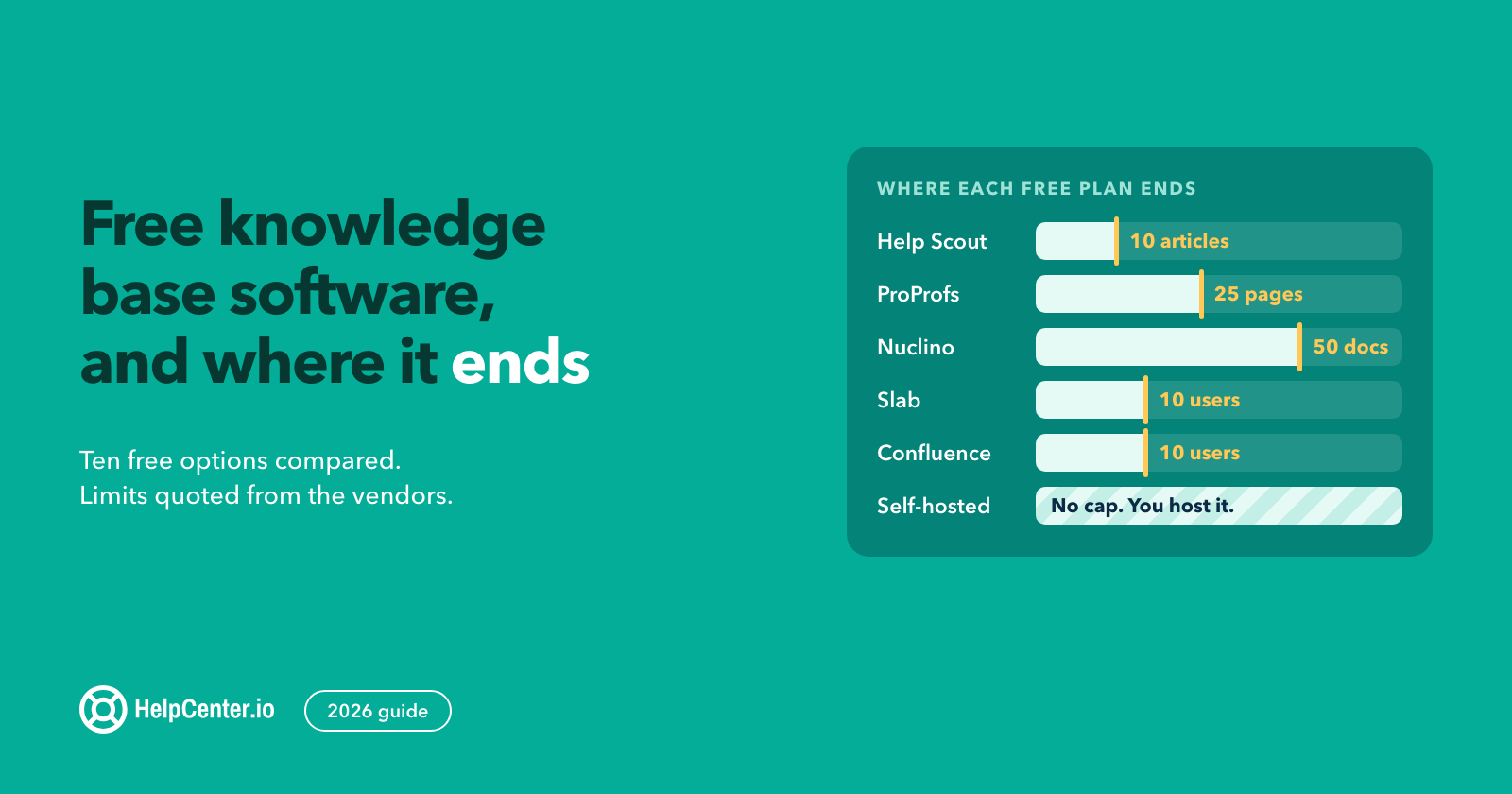
For side-by-side options, see our roundups of the best knowledge base software and free knowledge base software, and these 20 knowledge base examples for what good looks like in practice.
Frequently asked questions
What should a SaaS knowledge base include?
Start with getting-started articles, one how-to article per core task, integration guides, account and billing articles that say which plan includes what, and troubleshooting articles for your most common problems. Write them in your customers' words, and add new ones from the questions your support team answers more than once.
How many articles does a SaaS knowledge base need?
There is no right number. Start with articles for your top 20 ticket reasons and your onboarding path, then add articles from failed searches and repeat questions. A smaller set that is accurate and easy to find helps customers more than a large set that is out of date.
How often should you update a SaaS knowledge base?
Update affected articles with every release that changes a screen, setting or label, and review articles on a schedule: monthly for billing and plan articles, quarterly for core features, and every six months for the rest. Review any article immediately when its ratings drop or related tickets rise.
Who should own the knowledge base at a small SaaS company?
Give one person overall responsibility for structure and the review calendar, usually in support or product. Then let everyone who answers customers edit or flag articles, and give each category an owner who knows that part of the product.
Where HelpCenter.io fits
We make HelpCenter.io, so take this section as the disclosure it is. Every practice above works in any knowledge base tool. If you want them in one place, HelpCenter.io for SaaS gives you a branded help center with an in-app widget on every plan: open it from your own Help menu or a "?" beside a setting, and it suggests articles that fit the page. Zero-result searches and article ratings land in analytics on every plan, for the weekly review in practice 9.
AI answers, composed only from your published articles and linked to their sources, are included on Catalyst or a $29/mo add-on on Bootstrap and Growth (see how AI answers work). Growth and Catalyst also include the MCP server, so an AI agent can review your content, structure and failed searches with you. Pricing is a flat price per help center, not per support seat, starting at $39/mo or $29/mo billed annually (pricing), with a 14-day free trial and no credit card required.
When a question needs a conversation, HelpCenter.chat, our live chat, adds free human chat next to your help center.
If you put one of these practices in place this month, we would like to hear which one made the biggest difference. Reply to any of our emails or send us a message from our help center.