7 Free Knowledge Base Article Templates (Markdown, HTML and Examples)
Seven copy-ready knowledge base article templates in Markdown (four also in HTML), filled examples, and how to roll them out to a support team.
You can give every article in your help center the same clear shape today, for free, by starting from a template. Below are 7 copy-ready knowledge base article templates: how-to, troubleshooting, FAQ, getting started, billing or policy, integration and release note. Each one comes in Markdown you can paste into any editor, with a filled example for the two you will write most, and HTML versions for four of them.
We also cover which template fits which customer question, what every good article shares, and how to roll templates out to a team without turning them into busywork. Disclosure: we make HelpCenter.io and Compass, the free knowledge base kit the last three templates come from. Everything here works in any help center tool.
Which knowledge base article template do you need?
Pick the template from the question the customer is asking, not from the feature you want to document. Diátaxis, a widely used documentation framework, puts it plainly: "How-to guides must be written from the perspective of the user, not of the machinery." The same goes for every article type.
| The customer is asking... | Article type | What the article must end with |
|---|---|---|
| "How do I export my invoices?" | How-to | A success check the customer can see |
| "Why do I get error 503 when I sync?" | Troubleshooting | A fix, a way to verify it, and a support route |
| "Do you ship internationally?" | FAQ | A direct answer with its main exception |
| "I just signed up. What now?" | Getting started | A working setup and the next task |
| "Can I get a refund if I downgrade?" | Billing or policy | The current rule, its scope and its effective date |
| "How do I connect Slack?" | Integration | A test, the limits, and how to disconnect |
| "What changed in the new editor?" | Release note | Who gets the change and whether they must act |
If a question fits two rows, it is usually two articles. The same goes for fixes: steps that branch into "if you are on plan A, do this; otherwise do that" are a sign you need two separate articles, each for its own situation.
What every good knowledge base article template shares
All seven templates below are built from the same six parts. If you only adopt one idea from this post, adopt these.
- A title in the customer's words. The KCS methodology from the Consortium for Service Innovation says the issue should be "described in the requestor's words and phrases". If customers say "upload my ID" and your button says "Provide verification", title the article "How to upload your ID" and mention the button label inside.
- A short answer first. In Nielsen Norman Group's early web-reading research, "79 percent of our test users always scanned any new page they came across", and their 2017 eye-tracking work found the F-shaped scanning pattern still holds. A two- or three-sentence answer at the top serves the scanners and gives answer engines a quotable block.
- Prerequisites before steps. Role, plan and anything the customer needs in hand. Finding out at step 4 that you need admin rights is a common way for a correct article to still fail.
- One action per step. Microsoft's style guide says to "Use a separate step for each instruction", and Google's developer style guide marks optional steps with "Optional:" at the start, so nobody skips a required one.
- A success check and a way out. Every task article ends with what the customer should see when it worked, and what to do when it didn't.
- An owner and a review date. The front matter at the top of each template (
owner,last_verified,next_review) is what keeps a help center from rotting. Delete it before publishing if your tool shows it, but keep it in your source.
Length follows the job. KCS says "Ideally, KCS articles are a page or less in length." If yours runs much longer, it is probably two articles.
1. How-to article template
How-to articles answer "How do I...?" and are often the most common type in a help center. Use one for any task with a clear end state: exporting data, changing a setting, inviting a teammate. Keep each article to one task. "How to manage your account" is a topic page; "How to change your account email" is a how-to.
---
owner: "[accountable person]"
last_verified: "[YYYY-MM-DD]"
next_review: "[YYYY-MM-DD]"
---

# How to [complete one task]

> **Short answer:** [The shortest correct path and the result, in 1 to 3 sentences.]

## Before you start
- Required role: [role]
- Available on: [plans or versions]
- You will need: [prerequisites]

## Steps
1. Open **[exact screen name]**.
2. Select **[exact control label]**.
3. Enter [required information].
4. Select **[final action]**.

## Check that it worked
[An observable success state, and where the customer will see it.]

## If something goes wrong
| Symptom | Likely cause | Next step |
| --- | --- | --- |
| [Exact error or behavior] | [Verified cause] | [Safe next step] |

## Related
- [Link to the prerequisite task]
- [Link to the next logical task]
Tips that make it work:
- Start the title with a verb: "Export your invoices", not "Invoice exports".
- Bold the exact UI labels and copy them from the product, not from memory. When a label changes, a search for the bolded text finds every article to update.
- Don't open with a sentence that repeats the heading. Microsoft's guide says an introductory sentence "shouldn't just repeat what the heading says"; the short answer does that job better.
- Add a screenshot only where a step is easy to get wrong. Every screenshot is something to re-capture at the next redesign.
Filled example: how-to
Here is the template filled in for a typical SaaS task, so you can see how much (and how little) goes in each section.
---
owner: "Maya (Support)"
last_verified: "2026-10-01"
next_review: "2027-01-01"
---

# How to export your invoices as a CSV

> **Short answer:** Go to Billing > Invoices, select a date range, and
> select Export CSV. The file downloads right away and includes every
> invoice in that range, up to 12 months at a time.

## Before you start
- Required role: Owner or Billing admin
- Available on: all paid plans
- You will need: the date range your accountant asked for

## Steps
1. Open **Billing** from the left sidebar.
2. Select the **Invoices** tab.
3. Set **From** and **To**. The range can be up to 12 months.
4. Select **Export CSV**.

## Check that it worked
A file named `invoices-YYYY-MM-DD.csv` appears in your downloads.
Each row is one invoice, with the number, date, amount and tax.

## If something goes wrong
| Symptom | Likely cause | Next step |
| --- | --- | --- |
| No Export CSV button | You are not an Owner or Billing admin | Ask an Owner to change your role |
| "Range too long" | More than 12 months selected | Export in two parts |

## Related
- How to change who receives invoice emails
- How to add a VAT number to your invoices
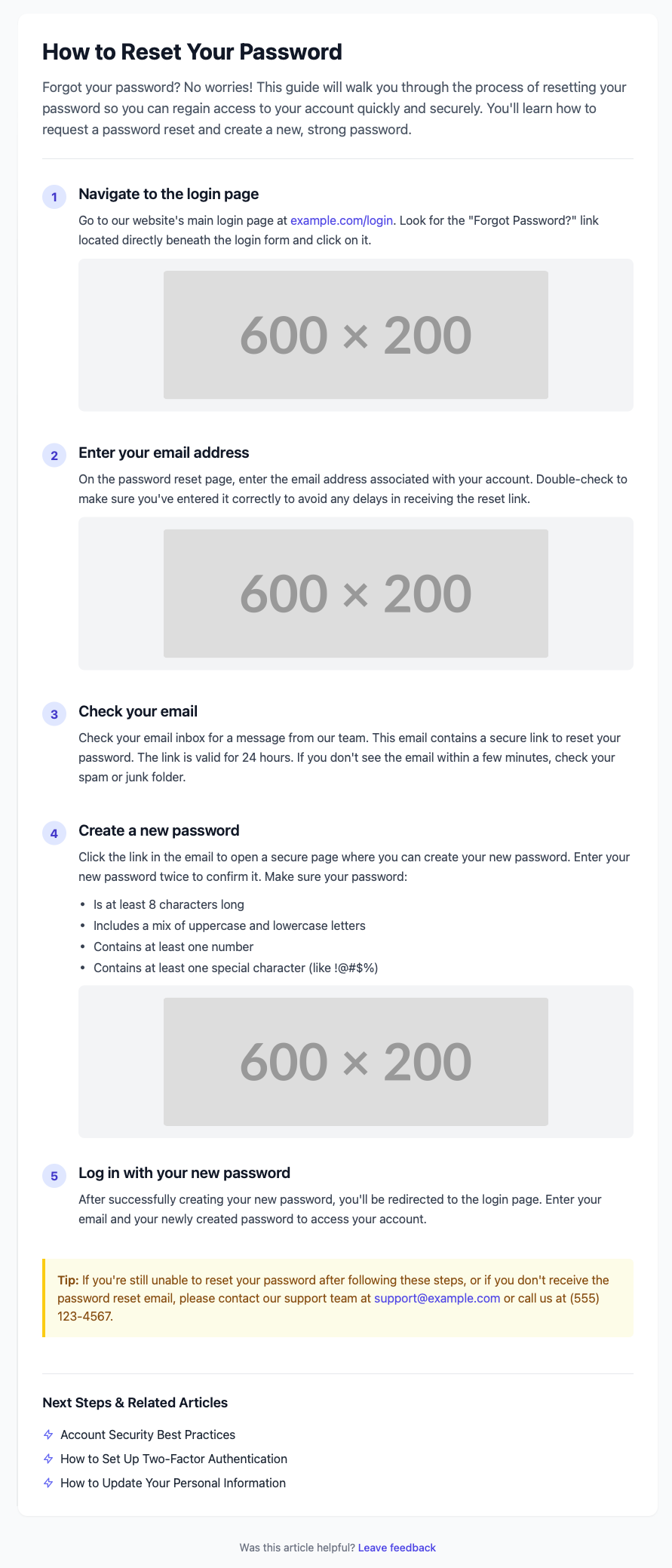
Prefer HTML? Our how-to HTML template is a styled, single-file page with numbered steps and image slots. It renders like this:
2. Troubleshooting article template
Troubleshooting articles start from something broken: an error code, a failed sync, a declined payment. Customers usually arrive by searching the exact error text, so put that text in the title.
---
owner: "[accountable person]"
last_verified: "[YYYY-MM-DD]"
next_review: "[YYYY-MM-DD]"
---

# [Exact error message or symptom, in the customer's words]

> **Short answer:** [The most likely cause and the first safe check.
> Say what NOT to retry if retrying could cause duplicate charges,
> emails or data.]

## What you are seeing
[Quote the exact error. Name the affected app, version or browser.]

## Check these first
1. [Fast, reversible check.]
2. [Permission or account check.]
3. [Service status or integration check.]

## Fix it
### Cause 1: [cause]
[How to confirm this is the cause, then the steps that fix it.]

### Cause 2: [cause]
[How to confirm, then the fix.]

## Verify the fix
[A test the customer can run, and the result they should see.]

## Still stuck?
Contact [support channel] with:
- The time and time zone
- The page or item ID
- The steps you already tried
- A screenshot or the exact error message

Never send passwords, access tokens or card numbers.
Tips that make it work:
- Order the checks from cheapest and safest to most disruptive. "Clear your cache" comes before "reinstall the app"; "delete your account and start over" never belongs in a first-line fix.
- Give each cause a way to confirm it. KCS calls this a "Cause Test": a check that lets the reader confirm their issue matches the article before they follow the fix.
- Say what not to retry. A customer who clicks "Pay" three times because the article didn't warn them is a refund ticket.
- End with what to send support. A list of what to include (time, ID, steps tried) shortens the ticket that still comes in.
Filled example: troubleshooting
# "Connection error (503)" when syncing the mobile app

> **Short answer:** This usually means the app lost its connection
> mid-sync. Check your network and our status page first. Don't
> delete and reinstall the app: unsynced changes on the phone would
> be lost.

## What you are seeing
The sync stops and shows "Connection error (503)". Changes made on
your phone don't appear on the web dashboard.

## Check these first
1. Open any website on the phone. If it doesn't load, fix the network first.
2. Check status.example.com for an ongoing incident.
3. Check the app version in Settings > About. It should be 4.2 or later.

## Fix it
### Cause 1: unstable connection
Switch between Wi-Fi and mobile data, then pull down on the project
list to sync again.

### Cause 2: outdated app
Update the app from the App Store or Google Play, open it, and sync.

## Verify the fix
Edit one task title on your phone. It should appear on the web
dashboard within a minute.

## Still stuck?
Contact support@example.com with the time of the error, your app
version, and a screenshot of the message.
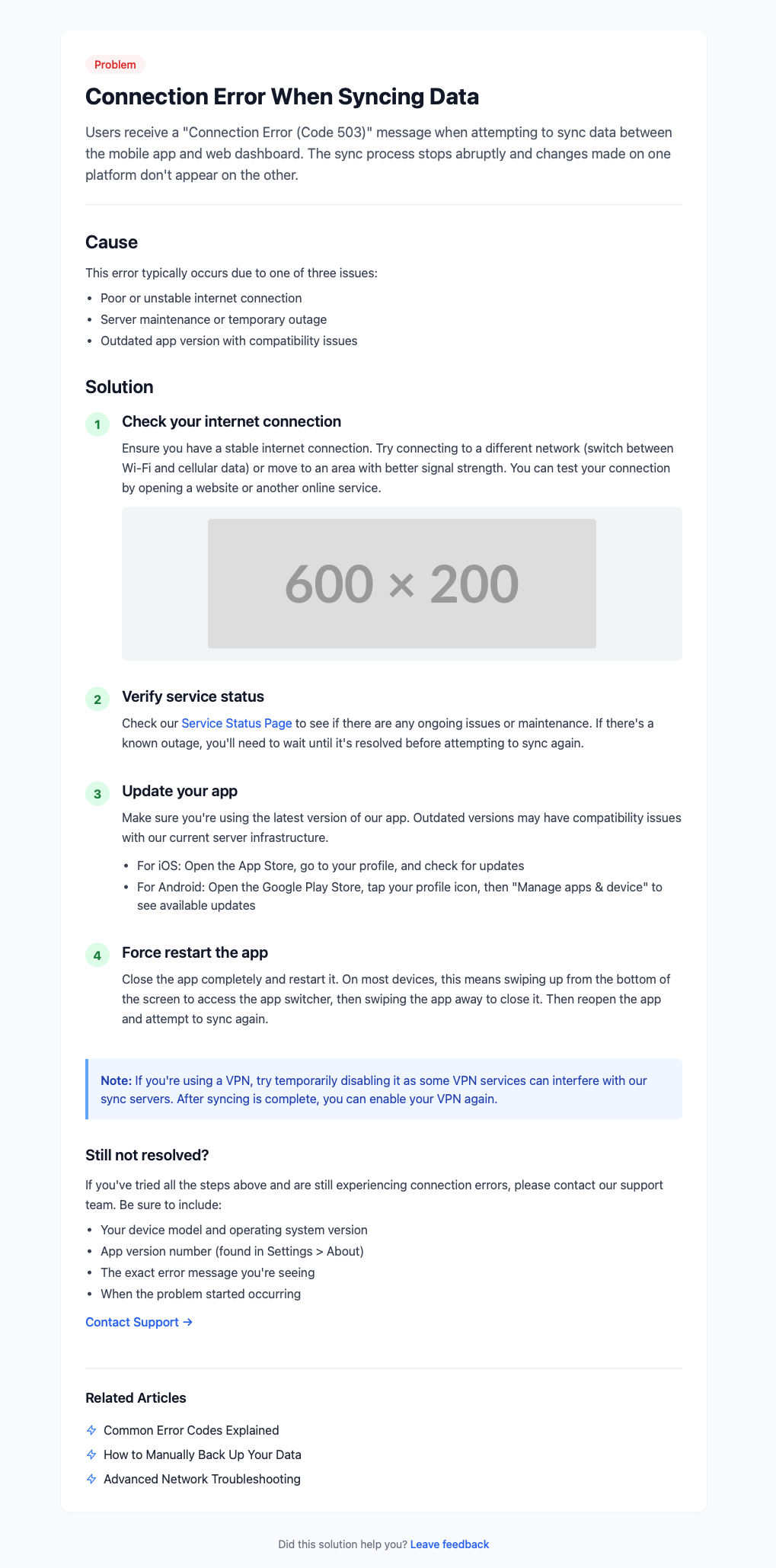
The troubleshooting HTML template lays this out as problem, cause and numbered solutions. For a ready-made page with a symptom table, see the free troubleshooting guide template on knowledgebase.dev.
3. FAQ article template
An FAQ article answers one question fully. Use it for questions that come up again and again and have a stable answer: shipping times, data retention, whether a feature exists. If the answer needs steps, write a how-to and link to it from the FAQ.
---
owner: "[accountable person]"
last_verified: "[YYYY-MM-DD]"
next_review: "[YYYY-MM-DD]"
---

# [A question customers actually ask, in their words?]

> **Short answer:** [Answer directly. Put the main exception in the
> same paragraph, not three sections below.]

## Who this applies to
[Plans, regions, roles or versions. Leave out what doesn't matter.]

## Example
[One realistic example that shows the rule. Use made-up data.]

## Exceptions
[Edge cases. Delete this section if there are none.]

## What to do next
[Link to the action or the full how-to. The answer above should
still be useful without the click.]
Tips that make it work:
- Pull the questions from your inbox, not a brainstorm. Export a month of tickets, group them by question, and write the top ten first.
- Put the exception in the first paragraph. "Returns are free within 30 days, except personalized items" saves the reader from finding out at the bottom.
- Keep the answer useful without the link. Some readers won't click through.
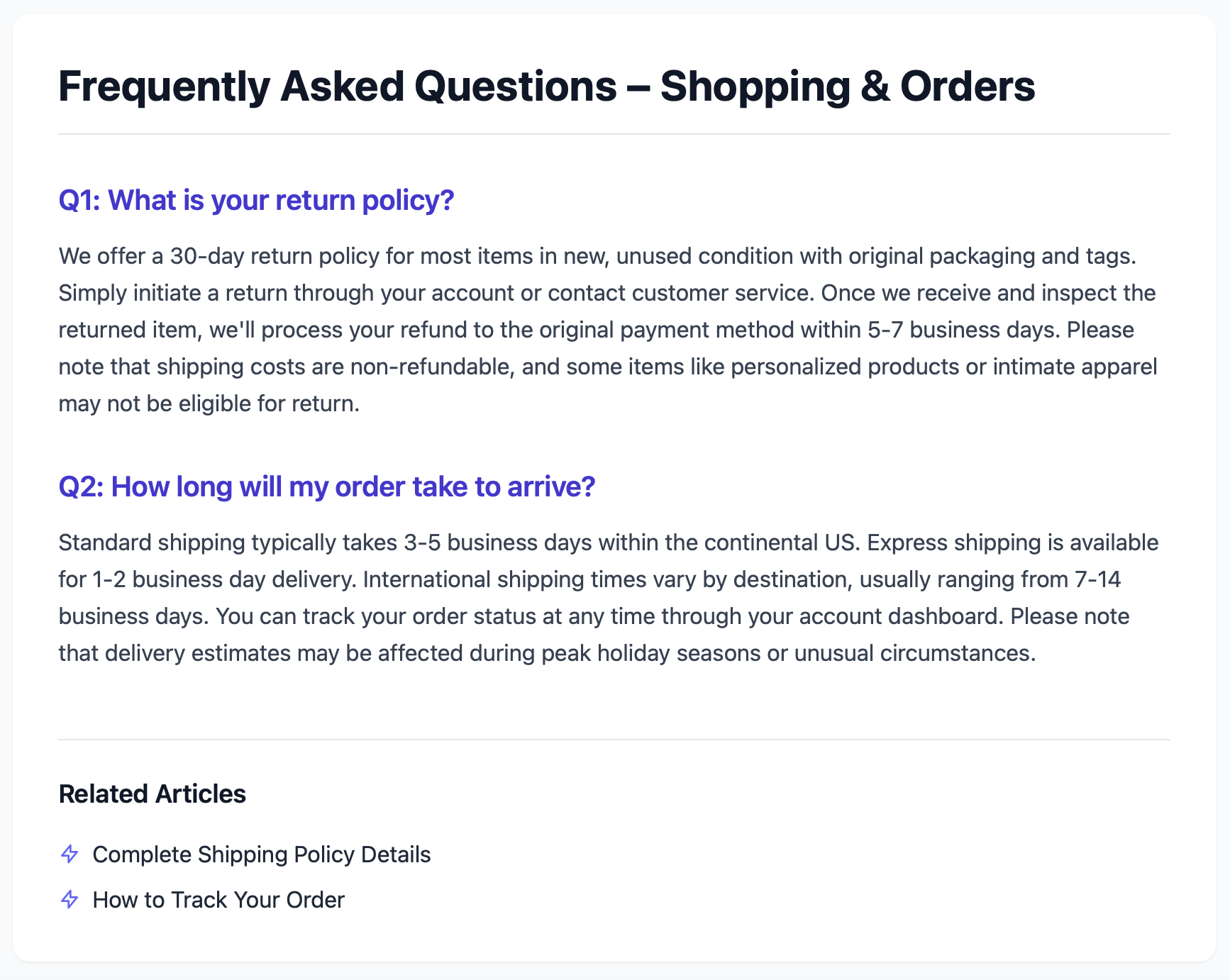
If you are building a page of many questions rather than one article per question, the FAQ HTML template gives you a full Q&A page, our FAQ section templates post has five ready-made layouts, and our FAQ page examples post shows how 14 real companies structure theirs. One note if you plan to add FAQ schema: Google stopped showing FAQ rich results in May 2026, so treat the markup as optional (more in our FAQ SEO guide).
4. Getting started (onboarding) article template
A getting started article takes a new customer from sign-up to their first useful result. It is the one article almost every new customer reads, so it is worth the most care.
---
owner: "[accountable person]"
last_verified: "[YYYY-MM-DD]"
next_review: "[YYYY-MM-DD]"
---

# Getting started with [product]

> **Short answer:** [What the customer will have working at the end,
> and roughly how long it takes.]

## What you'll set up
- [Outcome 1, for example "a workspace your team can log in to"]
- [Outcome 2]
- [Outcome 3]

## Step 1: [Create or sign in]
[One task. Link to its full how-to if it has more than 4 steps.]

## Step 2: [Configure the one setting that matters most]
[Why it matters, then what to do.]

## Step 3: [Invite people or connect data]
[What to do, and what the invited person will see.]

## Step 4: [First real use]
[The smallest useful thing they can do now.]

## You're set up when
[A checklist of observable results.]

## Next steps
- [Link to the next most common task]
- [Link to a deeper guide]
- [How to get help]
Tips that make it work:
- Stop at the first real win. Everything after that belongs in "Next steps".
- Link out instead of nesting. If a step has its own how-to with more than four steps, link to it rather than copying it in.
- Re-test it every release. A getting started article that is wrong at step 2 costs you more than any other article, because the reader has no product knowledge to work around it.
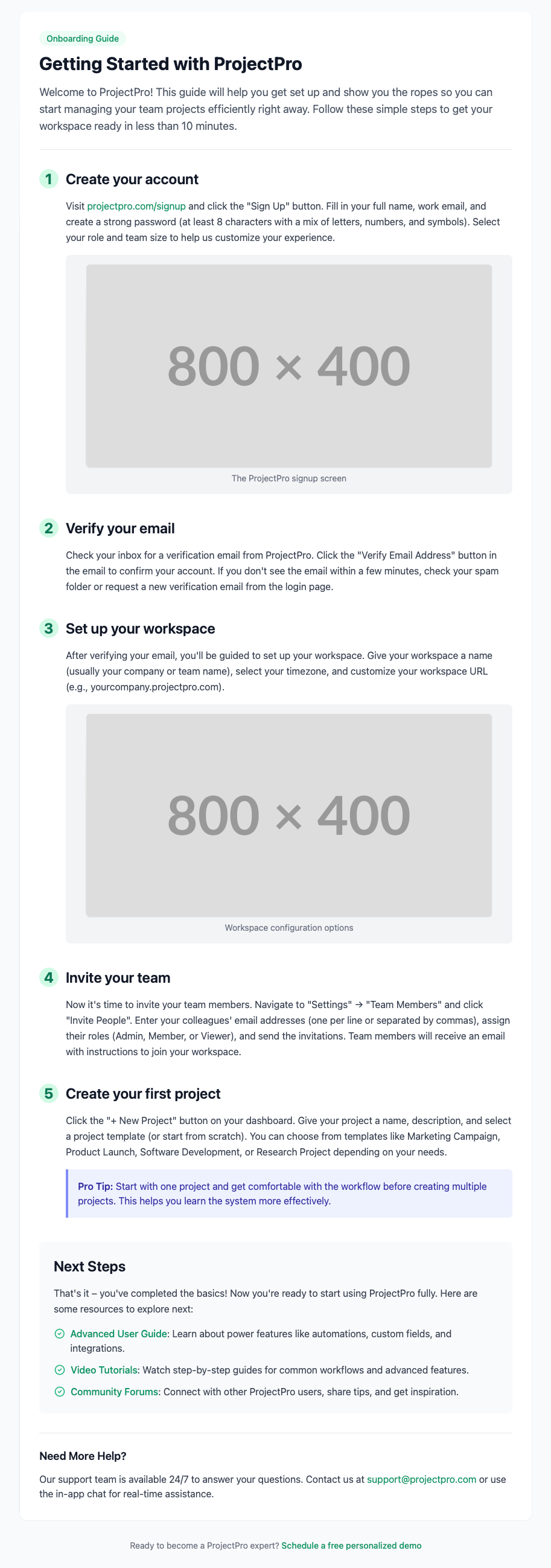
The getting started HTML template shows five numbered setup steps, a tip box and next steps:
5. Billing or policy article template
Billing and policy articles state a rule: refunds, proration, cancellations, data retention. They are short, but they carry the most risk, because a wrong sentence becomes a promise.
---
owner: "[accountable person]"
policy_owner: "[person or team who approves changes]"
last_verified: "[YYYY-MM-DD]"
next_review: "[YYYY-MM-DD]"
---

# [Billing or policy question, in the customer's words?]

> **Short answer:** [The current rule, when it takes effect, and what
> the customer must do.]

## Scope
- Applies to: [plans, purchase channels and regions]
- Effective date: [YYYY-MM-DD]
- Source of truth: [link to the approved policy or pricing page]

## How it works
[Explain timing and charges with one worked example. Don't invent
refund windows, proration, taxes or guarantees.]

## Take action
1. [Where to go.]
2. [What to select.]
3. [What the customer will see before confirming.]

## Exceptions and help
[Approved exceptions, and the right way to ask for one.]
Tips that make it work:
- Link to one source of truth. If the rule lives in your terms or pricing page, link to it, and don't restate numbers you can't keep in sync.
- Use a worked example with real dates. "If you downgrade on March 10 on a monthly plan, the change applies on your next billing date" is clearer than any general rule.
- Get the policy owner's sign-off before publishing, and put their name in
policy_ownerso the next editor knows who to ask.
6. Integration article template
Integration articles explain how to connect another tool. Customers read them carefully because they are about to grant access to their data, so be specific about what is shared.
---
owner: "[accountable person]"
last_verified: "[YYYY-MM-DD]"
next_review: "[YYYY-MM-DD]"
---

# Connect [tool] to [product]

> **Short answer:** [Which way data flows, what syncs, and the main
> permission the customer needs.]

## Before you connect
- Required plan: [plan]
- Required role in each tool: [roles]
- Data shared: [specific fields or objects]
- Permissions requested: [scopes, and why each is needed]

## Connect
1. Open **[integration settings]**.
2. Select **[tool]**.
3. Review the permissions and authorize access.
4. Choose [sync direction, destination and frequency].

## Test it
[Use one harmless test item. Say what should appear, where and when.]

## Limits and troubleshooting
[Unsupported fields, sync delay, rate limits, and where errors appear.]

## Disconnect
[How to revoke access in both tools. Say whether synced data stays.]
Tips that make it work:
- List the permissions and why each is needed. A security reviewer will read this section before your customer is allowed to click "Authorize".
- Tell people how to test with something harmless, like a test ticket or a dummy contact, before they sync real data.
- Always include "Disconnect". It is the section people look for when something goes wrong, and it answers whether their data stays behind.
7. Release note template
A release note tells customers what changed and whether they need to act. Write it from the customer's side ("You can now export to CSV"), not the changelog's ("Added CSV export endpoint").
---
owner: "[accountable person]"
last_verified: "[YYYY-MM-DD]"
---

# [What changed for the customer]

> **Short answer:** [The new behavior, who gets it, and whether they
> need to do anything.]

## Available to
- Plans or versions: [scope]
- Rollout: [date, or "rolling out over the next N days"]
- Required action: [action, or "none"]

## Before and after
| Before | Now |
| --- | --- |
| [Old behavior] | [New behavior] |

## Use the change
[Short steps, plus a link to the permanent help article.]

## Known limitations
[Real limits. Delete this section if there are none.]
The most useful part of a release note is the work it triggers: every permanent article the change touches needs an update the same day. For a full page layout, see the free release notes template on knowledgebase.dev.
How to roll templates out to your team
Templates only help if people use them. This is the order that works for small support teams.
- Start with two. Pick the two article types your inbox asks for most, often how-to and troubleshooting. KCS advises the same restraint: "Start with one, keep it simple, and let our experience drive the need for additional templates."
- Put them where people write. Save each template as a reusable snippet or draft in your help center editor, so starting from it is one click. A template that lives in a separate shared doc is easy to forget.
- Write your top ten from real tickets. Take the ten most common questions from last month's inbox and write one article each with the templates. That first batch shows whether the structure fits your product.
- Review on a schedule. Sort articles by
next_reviewonce a month and re-check the ones that are due. Start with getting started and billing articles, the costliest ones to get wrong. - Change the template, then the articles. When reviewers keep adding the same missing section, add it to the template first so new articles get it.
Common mistakes with knowledge base article templates
- Filling every section because it's there. Delete sections that don't apply. An empty "Exceptions: none" adds scrolling, not trust.
- Mixing two tasks in one article. If you write "if you are on the Pro plan, do X; otherwise do Y", split it.
- Writing for the product, not the reader. "The Export module supports CSV" describes the machinery. "Export your invoices as a CSV" describes the job.
- Marketing copy in help articles. In the same Nielsen Norman Group study, users detested "marketese", the promotional style full of boastful claims. Help articles are where customers are already sold; get them unstuck.
- No owner. An article without an owner is never updated. The
ownerfield is the cheapest fix in this post.
Download the templates
- Markdown: copy any block above into a docs repo or any editor that accepts Markdown. In a visual editor, recreate the headings and keep the order.
- HTML: the how-to, troubleshooting, FAQ and getting started templates are single-file pages in our free knowledge-base-article-templates repository on GitHub.
- The full kit: templates 5 to 7 are adapted from the six article blueprints in Compass, our free, open-source (GPL-3.0) knowledge base template at knowledgebase.dev. The kit also includes a 20-page help center design, a launch checklist and a content audit. Each blueprint carries an author's preflight checklist to run before publishing.
For the writing itself, the guide how to write a help article that gets someone unstuck walks through the same format step by step, and our post on creating effective knowledge base articles covers article types and examples.
Put the templates to work
The templates work in any tool. If you also want a place to publish them, HelpCenter.io (ours) is a help center with a flat price per help center rather than per agent, and you can "Start with a 14-day free trial, no credit card required." The Compass design is also available as a HelpCenter.io template. Comparing tools first? Our best knowledge base software for 2026 roundup covers the main options, including free ones.
Knowledge base article template FAQ
What should a knowledge base article include?
A title in the customer's words, a short answer at the top, prerequisites, numbered steps with one action each, a way to check it worked, and what to do if it didn't. Add an owner and a review date in your source so someone keeps it current.
How long should a knowledge base article be?
As long as the task needs and no longer. The KCS methodology suggests a page or less. If an article grows past that, check whether it covers two tasks or two causes, and split it.
Should every article type use the same template?
Start with one or two and add more only when articles keep needing a section the template lacks. Seven types make a full set, but few teams need all seven on day one.