Release Note: Beautiful backgrounds from Unsplash, edit embeds in place, and let your readers take your articles anywhere
It has been a busy few weeks at HelpCenter.io, and I am happy to be back with another round of release notes. This one is a mix – a couple of features I have personally wanted to ship for a long time, a handful of smaller improvements that fix annoyances I know many of you have run into, and a quieter set of polish work behind the scenes.
If you have ever wanted to give your help center a fresh look in a few clicks, edit an embedded video without leaving the article editor, or let your readers print or download what they are reading, this update is for you.
Here's what's new.
Choose a header background straight from Unsplash
The header is the first thing your readers see – and yet, until now, dressing it up meant either uploading your own image or copy-pasting a URL from somewhere else. Functional, but not exactly inspiring.
Starting with this update, you can pick a beautiful header background directly from a curated Unsplash library inside the Template Editor. Open the "Header" section, switch the image background toggle on, and immediately browse through a small set of photographs ready to drop into your help center. You can keep searching Unsplash from inside the editor if nothing in the curated set quite fits.
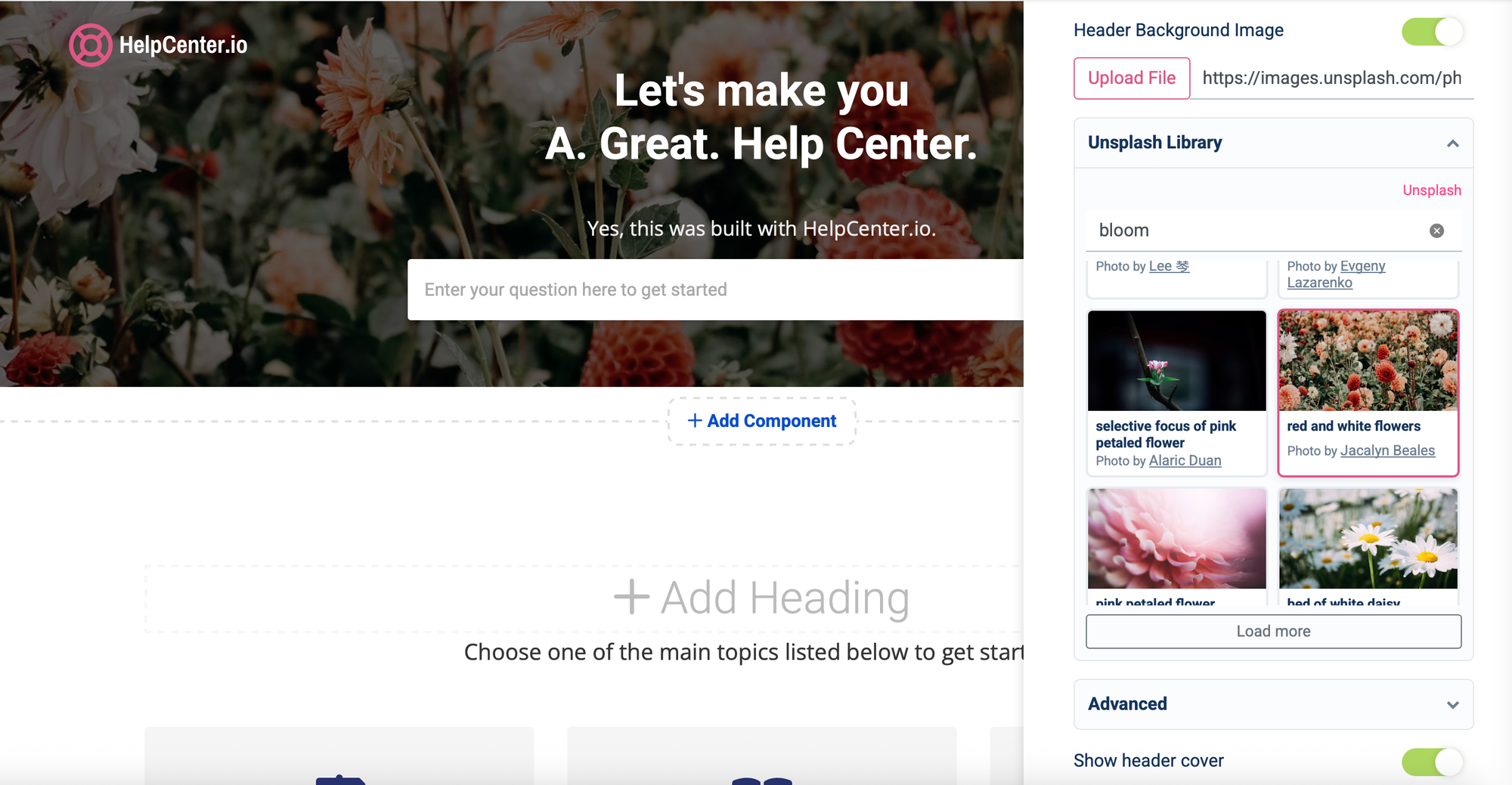
And once you have chosen an image, you can shape it. You will find fresh controls for:
- Background size – cover, contain, or a specific dimension
- Repeat – tile it, repeat-x, repeat-y, or no repeat
- Position – top, center, bottom, or your own coordinates
- Scroll behaviour – fixed or scrolling with the page
- Blend mode – multiply, overlay, screen, and the rest
Stack any of these on top of the controls you already know – fonts, size, cover, layout – and your header can finally look exactly the way you had in mind.
If you would rather keep using your own image, nothing changes – the upload field and the custom URL field are still there. Unsplash just gave you a much faster way to get to "this looks great" without leaving the dashboard.
Time to make your help center header your own.
Edit your embedded content right inside the article editor
If you have ever embedded a GitHub gist, a CodePen, an X (Twitter) post, or any other piece of HTML content into one of your articles, you know the dance: insert the embed, realize the parameters need a tweak, delete the block, re-paste, re-format. We have been doing it too. It was bugging me personally.
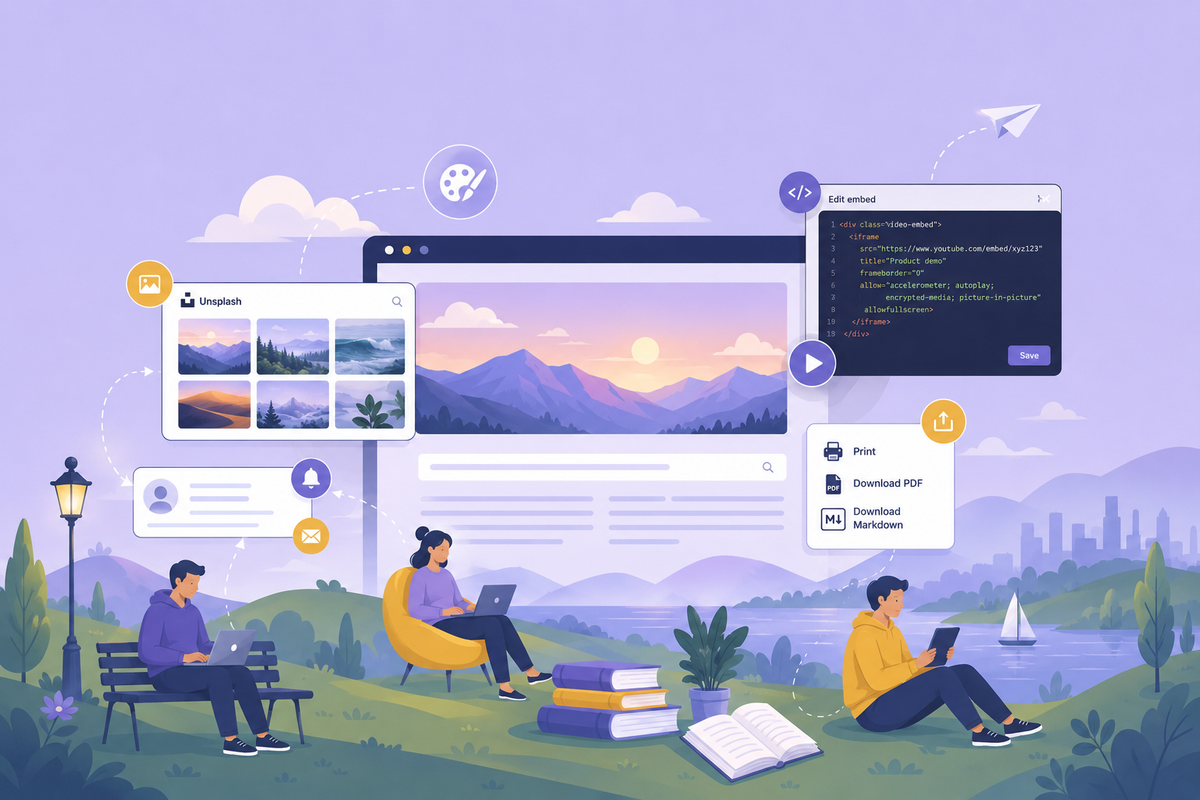
With this release, every embed in your article editor is now editable in place. Click on an embedded block, and you will see an "Edit" overlay appear right on top of it. Click it, and the embed opens in a modal with a proper HTML editor – Ace, with syntax highlighting, so you can adjust the markup directly, see what you are doing, and confirm.
Selecting an embed also makes it a first-class block, you can move it, backspace it cleanly out of the article, and treat it like any other piece of content.
No more delete-and-re-paste. Just edit and continue writing.
Print, save as PDF, or download as Markdown
People read your help center in lots of ways: on a desktop, on a phone, on a tab they keep open for weeks. Some of them want to take the article with them, especially if it is a longer guide they will want to refer back to.
You can now give them that option. From the Template Editor, you will find a new toggle inside the "Article" group – Print / Export – disabled by default. Switch it on, and your published articles get a small dropdown on the article page with three options:
- Print – a clean, print-ready view focused on just the article content
- Download PDF – the same article, packaged as a PDF
- Download Markdown – the article in Markdown, ready to drop into a doc, a wiki, or another knowledge base
The print stylesheet was rebuilt specifically for this, so the printed page does not drag in the navbar, the search widget, or any of the chrome that does not belong on paper.
If you do not want this option visible on your help center, leave the toggle in your Template Editor options off and nothing changes. If you do, your readers get a little more freedom.
Reply notifications, with a one-click unsubscribe
For help centers that have comments enabled, this is one I have been looking forward to.
When someone replies to a comment on one of your articles, the original commenter now gets an email letting them know, with a one-click unsubscribe link in the footer if they would rather not be notified again. The unsubscribe link is per-comment and signed – they do not need an account, and you do not need to do anything.
Notifications for top-level comments to article authors and to your site's configured notification address continue to work exactly as before. This was a small piece of polish work that took a couple of iterations to get right, and I am happy with where it landed. Your conversations on your help center should feel like conversations – not one-sided posts your readers never hear back from.
Translator workflow: fewer surprises, faster turnaround
If your help center supports multiple languages and you have translators on your team, this is for you.
When a translator publishes a translation of an article in a non-default language, they are now automatically subscribed to changes on the default language of that same article. The next time the source content is updated, they will receive an email – with a translator-specific subject line so it is easy to spot in a busy inbox – telling them their translation may need attention.
No more silently-out-of-date translations because nobody told the translator the source had changed.
Recently Unpublished, in the articles listing
A small one, but a useful one. The articles listing in your dashboard now has a new sort option: Recently Unpublished, sitting alongside the existing sort options.
If you are auditing what has been taken offline, cleaning up after a content review, or just trying to find that one article you unpublished three weeks ago and never got back to, this gets you straight there.
What else? A round of polish and fixes
Beyond the headline features, this update closes out a stack of small irritations that have been quietly bothering us:
- Custom menu items are now visible in the minimal header style – previously they were collapsed into a second-level menu that almost nobody saw.
- The "Back to website" link and custom menu links in the Template Editor preview now open correctly in a new tab. A subtle typo in the markup was sending them to the wrong target.
- Renaming an article slug back and forth (A → B → A, or longer chains) no longer creates an infinite redirect loop. The slug-redirect resolver now follows chains safely and bails out clearly.
- The contact form no longer crashes when the optional file-attachment field is left empty.
- Single sign-on now returns clear error responses when the JWT is missing, malformed, or points at an unknown domain – much friendlier than the generic 500 you used to see.
- The /suspended URL on an active help center now politely redirects readers to the homepage, instead of showing a confused page.
- A few public 404 pages that were silently returning a server error on unusual query parameters now render normally. You may not notice the difference, but Sentry will be a lot quieter.
And as always, plenty of smaller improvements and refinements under the hood – the kind you will feel rather than see.
Let us know what you think
This release shipped because of feedback from many of you, and we keep wanting more of it. If something here makes your day easier, tell us. If something is missing, tell us that too.
Drop your thoughts via live chat or email. We read all of it.
Until next time.