Turn Notion Into a Help Center That Stays in Sync
Connect your Notion workspace, pick the page your docs live under, and HelpCenter.io turns it into a searchable help center on your own domain. It checks Notion for changes every hour, so your team keeps writing where it already does.
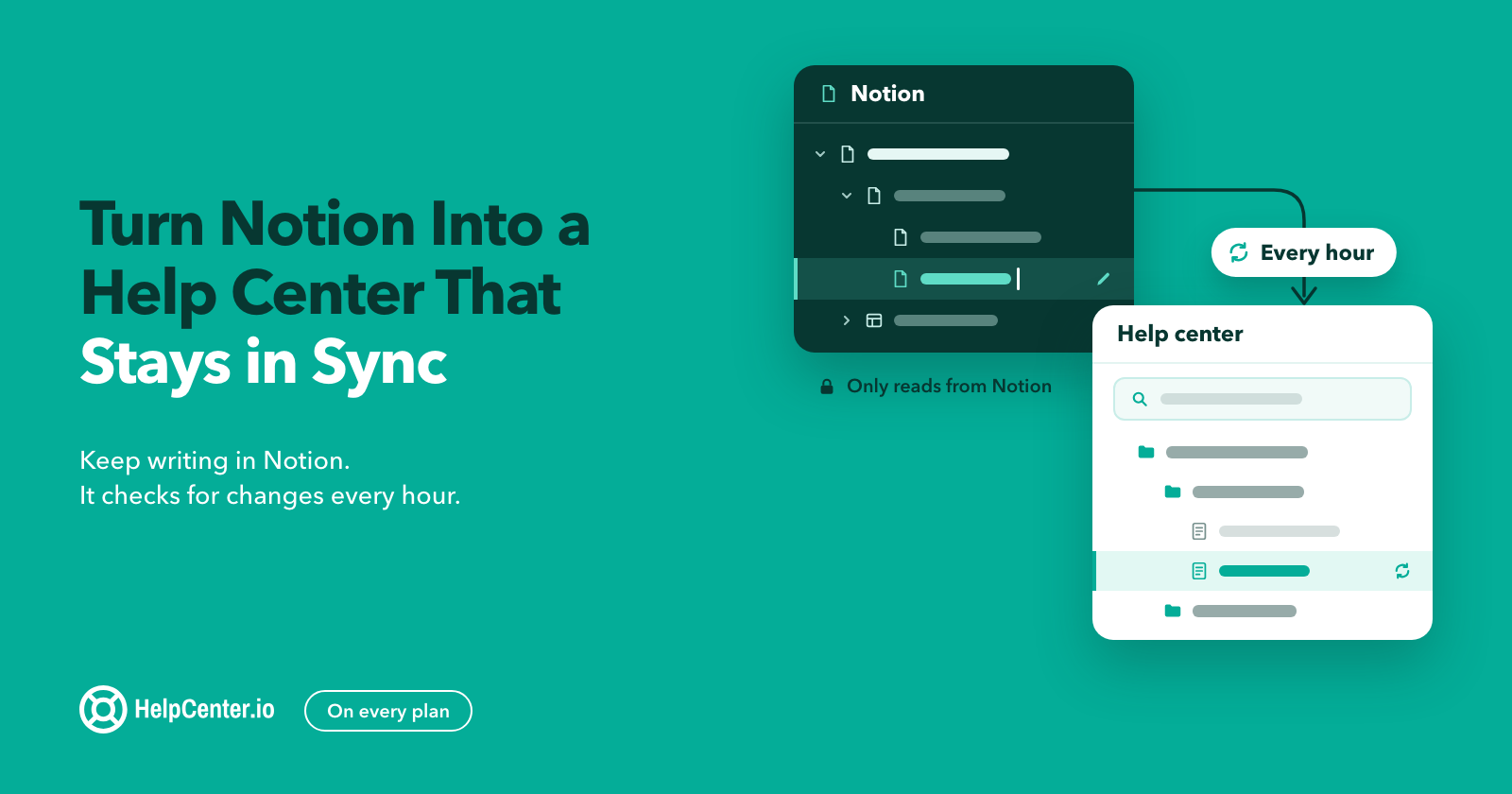
Your Notion docs can now become a help center your customers can search, on your own domain, and it stays current while your team keeps writing in Notion.
Connect your Notion workspace to HelpCenter.io, choose the page your docs live under, and click Import. Its sub-pages become categories and articles, images are copied over, and links between pages point to the new articles. After that, HelpCenter.io checks Notion for changes every hour. It works with private workspaces, on every plan.
If your team already writes in Notion, it shouldn't have to write everything twice. Until now, moving those pages into HelpCenter.io meant exporting them or asking our migration team, and then keeping two copies in step by hand. Now the help center keeps itself in step with Notion, and your team keeps the editor it already likes.
How to turn your Notion workspace into a help center
You need to be an admin or owner of the help center. Notion asks you which pages to share during the connection, so sign in to Notion as someone who can see your docs. On Notion Enterprise, a workspace owner may need to allow the HelpCenter.io connection first.
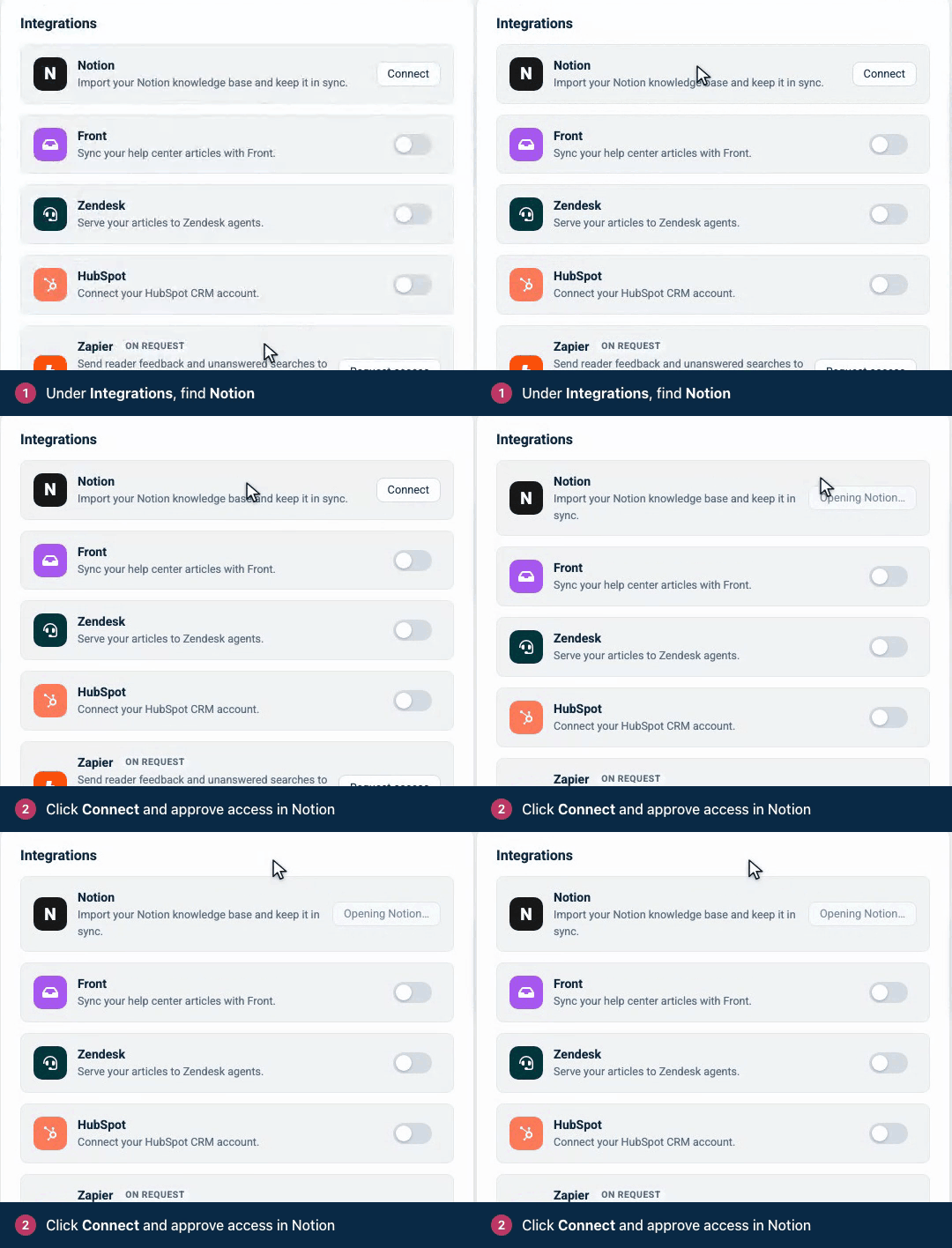
- Connect. In HelpCenter.io, open Settings, then Integrations, find the Notion card and click Connect.
- Share your docs with HelpCenter.io. Notion asks which pages to share. Pick the page your help center lives under. Sharing a parent page also shares everything inside it, so one page is usually all it takes.
- Choose what to import. Back in HelpCenter.io, pick that page or database from the list and click Import. Everything nested inside it becomes categories and articles.
- Let it run. The import works in the background. The Notion card counts pages as they are found and imported, and you can carry on with something else while it works.
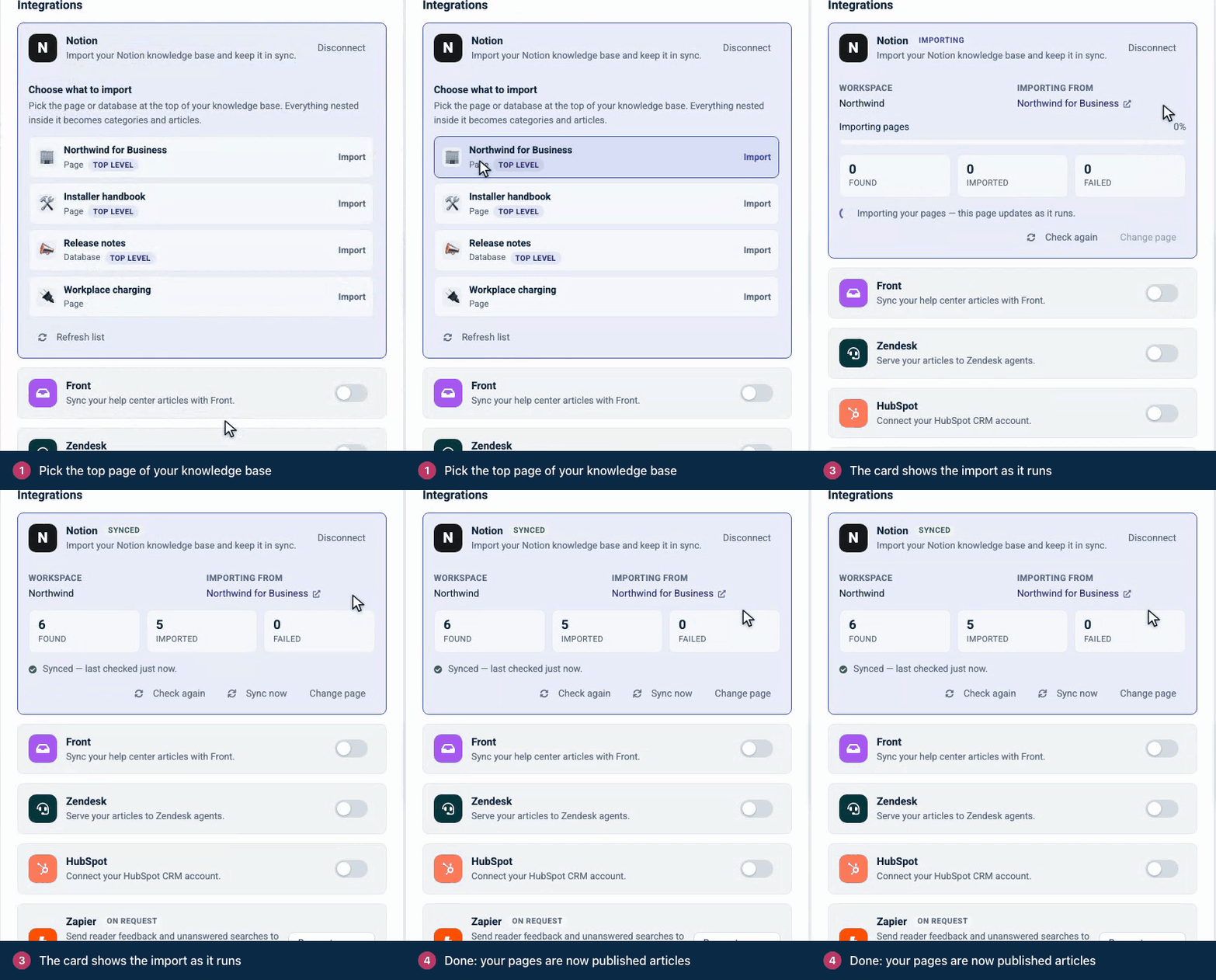
If the list comes up empty, nothing was shared yet. Here's how: open the top page of your docs in Notion, click the ••• menu at the top right, open More, then under Connections choose Add connections and pick HelpCenter.io. Then click Check again.
Before you click Import: imported articles are published as soon as they arrive, and so are pages you add under that page later. If your help center is already live, readers can see them right away, so share only the part of your workspace that is meant for customers. You can change any article's visibility afterward, and later syncs leave that choice alone.
What your Notion pages become
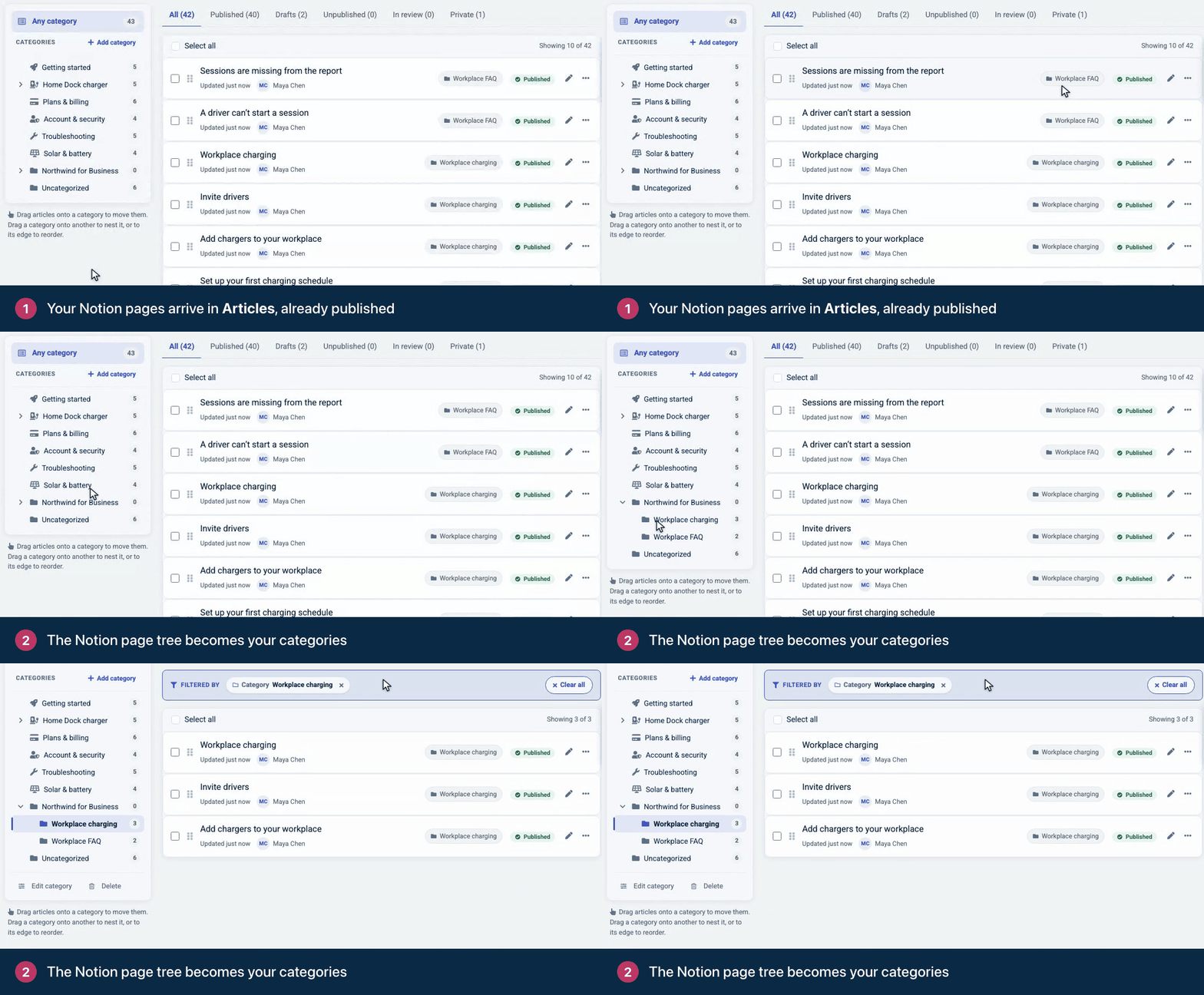
The import follows the structure you already have, so the help center reads the way your workspace does.
| In Notion | In your help center |
|---|---|
| A page with sub-pages | A category. The page's own text becomes an article inside it. |
| A page without sub-pages | An article |
| A database | A category, with one article per row |
| The page you chose to import | A top-level category, when it has sub-pages |
| A page that only lists links to its sub-pages | A category, without an extra article |
Titles carry over, each article's address is made from its title, and categories keep their Notion order. Help center navigation goes a few levels deep, and pages nested deeper than that still come across, filed in the nearest category above them.
Formatting, images and links
Most of what you write in Notion comes across the way you'd expect: headings, bulleted and numbered lists with their nesting, to-do lists, quotes, callouts with their emoji, toggles (still expandable), code blocks, dividers and tables, along with bold, italic, underline, strikethrough, inline code, links and text colors.
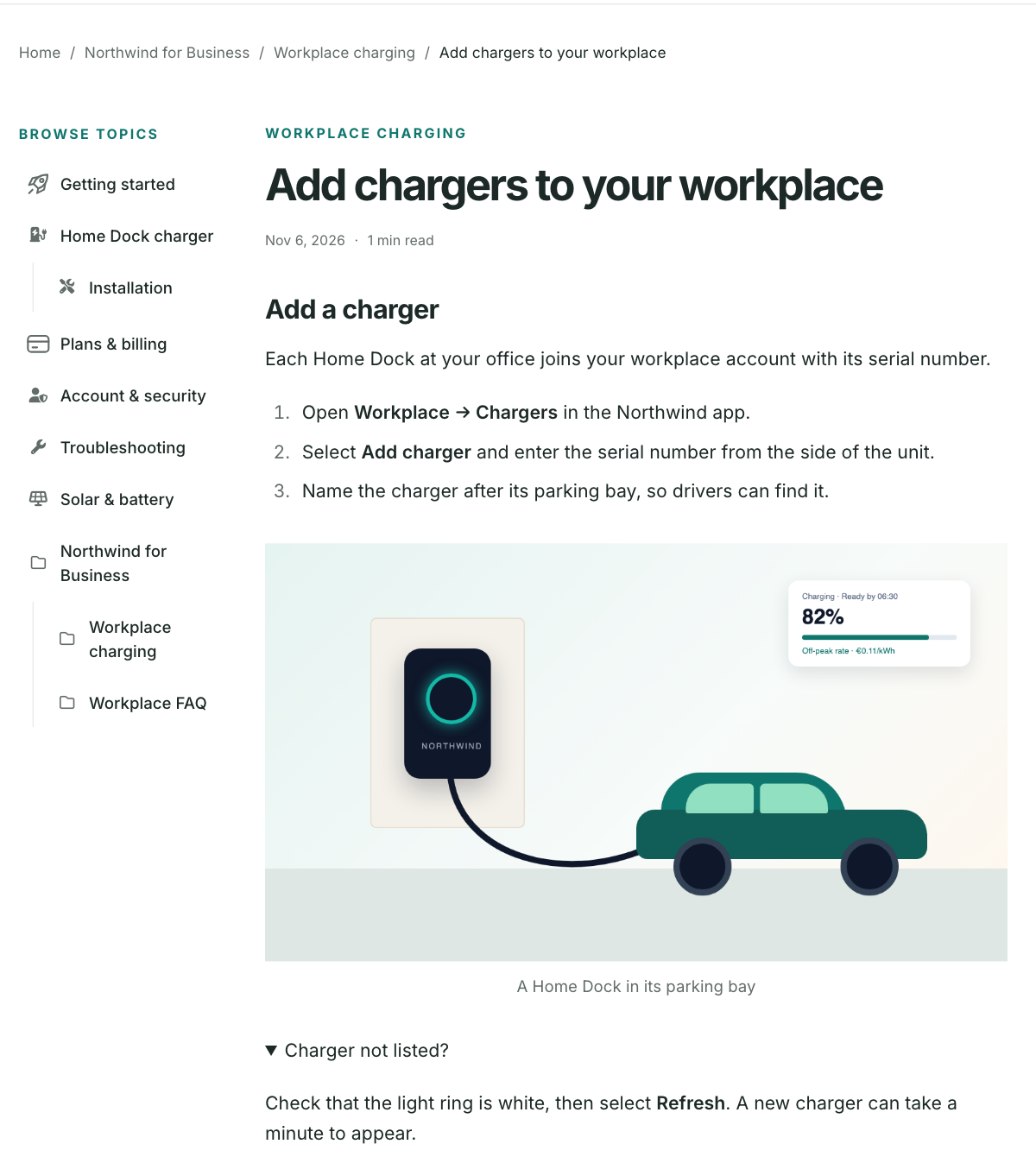
Images, files, and video or audio uploaded to Notion are copied onto HelpCenter.io rather than linked. That matters more than it sounds: the file links Notion hands out expire after about an hour, so a help center that pointed at them would soon fill with broken images. Files and PDFs appear as downloads, and bookmarks and embeds become links.
Links and mentions between your Notion pages are repointed to the matching articles, so readers stay inside your help center. A link to a page that hasn't been imported yet is fixed on a later sync.
What doesn't come across
A few things work differently in a help center, and it's better you hear them from us than find them later:
- Database properties. Each row's page becomes an article, but its title is the only property that comes along. Tags, status, dates and views stay in Notion.
- Equations and columns. Equations arrive as their LaTeX text rather than rendered math, and column layouts stack top to bottom.
- Alt text. Notion doesn't pass alt text on to connected apps, so imported images arrive without it, even if you added some in Notion (captions do come across). Add alt text in the HelpCenter.io editor so readers using a screen reader get the picture too.
- External videos. A YouTube or other external video becomes a link, not a player. Videos uploaded to Notion play in the article.
- Notion-only blocks. Tables of contents, breadcrumbs, template buttons and comments are skipped, as is anything in the trash or not shared with HelpCenter.io.
- Sub-pages inside columns or toggles. The import finds sub-pages that sit directly on their parent page. One placed inside a column, toggle or callout isn't imported, and its link still points at Notion, so move it onto the page itself before you import.
- Size. A file over 25 MB isn't copied, and the article publishes without it. Later Notion edits to that page wait until the file is smaller. An import reads up to 5,000 Notion items (pages, databases and database rows) under the page you choose, and later runs stop at the same point. For a bigger workspace, import a smaller section or ask our migration team. An import that only runs out of time carries on in the next run.
- One workspace, one language. Each help center connects to one Notion workspace, and articles are written in your help center's default language.
Keep writing in Notion: how the sync works
Once the first import finishes, HelpCenter.io checks your Notion workspace for changes every hour and brings them in, including new pages you add under the page you imported. When you've just fixed something and don't want to wait, click Sync now on the Notion card. Changes usually land within the hour, not the second, and that is the honest version of "in sync".
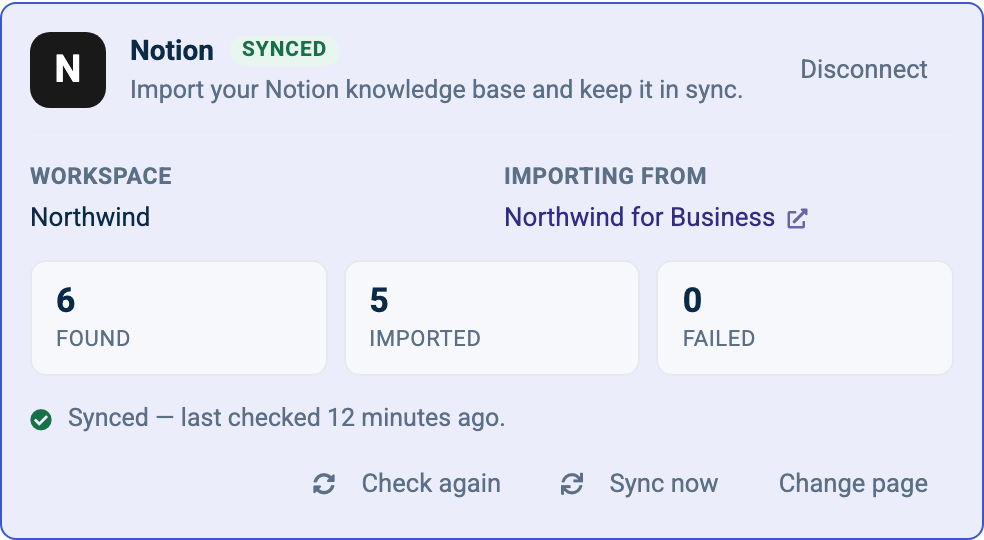
The rules are built so that nobody's work is lost:
- Edited in Notion: the article updates. Its address stays the same, so links to it keep working.
- Edited in HelpCenter.io: your edit stays, and that article stops taking Notion's changes on its own. Each later edit to it in Notion flags it for review instead, so pick one place to edit each article.
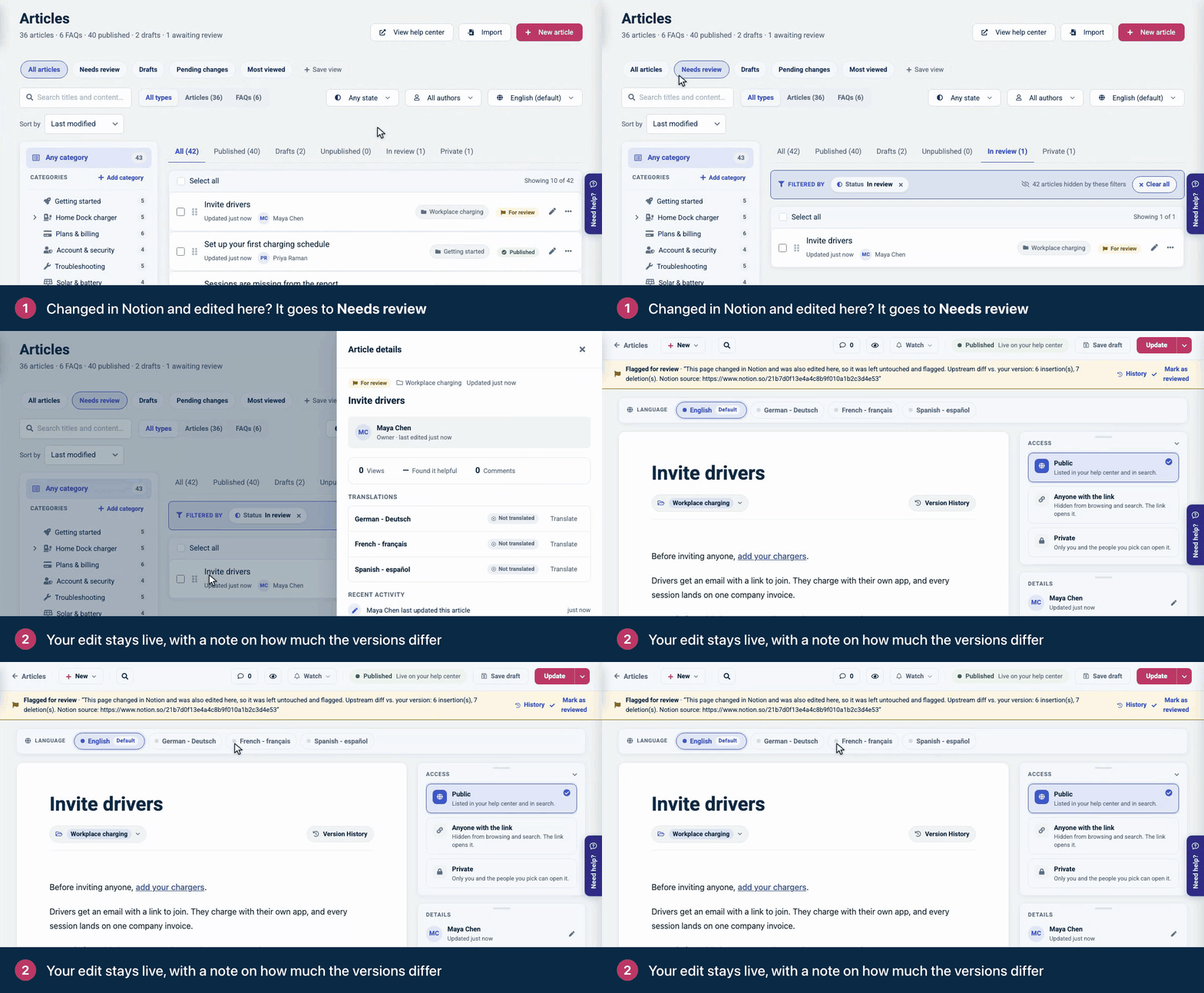
- Edited in both: HelpCenter.io keeps its version and flags the article Needs review, with a note of how much the two versions differ and the address of the Notion page. Nothing is overwritten.
- Deleted or unshared in Notion: the article stays published and is flagged for review. It is never deleted automatically.
- Moved in Notion: the article follows to its new category, unless you've changed its categories, or its category's privacy, in HelpCenter.io.
- Deleted in HelpCenter.io: it stays deleted. A later sync won't bring it back.
Flagged articles wait for you under Needs review on the Articles page. Open one to see the note, bring the article up to date by hand, and click Mark as reviewed.
If an image or file can't be copied, that page stops taking Notion edits until the file comes across. HelpCenter.io tries again on every sync for 24 hours, then the Notion card shows Action needed and names the page, so you know to fix the file in Notion.
Is it safe to connect your Notion workspace?
- It only reads. HelpCenter.io never creates, edits or deletes anything in your Notion workspace.
- It only sees what you share. Pages you don't share with HelpCenter.io stay invisible to it.
- Private workspaces are fine. Nothing needs to be published to the web from Notion. HelpCenter.io reads your pages through Notion's own sign-in.
- Admins decide. Only help center admins and owners can connect Notion and run an import.
- Disconnecting is clean. Disconnect on the Notion card stops syncing and removes HelpCenter.io's access in Notion. Everything already imported stays published, and you can reconnect at any time.
What happens to your old Notion links?
If you published your docs from Notion on your own domain, run the import while those pages are still published, then point that domain at HelpCenter.io. The old page addresses redirect permanently (301) to the matching articles, so bookmarks and search results keep landing in the right place. A page you unpublish in Notion before the import gets no redirect. A custom domain with SSL is included on every plan.
Addresses on notion.site belong to Notion, so they can't be redirected. Update the links you control, such as the ones in your app and your emails, to point at the help center. A private workspace never had public addresses, so there is nothing to redirect.
Notion Sites or a help center?
We make HelpCenter.io, so read this section with that in mind. Notion's own publishing is a good fit when your docs are a handful of public pages: publishing takes a few clicks from the Share menu, sub-pages publish with their parent, edits go live as you make them, and you get a free notion.site address.
| Notion Sites | HelpCenter.io with Notion sync | |
|---|---|---|
| Where you write | Notion | Notion, or the HelpCenter.io editor (one place per article) |
| Updates | Live as you edit | About every hour, or on Sync now |
| Your own domain | A paid plan, plus $8 a month per domain billed annually ($10 billed monthly) | Included on every plan, with SSL |
| Price | Basic sites on Notion's free plan; paid plans are priced per member | From $29 a month billed annually, flat per help center |
| Structure | Your page tree | Categories and articles built from your page tree |
| Analytics | Page views; Google Analytics on paid plans | Built in, with 14, 60 or 365 days of history by plan |
A help center earns its keep in everything around the articles: search built for finding answers, the AI Widget that recommends the right articles inside your product, themes you can make your own, and version history on every article. All of it is on every plan. AI answers written from your articles are included on Catalyst and are a $29 a month add-on on Bootstrap and Growth. If that's the help center you need, keep Notion as the place you write and let HelpCenter.io be the place your customers read. For a longer side-by-side, see HelpCenter.io vs Notion.
Rather have it done for you?
Some workspaces need more than a straight copy: pages to merge, a structure to rethink, or docs spread over Notion and another tool. Our migration team does that for you for free, on every plan, monthly or annual. Send a request from the free migration page.
Still deciding whether your Notion docs should become a help center at all? Our guide to turning Notion or Confluence docs into a public help center covers the signs that you've outgrown publishing straight from Notion.
Notion import FAQ
Can I keep writing my help center in Notion?
Yes. After the first import, HelpCenter.io checks Notion for changes every hour and updates your articles, including new pages you add. An article someone has edited in HelpCenter.io is flagged for review instead of overwritten. Click Sync now on the Notion card in Settings, Integrations to bring changes in right away.
Does HelpCenter.io change anything in my Notion workspace?
No. HelpCenter.io only reads from Notion, and only the pages you share with it. It never creates, edits or deletes anything in your workspace.
Do my Notion pages need to be published to the web?
No. Private Notion workspaces work. HelpCenter.io reads the pages you share through Notion's own sign-in, so nothing has to be public in Notion.
What happens if an article is edited in both Notion and HelpCenter.io?
HelpCenter.io keeps its own version and flags the article Needs review, with a note of how much the two versions differ and the address of the Notion page. Nothing is overwritten.
Which plans include the Notion import?
Every plan. The Notion import and sync cost nothing extra, and help center admins and owners can set it up.
What happens if I disconnect Notion?
Syncing stops and HelpCenter.io's access in Notion is removed. Everything already imported stays published in your help center, and you can reconnect at any time.
Try it on your Notion workspace
Already on HelpCenter.io? Open Settings, then Integrations, and click Connect on the Notion card. New here? Start a free 14-day trial, no credit card needed, and connect your workspace on day one. Plans and prices are on the pricing page.
And if your Notion docs do something the import doesn't handle well yet, I'd love to hear about it. Write to us at support@helpcenter.io.