Release Note: Where your team and AI agents run your help center together
Your help center is written by teammates, translators and AI agents now. See every change they make, word by word, co-edit in real time (closed beta), and review the notes AI agents leave on the passages they change.
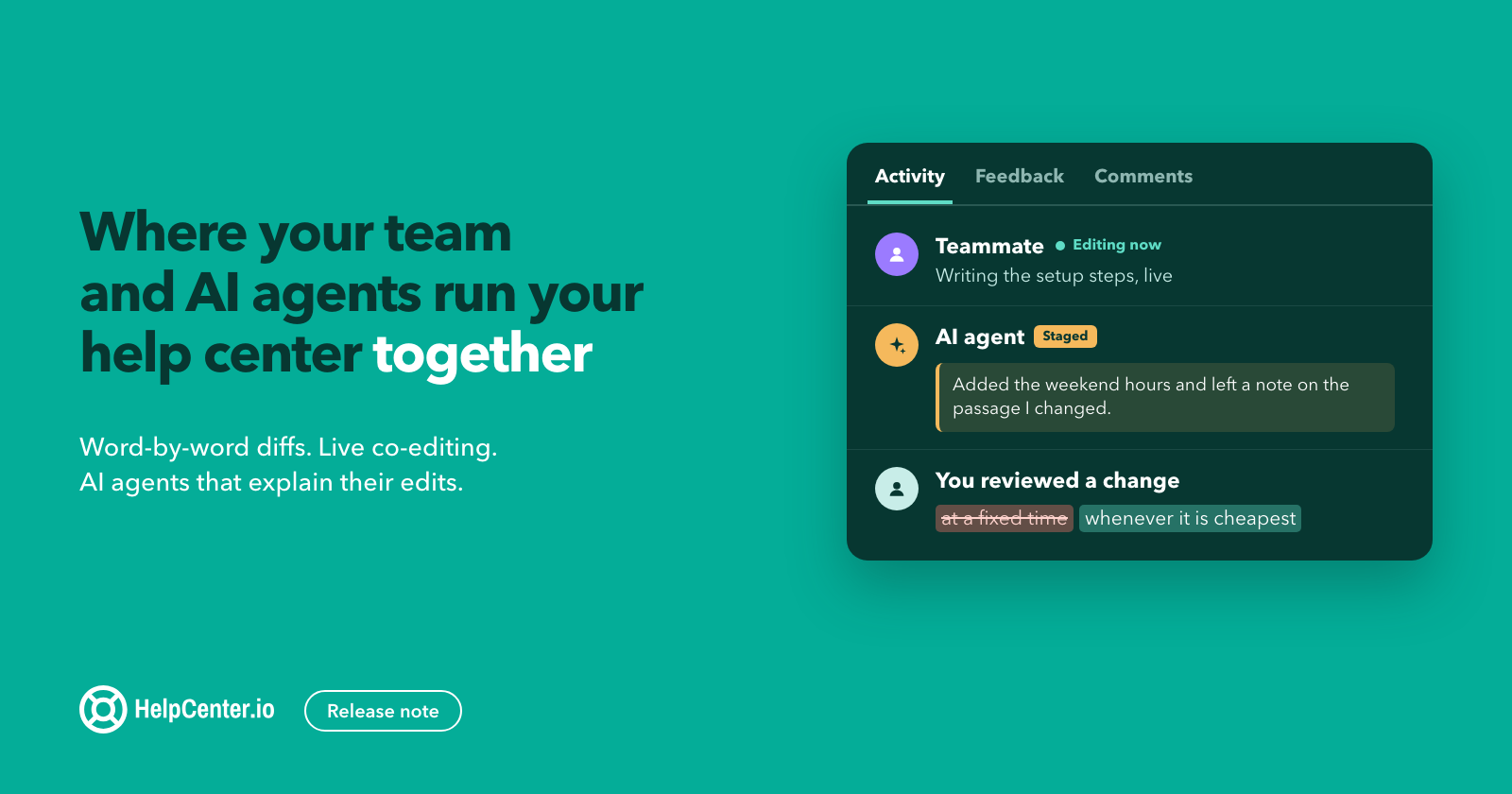
With help centers increasingly managed in collaboration between humans and AI agents, it's becoming more important than ever for teams to be able to dig deeper and understand every change that goes into the help center.
Our own help center is now predominantly maintained and extended by AI agents that keep it aligned with the development of the app. As a result, we needed a way for the team to observe and review every change so we can make sure the quality bar is met and every new app change is properly covered and aligned with our plans.
This release is the beginning of our ongoing effort to create the workspace that allows for seamless collaboration and hand-off between humans and AI agents. A collaborative environment for your team, small or big, to work on and polish content together, while also providing increased visibility into the pulse of your help center: content changes, analytics, ratings, AI agents and authorized API clients, you name it.
Some basic version control has always been part of the experience, and you could follow how each article changed over time (with the number of days you can go back depending on your plan). However, each change displayed the whole article as a diff. The more active a help center is, and the longer your articles, the harder it gets to keep track of what actually changed and when.
You can now open any change in an article's history and see exactly what it did, word by word, with the old and new versions side by side if you prefer. That's the big one in this release, and it ships with two more things I'm really happy about since they've been on my personal "want" list for a very long time: real-time co-editing in the article editor is now available on request (while we make sure it works the way we intended), and the major one for increased observability is the brand-new Overview page that greets you with what happened in your help center since you were last here. Overview is being gradually rolled out to everyone.
Here's a quick look over what's new:
- Article diffs: open any change and see what it did, inline or side by side – GitHub-style.
- Rollback preview: see what rolling back would change before you do it.
- Collaborative editing (available on request): work on the same article with your team, live, and forget about overwriting each other's changes.
- Article panels with better activity overview: peek into the pulse of a single article without going into the help center stats or opening the editor to review the changes history.
- Overview: a new home for your dashboard, rolling out gradually for all our users.
- AI agents can annotate their article content changes for your team to review. Just ask your AI agent of choice to leave an internal note with every change – they have the right tool for this.
- A handful of smaller things worth knowing about.
A detailed breakdown of what changed follows.
See exactly what changed in any article
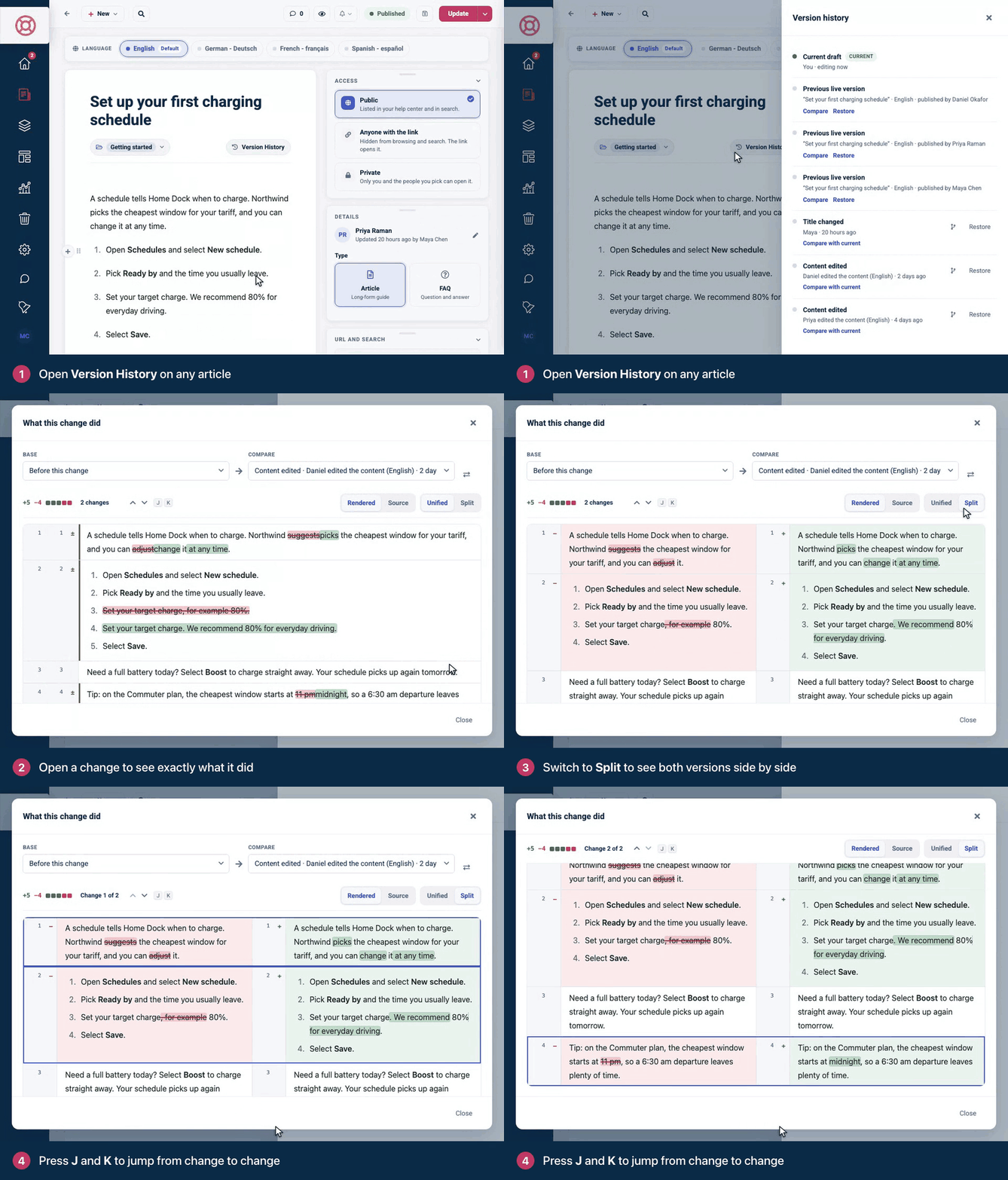
Every change in an article's Version History now opens as a proper diff. Removed words are struck through in red, added words are highlighted in green, and the parts that didn't change stay out of your way.
Open an article, click Version History above it, and click the compare icon next to any change. You see what that one change did, the way you'd read a commit, and Compare with current sits right beside it when you'd rather see how far the article has moved since.
A few details make long articles easy to review:
- Unified or Split. Read the change inline, or put the old and new versions side by side. On a narrow screen, Split falls back to Unified.
- Rendered or Source. See the article the way readers do, or the HTML underneath.
- Only what changed. Unchanged sections collapse, with two blocks of context around each change, and open when you click them.
- Change 1 of 2. A summary at the top counts what was added and removed, and the J and K keys jump from one change to the next.
- Everything around the text. Title, URL, category and status changes get their own old → new rows, releasing a translation shows up as its own row too, each language has its own tab, and changed images sit side by side.
HelpCenter.io remembers whether you prefer Unified or Split, and Rendered or Source, so the next diff opens the way you like it. To compare two specific points in the history, use the Base and Compare pickers at the top of the window.
Reviewing a teammate's or a translator's edit becomes a quick read, and an accidental change gets caught before your readers see it.
Version history is included on every plan, and how far back it goes depends on your plan. Here's how to use it.
Roll back knowing exactly what you'll get
On help centers that use staged changes (part of Catalyst), every version that was live before is kept in Version History. Click Compare next to a previous live version and you see what rolling back would change on the live article, title included. If that's what you want, Roll back to this version is right there in the same window.
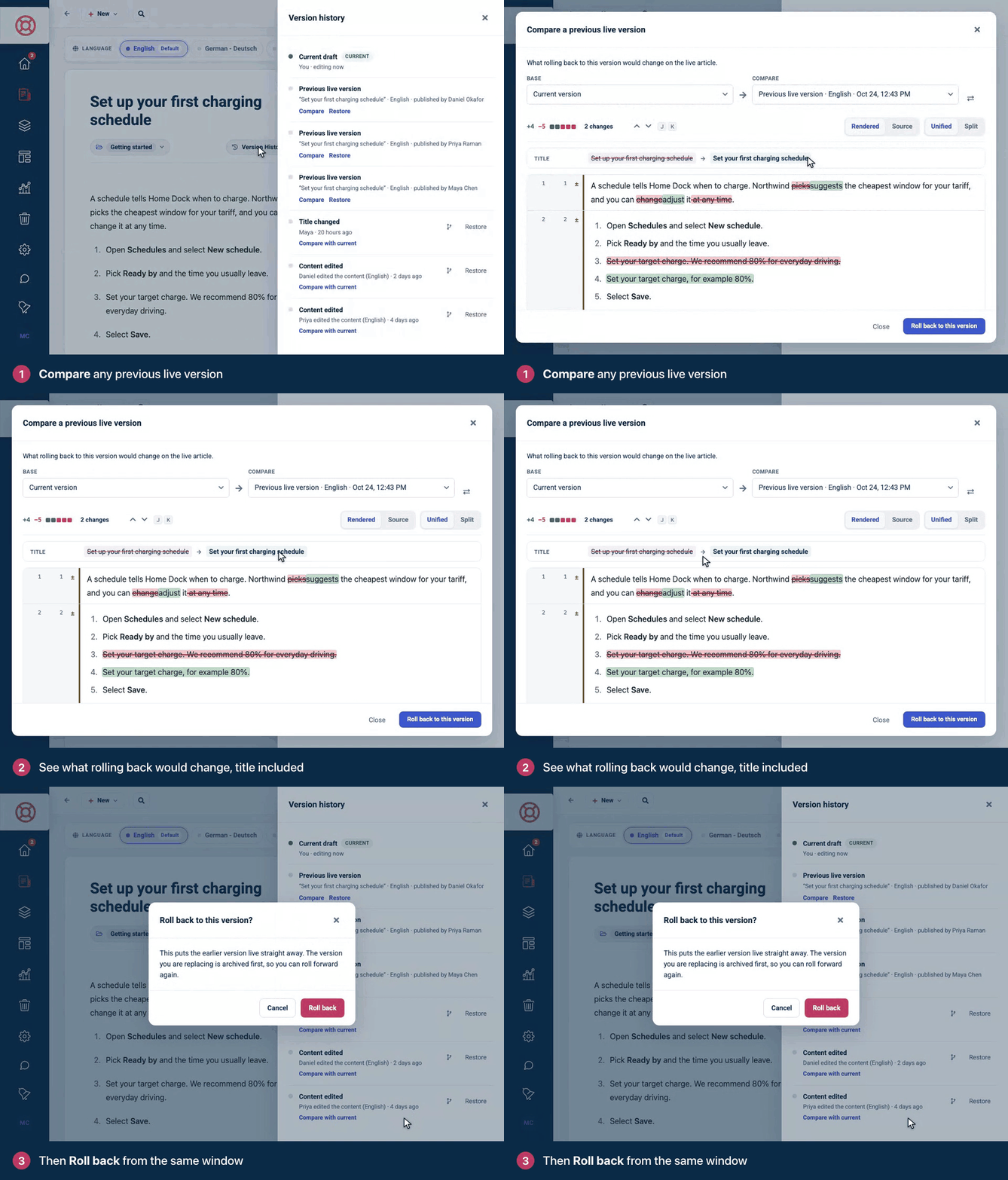
Until now, restoring an earlier live version meant trusting you'd picked the right one. Now you know before you click. And because the version you're replacing is archived first, you can always roll forward again.
The same diff powers Compare with live while you work on a staged copy, so you see exactly what will change before you press Publish changes.
Write together in real time (closed beta)
Several people can now edit the same article at the same time. Everyone's edits merge as they type, so nobody overwrites anybody.
When a teammate opens the article you're working on, you see them in the top bar, and their cursor carries their name, so you always know who is writing where. Click someone's avatar to jump to where they are. Select a passage to leave a team comment, and it shows up for everyone in the article right away. Readers never see it.
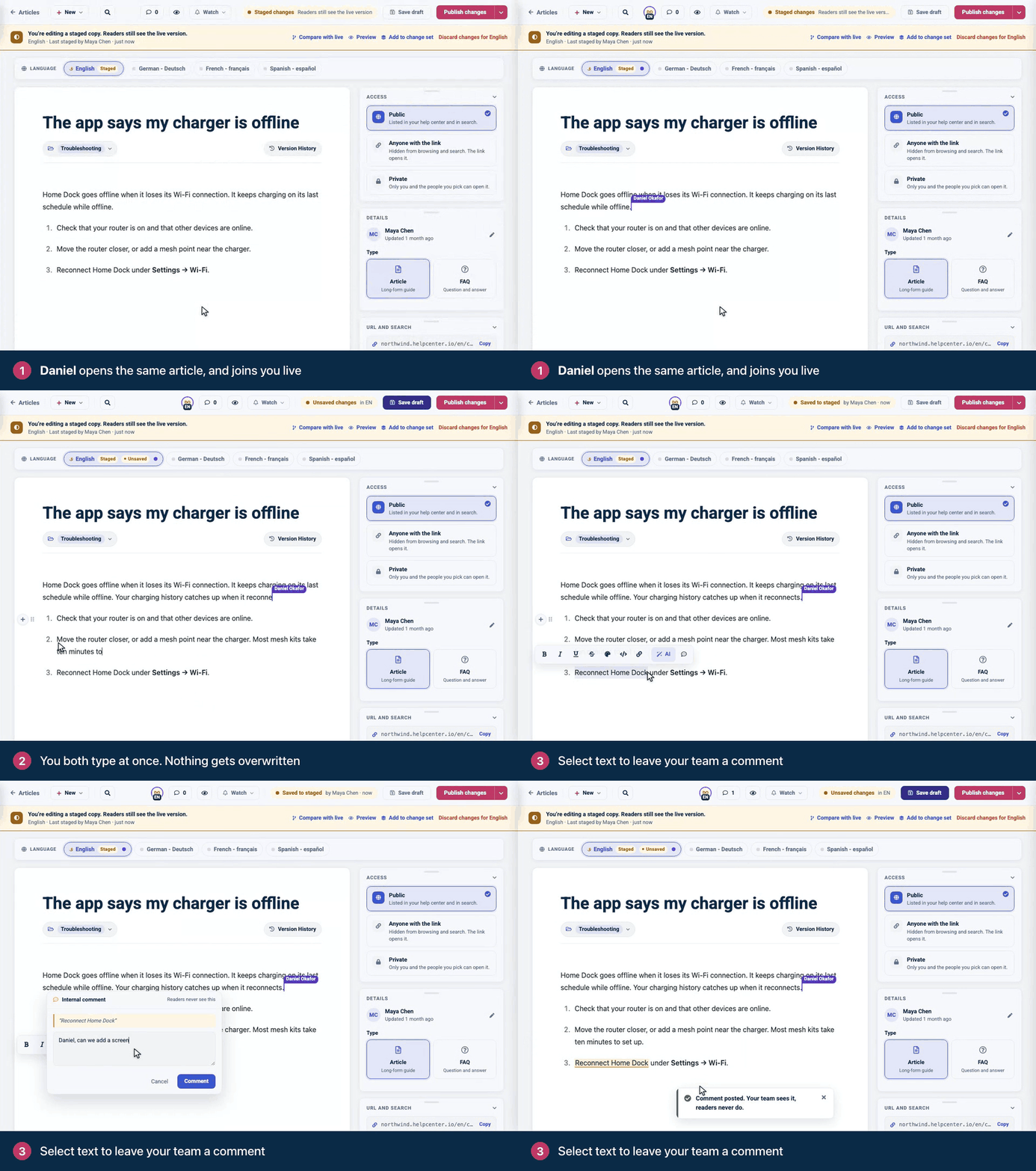
Collaborative editing is in closed beta. Want it for your help center? Email support@helpcenter.io and we'll get you set up.
Get an article's pulse from the Articles page
Click any article on the Articles page and the panel that opens beside the list now tells you its story: who changed it and how, what readers think of it, and what your team said about it. You no longer need to open the editor or go through your help center's stats to find out.
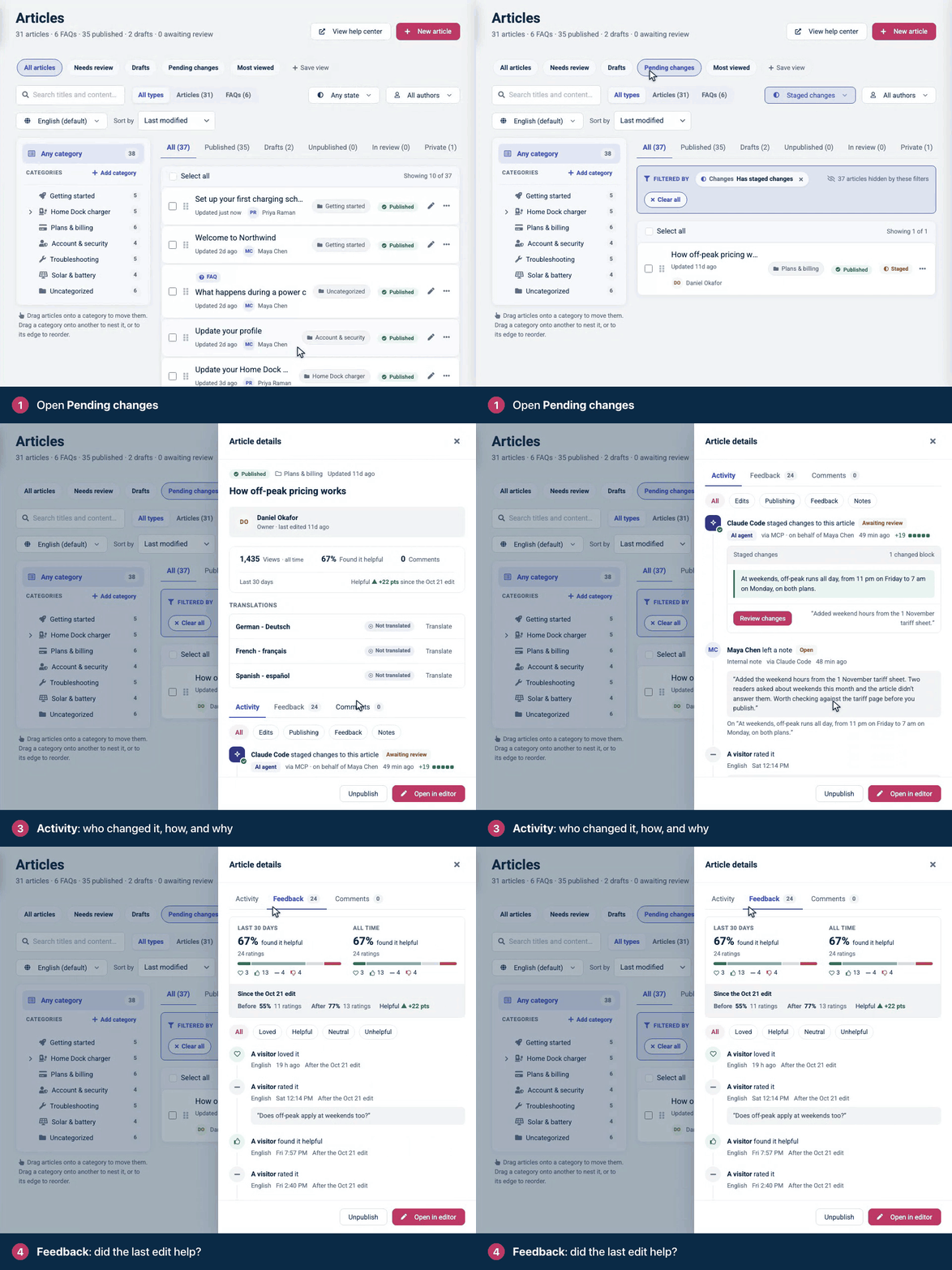
Activity is the article's history, newest first. Every row names who made the change, whether a teammate, an API key or an AI agent, and the app it came through, with the words added and removed and, when one was given, the reason for the change. Chips narrow it down to Edits, Publishing, Feedback or Notes. If someone is editing the article right now, you see it at the top, and staged changes waiting for review show a preview of what changed, with Review changes one click away.
Feedback lists every rating the article has received, with what readers wrote, and you can narrow it by score or language. It also answers the question every rewrite leaves you with: did it help? Each rating is marked as before or after the last published edit, and once there are enough ratings on both sides, you see how the share of readers who found the article helpful has moved since. The stats at the top of the panel tell you the same for the last 30 days.
Reader comments keep their own Comments tab. The new panel ships with Overview, so it reaches help centers on the same gradual rollout, and the Feedback tab is there for teammates who can see your help center's stats.
Start your day on the new Overview page
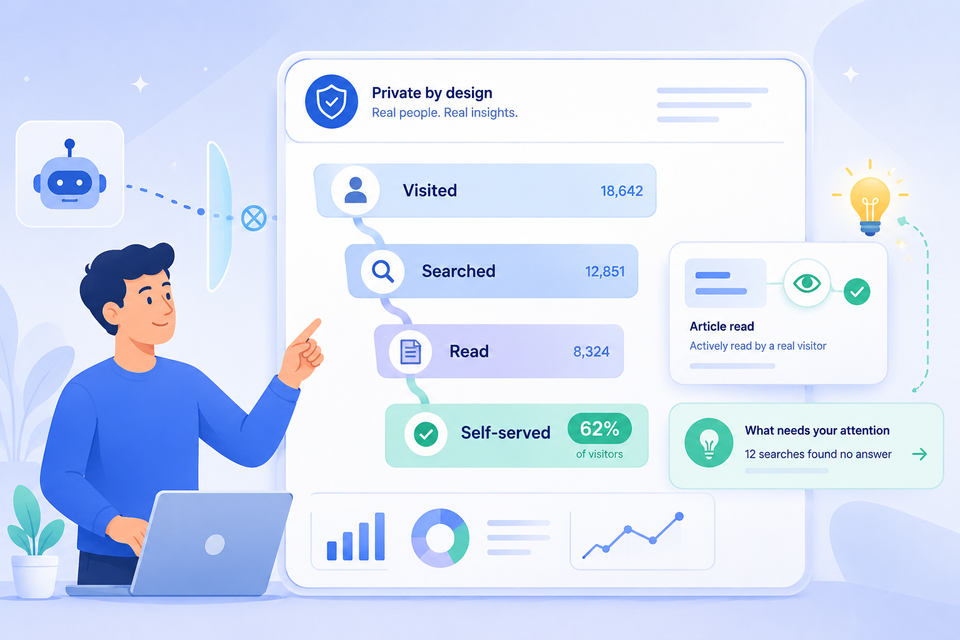
Overview is a new home for your dashboard. It tells you what changed in your help center since you were last here and what needs you, on one page. We're rolling it out to help centers gradually, so it may already be waiting for you.
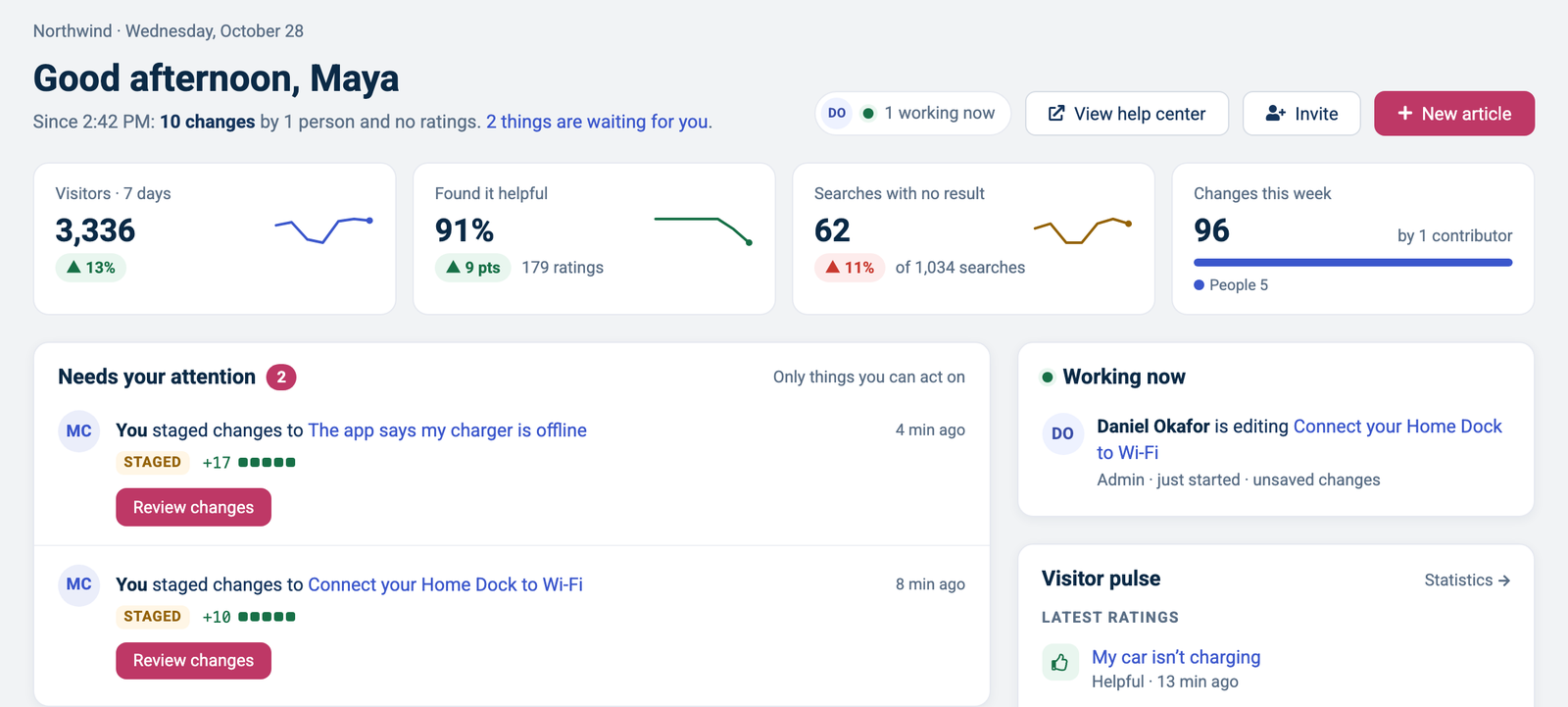
At the top, a one-line summary says what happened since your last visit and how many things are waiting for you, followed by the numbers that matter: visitors over the last seven days, how many readers found your articles helpful, searches with no result, and changes made this week.
Below that, Needs your attention lists only things you can act on, such as staged changes to review, new comments and articles readers rated unhelpful, each with the button that handles it. Working now shows who is editing what at this moment, and Visitor pulse brings in the latest ratings and the searches that found nothing. Further down you'll find recent article changes and your team's activity.
AI agents annotate their changes for your review
An AI agent editing your articles can now leave a note on the exact passage it changed, saying what it did and why. Whoever reviews the change finds it highlighted in the article with the agent's reasoning right beside it, so checking an agent's work starts from what it meant to do.
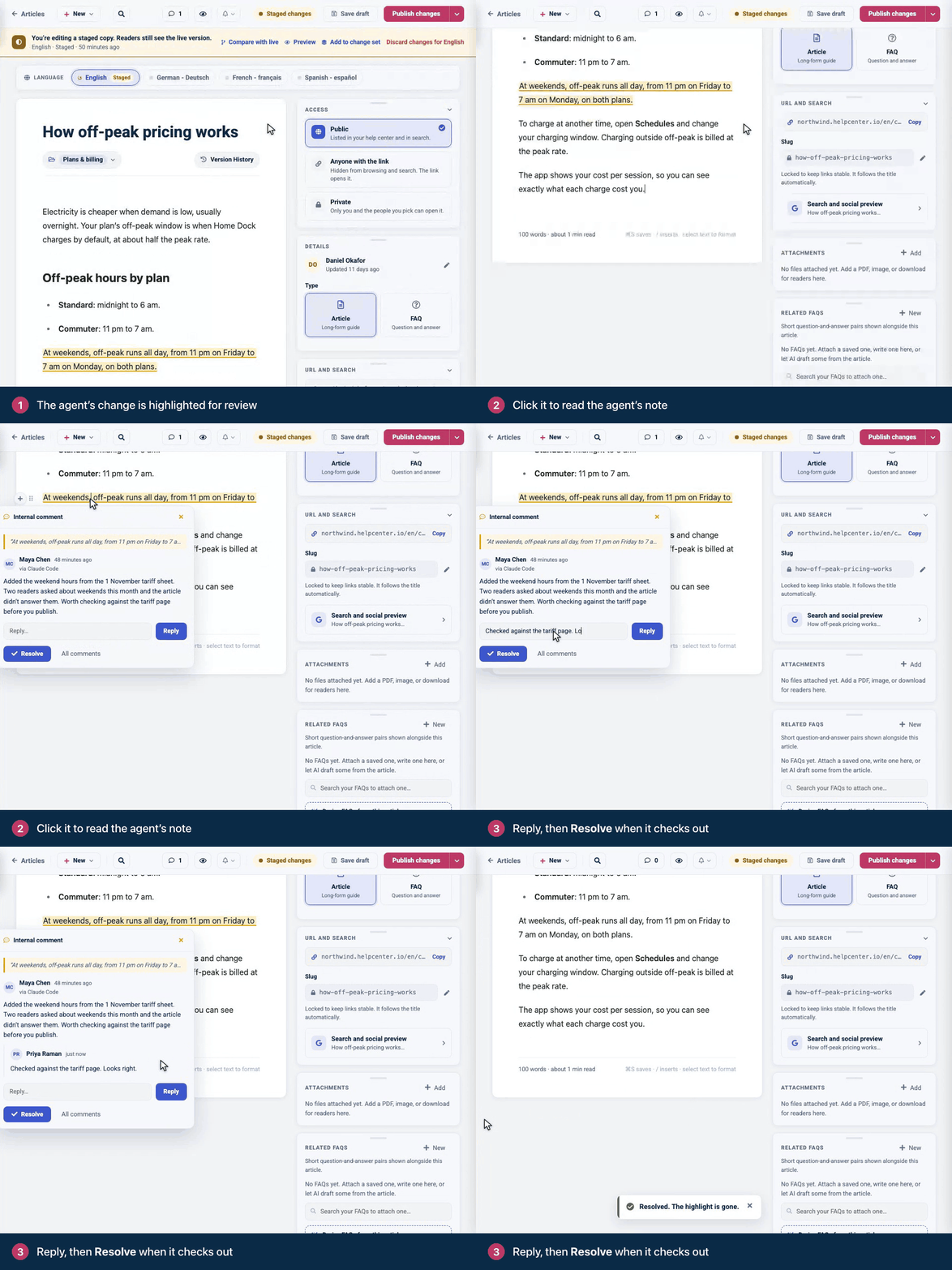
The note goes in with the edit itself. The agent can highlight everything it changed under one note, or pin separate notes to specific passages, and it can also leave a note on text that's already in the article, like a paragraph it thinks is out of date. All you need to do is ask:
Update the refund policy article for our new 30-day window, stage it for review, and leave a note on what you changed and why.
Agent notes work like the team comments you already use. The passage stays highlighted in the editor, clicking it opens the thread, and you can reply or resolve it. Each note names the app it came through, such as Claude Code or ChatGPT, so you can tell an agent's note from a teammate's, and on help centers with Overview, the article panel lists them under Notes. Like every team note, readers never see them.
Any AI agent connected through the HelpCenter.io MCP server has the tools for this, and the MCP server is included in Growth and Catalyst. On Catalyst, combine it with staged changes: the agent's edit waits for your review, already highlighted and explained, before readers see it.
Also new
- Free migration on every plan. Our team moves your existing knowledge base for you, on every plan, monthly or annual, with no setup fee. See how free migration works.
- A theme from your website. Paste your website's address and the AI theming agent proposes a matching light and dark theme for your help center. It's on every plan, including the 14-day trial, with 3 runs a day per help center (10 on Catalyst). Refining the design by chatting with the agent is part of Catalyst.
- 70+ tools for AI agents. Too many or just perfect. Time and your use-cases will tell. The HelpCenter.io MCP server now gives Claude, or an agent you build, 70+ tools in 11 groups, inside the permissions you approve. It's included in Growth and Catalyst and in their 14-day trials. Our new AI agents page and Claude plugin page show what that looks like in practice.
- One row per search. Search insights now show each query once, with its totals for the whole period you pick, instead of one row per day.
- Japanese, out of the box. Your help center's interface now ships pre-translated in Japanese if that's one of your languages, and we fixed an issue where readers were sent to localized version of the help center even with no content there. Now visitors are only sent automatically to languages that have published content.
- Change an API key's access without a new token. Owners and admins can now edit what an existing API key may do without replacing its token.
FAQ
Can I compare two versions of an article in HelpCenter.io?
Yes. Open the article, click Version History and click the compare icon next to any change to see what it did, or click Compare with current to see everything that has changed since. The Base and Compare pickers compare any two points in the history. Version history is on every plan, and how far back it goes depends on your plan.
Can I see what a rollback will change before I make it?
Yes, on help centers that use staged changes (part of Catalyst). Click Compare next to a previous live version in Version History to see what rolling back would change on the live article, then click Roll back to this version in the same window. The version you replace is archived first, so you can roll forward again.
Which editor do article diffs need?
None in particular. Diffs are built into the article editor every HelpCenter.io help center uses, so there is nothing to switch on.
How do I get collaborative editing?
Collaborative editing is in closed beta. Email support@helpcenter.io and we'll get you set up.
Do readers see team comments?
No. Team comments are visible to your team inside the article editor only. Readers never see them.
Is the Overview page available for every help center?
Not yet. We're rolling Overview out to help centers gradually. When it reaches yours, owners, admins and editors start their day on it.
Try it on your help center
If you're already on HelpCenter.io, open any article and click Version History: your diffs are there. If you're not yet, start a free 14-day trial with no credit card needed, or let our team move your existing knowledge base over for free.
And as always, I'd love to hear what you think. Write to us at support@helpcenter.io.