Migrating Off Zendesk: How to Move Your Help Center Without Losing Your Rankings
Zendesk has no native article export and its URLs die with the subscription. Here is the order of operations that keeps both your content and your search rankings.
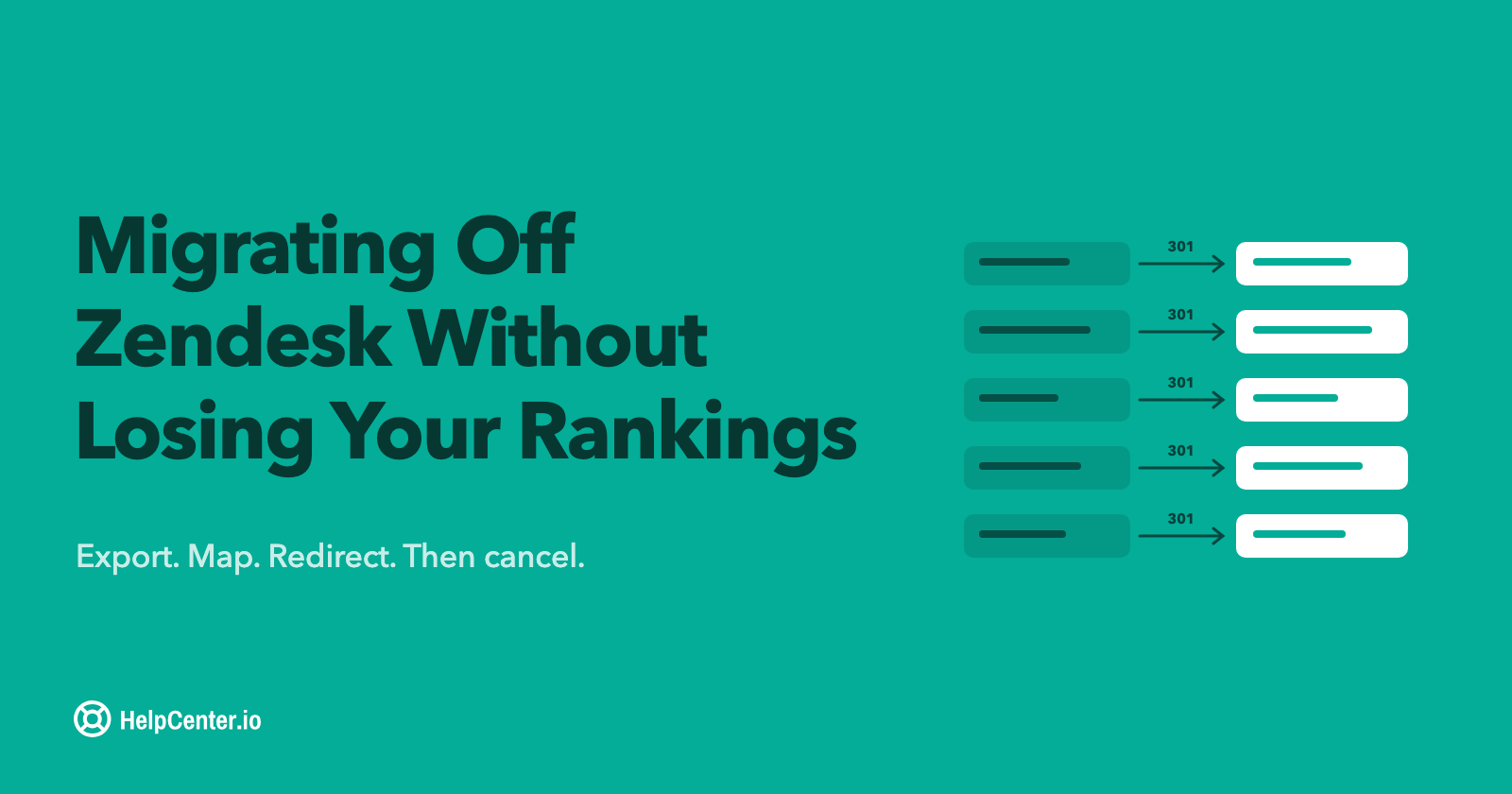
Moving a help center off Zendesk is two jobs that look like one. Getting the articles out is mostly a scripting problem and takes an afternoon. Making sure the traffic those articles earned still lands somewhere is the job that decides whether the migration goes well, and it is the one teams usually discover too late.
Zendesk help center URLs look like https://support.yourcompany.com/hc/en-us/articles/4408886627866-How-to-reset-your-password. If you have been publishing for a few years, some of those URLs rank, some are linked from forum threads and partner sites, and a lot of them are sitting inside email templates, onboarding docs, and in-product help links you have forgotten about. Delete them without a plan and you do not only lose rankings. You break every path a customer already knows.
Here is the order of operations that keeps both the content and the rankings, along with the specific places Zendesk makes it harder than it needs to be.
First, decide what you are actually replacing
Zendesk is a suite. Most teams who want out of it only want out of part of it, and being precise about which part saves a lot of wasted work.
If you are paying suite pricing mainly to publish documentation, then what you want to replace is the help center: articles, categories, search, branding, and the public URLs. Ticketing, routing, and SLAs are a separate decision you can make later, or never.
That distinction matters because it changes what "done" looks like. A help center migration is a content and URL project with a clear finish line. A full desk replacement involves workflows, integrations, and agent retraining, and it is a quarter of work rather than a week. We are deliberately explicit about this on our own Zendesk alternative page: HelpCenter.io replaces the self-service layer at a flat price, and it is not a ticketing system. Plenty of teams run a standalone help center alongside a desk they keep.
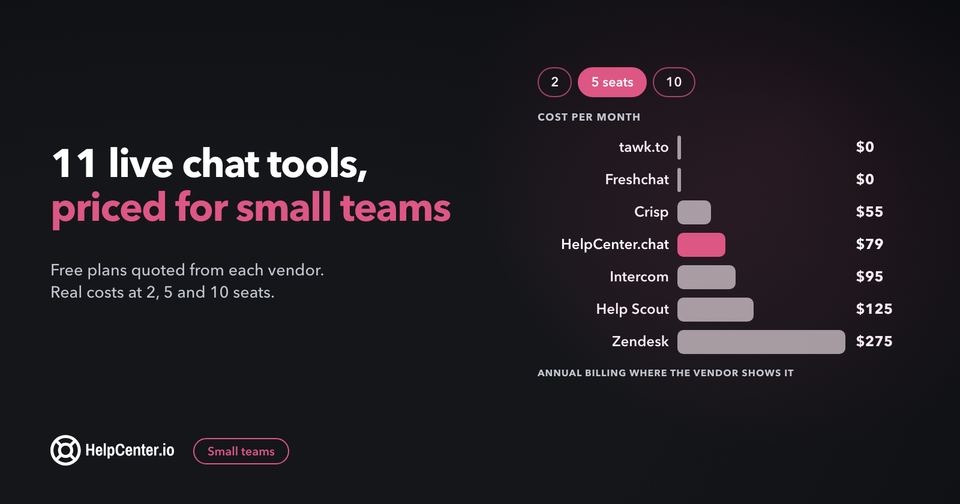
The same split applies to Zendesk's chat widget. If live chat is the other piece you want to move, we make HelpCenter.chat: a free messenger and shared inbox for two team seats and 100 new conversations a month, which can connect to your published HelpCenter.io knowledge. It is a separate decision from the help center, so it can wait until the migration is done.
If you are still deciding which pieces to move, our map of Zendesk competitors groups the alternatives by the part of Zendesk they replace (help desk, help center, live chat, and AI), with each vendor's published price.
Sort that out first. Everything below assumes you are moving the help center.
Step 1: Take inventory before you touch anything
You need a real count, not an estimate, because the count determines whether this is a manual afternoon or a scripted week.
Pull the list from the Help Center API rather than clicking through the admin UI, which will miss things:
GET /api/v2/help_center/articles.jsonWhat you are looking for in the response:
- How many articles are actually published. The
draftfield separates live articles from work in progress. Drafts rarely need migrating. - How many locales you have. Every translation is its own article record and its own URL. A 200-article help center in four languages is an 800-URL migration.
- Which articles are restricted. Anything behind a user segment is not public, has no search traffic, and needs a different destination than your public docs.
- What is stale. The
updated_atfield usually shows that a meaningful share of the library has not been touched in years. A migration is the cheapest moment you will ever get to delete those instead of moving them.
Cross-reference that list against Search Console before you decide what to drop. Articles nobody reads internally sometimes carry real external traffic, and the reverse is true too.
Step 2: Export the content yourself
This is the first genuine friction point, and it surprises people: Zendesk has no native article export. Zendesk's own documentation states plainly that it "does not have a prebuilt tool to export articles" and points customers at the Help Center API instead.
So you write a script. Page through the articles endpoint and keep the fields that matter for a rebuild: title, body (the HTML), locale, section_id, label_names, html_url, and updated_at. Cursor pagination is the supported approach for anything large.
Two practical notes. Zendesk rate limits the Help Center API by plan, roughly 200 requests per minute on Team up to 700 on Enterprise, and returns a 429 with a Retry-After header when you go over. Respect that header instead of retrying blindly and a few thousand articles will pull down cleanly. Help Center API requests do not count against your Support API limit, so an export will not disrupt agents working tickets.
Themes are separate. On Guide Premium and Enterprise you can download the theme and its manifest file. On lower plans, theme code cannot be reached through the API at all, so if you want a record of your customizations you copy it out by hand before you cancel.
Step 3: Get the images out too
Article bodies come back as HTML with image tags still pointing at Zendesk-hosted attachment URLs. If you migrate the HTML and stop there, your new help center will look perfect right up until the Zendesk account closes, and then every screenshot in it turns into a broken image.
Walk each article's attachments, download the files, and rewrite the src attributes to your new host as part of the import. Zendesk distinguishes inline attachments, which are the images embedded in the body, from block attachments, which are files listed separately at the bottom of an article. Both need handling, and it is easy to catch the first and forget the second.
One trap worth knowing: images uploaded but not yet associated with an article are visible only to signed-in users, and Zendesk purges unassociated attachments over time. Download from the article relationship, not from a raw file list.
Step 4: Map old URL to new URL before you rebuild
Do this while the old help center is still up, and do it as a spreadsheet with one row per live URL. Two columns: the current Zendesk URL, and the URL it will have on the new platform. Every locale gets its own row.
This mapping is the entire SEO plan. Building it later, from a help center that has already been rearranged, is far more painful than building it now, and it is the artifact that makes the redirect step mechanical instead of a judgment call for each article.
While you are in there, this is the right time to fix slugs that were never good. Zendesk generates them from article titles, so libraries tend to accumulate URLs like 4408886627866-Untitled-1. As long as the redirect map is accurate, you can improve a slug in the same move without losing anything.
Step 5: Rebuild in the new help center
With clean exported content, the rebuild is the least eventful part. What tends to change is structure. Zendesk nests categories, sections, and articles, and most libraries end up with sections that hold two articles because someone needed a heading three years ago. Flatten those on the way in.
If you would rather not run any of this yourself, our migration team does it as a service: articles, categories, and images moved for you, usually in under seven days, with the URL mapping handled as part of the work. Free migration is included on every plan, monthly or annual, and Zendesk is one of the platforms we move teams from most often.
Whichever way you rebuild, keep the launch boring. Get content parity and redirects right first. Design comes after, and with the new template editor that part no longer needs a developer, so there is no reason to hold the migration for it. If you are coming from a wiki rather than a desk, the same principles apply with different export mechanics, which we covered in the guide on turning Notion or Confluence docs into a public help center.
Step 6: Put a 301 on every old URL
This is the step that protects the rankings, and Zendesk supports it better than most people realize.
Guide has a Redirect Rules API that issues real server-side redirects. You create a rule with redirect_from, redirect_to, and redirect_status, and setting the status to 301 tells search engines the move is permanent so the old URL's authority transfers to the new one. It is available on all Guide plans except Guide Lite Legacy, with a limit of 50,000 rules per brand, which is more than almost any library needs.
Four things the documentation makes clear and that will cost you time if you miss them:
redirect_fromomits the slug. The path is/hc/en-us/articles/4408886627866, not the full title-slug version. Zendesk matches on the article ID.- A rule only takes effect once the article is deleted or archived. Creating rules against live articles does nothing, which reads as a broken setup if you are testing before the cutover.
redirect_tocan point to an external URL as long as it starts withhttps://, which is what makes this work for a migration off the platform rather than only for internal tidying.- Paths beginning with
/knowledge/are reserved and will return a not-found error.
Avoid the JavaScript redirect snippets that circulate in community threads. Zendesk itself warns that they "may affect Google search rankings" and are unsuitable for long-term or large-scale use. They also flash the error page before redirecting, because the script has to wait for the page to load. Use them only for low-traffic internal links, if at all.
Step 7: Cancel Zendesk last, not first
The redirects in step 6 are served by Zendesk. They work for exactly as long as your Guide subscription does. Cancel on cutover day and every one of those carefully built 301s stops resolving at the same moment, which produces precisely the outcome the redirects existed to prevent.
Keep the subscription running while search engines process the moves. Most of the transfer happens within a few weeks, though it is worth watching Search Console until impressions for the new URLs stabilize rather than picking a date in advance.
Cancellation is also a hard content deadline. Once an account is cancelled you can no longer sign in, and Zendesk's deletion policy begins permanently deleting service data, including help center articles and comments, after 90 days. Accounts can be reactivated on request inside that window, and not after it. Export before you cancel, verify the export opens and is complete, and keep a copy somewhere outside both platforms.
The short version
Inventory through the API, export with a script because there is no native export, pull the images, map every URL, rebuild, 301 the old paths with the Redirect Rules API, and cancel only after the redirects have done their work. The content moves easily. The rankings move only if you plan for them, and the planning costs a day.
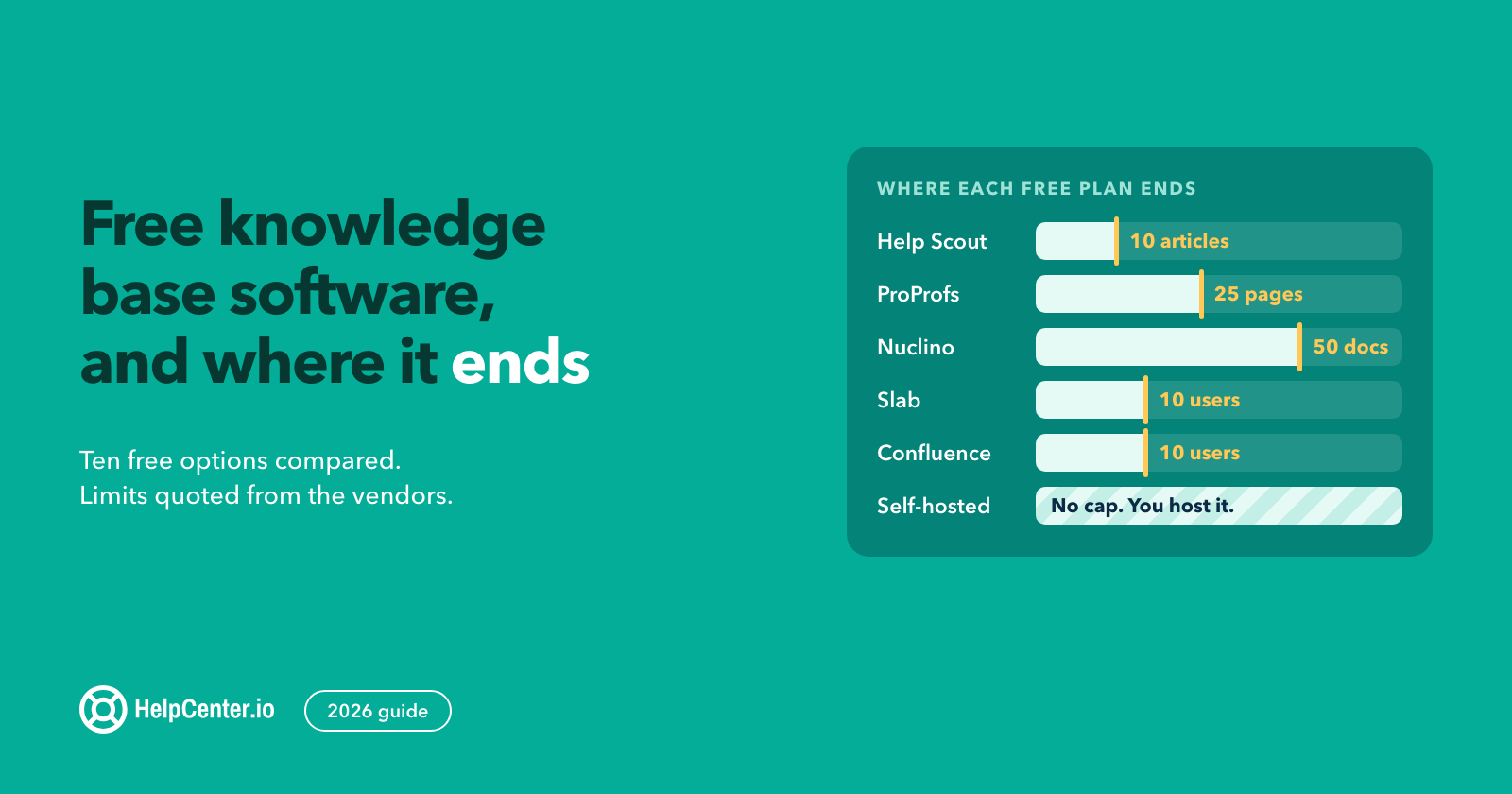
If you are still deciding where to land rather than how to get there, our roundup of the best knowledge base software in 2026 compares the realistic options side by side.
Frequently asked questions
Does Zendesk have a built-in way to export help center articles?
No. Zendesk's documentation states it does not have a prebuilt tool to export articles and directs customers to the Help Center API. There is no CSV or one-click export in the admin UI, so any export is scripted, done by a migration service, or done by hand.
Will I lose my search rankings if I move off Zendesk?
Not if every old URL gets a 301 to its replacement. Rankings are attached to URLs, and a permanent redirect passes that authority to the new address. Rankings are lost when old URLs return 404s, not because the content changed platforms.
Can I keep my old Zendesk URLs working after I cancel?
No. Both the help center and its redirect rules are served by Zendesk, so they stop when the subscription does. That is why the redirect window has to sit between the rebuild and the cancellation rather than after it.
How long does a help center migration take?
A scripted export and rebuild is typically a few days of work for a mid-sized library, with most of the time going to reviewing content rather than moving it. Our migration team usually completes the move in under seven days. The redirect window afterwards runs longer, and that is a waiting period rather than work.
Do I have to replace Zendesk ticketing at the same time?
No, and many teams do not. The help center and the ticketing system are separable, and moving documentation to a standalone platform while keeping an existing desk is a common setup. Splitting the decision also makes each one easier to reverse.