Use case · AI-ready documentation

Documentation that people and AI assistants can both read

Turn your help center into an AI knowledge base, with no second set of docs. Claude, ChatGPT and other assistants search it through MCP and read clean Markdown of every page.

  • A public MCP server on every plan, including Bootstrap
  • llms.txt, llms-full.txt and Markdown for every page
  • One setting decides what AI crawlers may do

14-day free trial · No credit card required

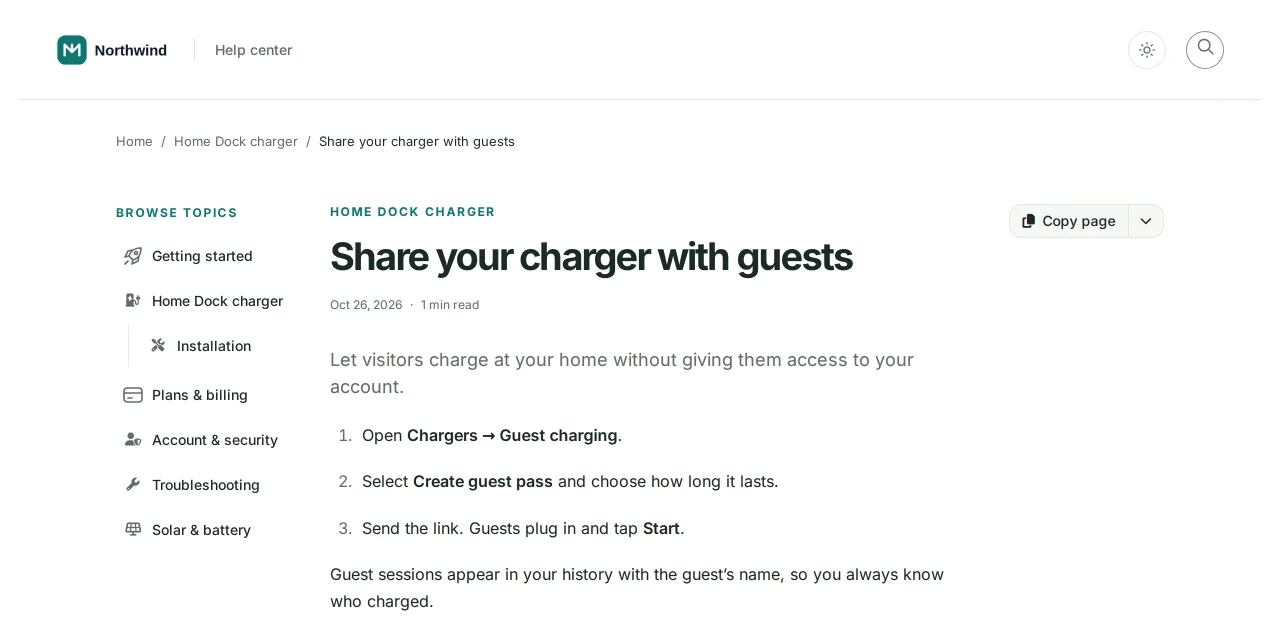
A demo help center article, Share your charger with guests, as a reader sees it: the help center's header, topic list, breadcrumbs and numbered steps
Accept: text/markdown 200 · text/markdown
# Share your charger with guests

_Category: Home Dock charger_

Let visitors charge at your home without giving them access to your account.

1. Open **Chargers → Guest charging**.
2. Select **Create guest pass** and choose how long it lasts.
A demo help center: what a reader sees, and the Markdown an assistant gets at the same address.
The problem

Your docs have a second audience now

More of your customers ask an AI assistant before they open your help center, and the assistant answers either way. If it cannot read your documentation, it answers from old forum threads, someone else's guide or a guess, and your support team hears about it later.

Most help centers were built for browsers alone: pages full of navigation and scripts, nothing that lists what exists, and nothing that tells crawlers what they may do. So teams paste articles into prompts by hand, or start a second set of docs just for AI.

An AI knowledge base fixes this at the source: one set of articles, published once, that people and AI assistants read from the same place.

How it works

One help center, ready for AI assistants

Available on: every plan, including Bootstrap

A public MCP server for every help center

Every public help center is also an MCP server at its own address, https://<your help center>/mcp. Your readers add it to Claude, ChatGPT or any assistant that supports MCP, with no sign-in. The assistant can then search your articles, fetch any of them in full and list your categories, with a link back to each article.

It is read-only and sees only what any visitor could: published, public articles. It is on for public, published help centers with Allow search engines on, you can switch it off in Settings, and it stays off under an IP allowlist or JS-only access. Try ours at self.helpcenter.io/mcp.

How the public MCP server works
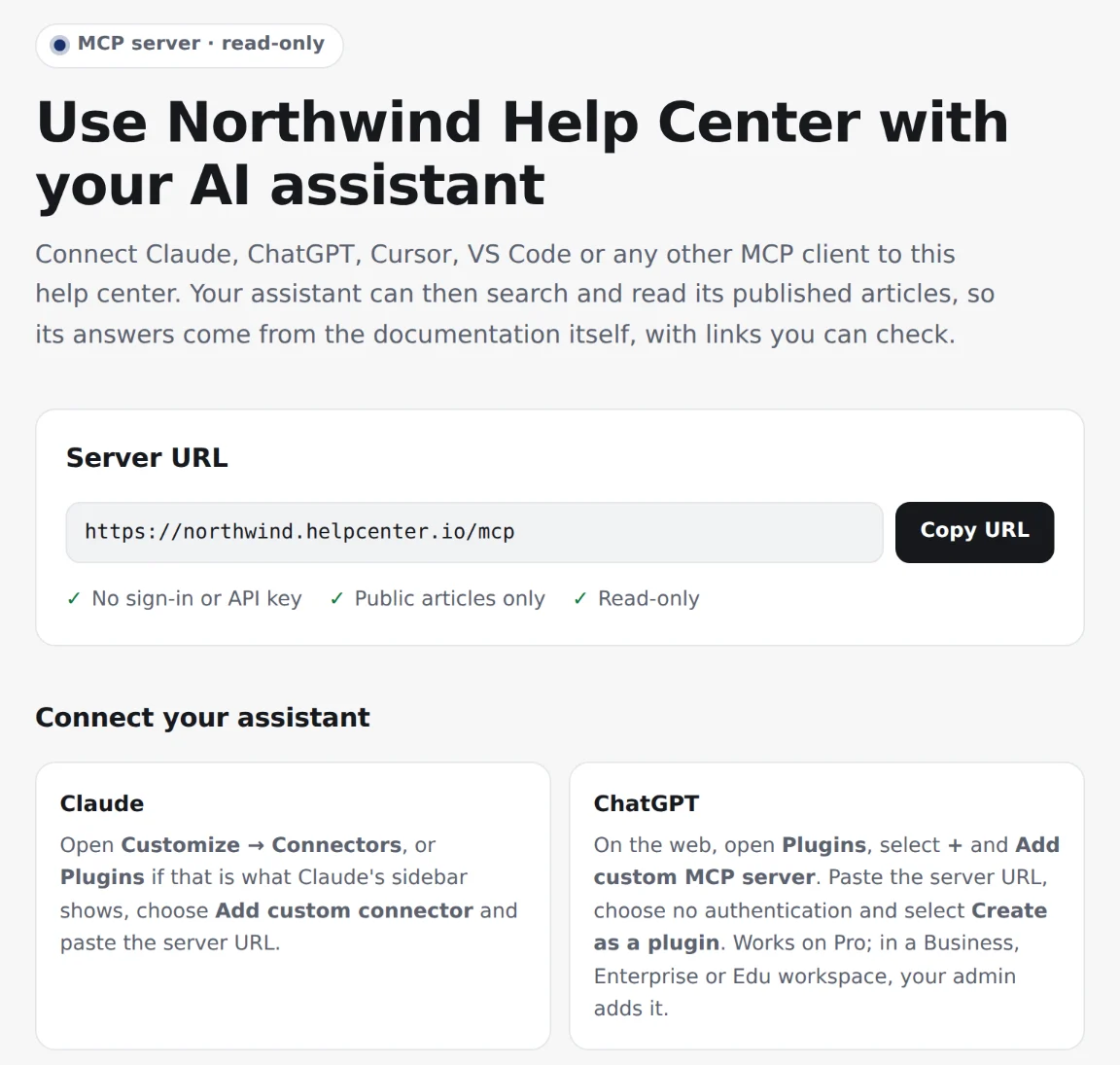
The setup page at a demo help center's /mcp address: its server URL to copy, marked no sign-in or API key, public articles only and read-only, with steps for Claude and ChatGPT

Available on: Growth and Catalyst

MCP for your team and your AI agents

Your team gets a second, signed-in server at mcp.helpcenter.io. Connect Claude, ChatGPT or your own agent with OAuth or an API key, choose the help centers it may reach and what it may do, and put it to work: drafting and translating articles, organizing categories, reading search analytics and restyling the design as a draft. Clients like Claude ask you before any tool that edits, publishes or deletes.

It is included in Growth at $119/mo billed annually ($149 month to month) and in Catalyst at $179/mo billed annually ($199 month to month), and in both 14-day trials, with no charge per tool call.

See what agents can do
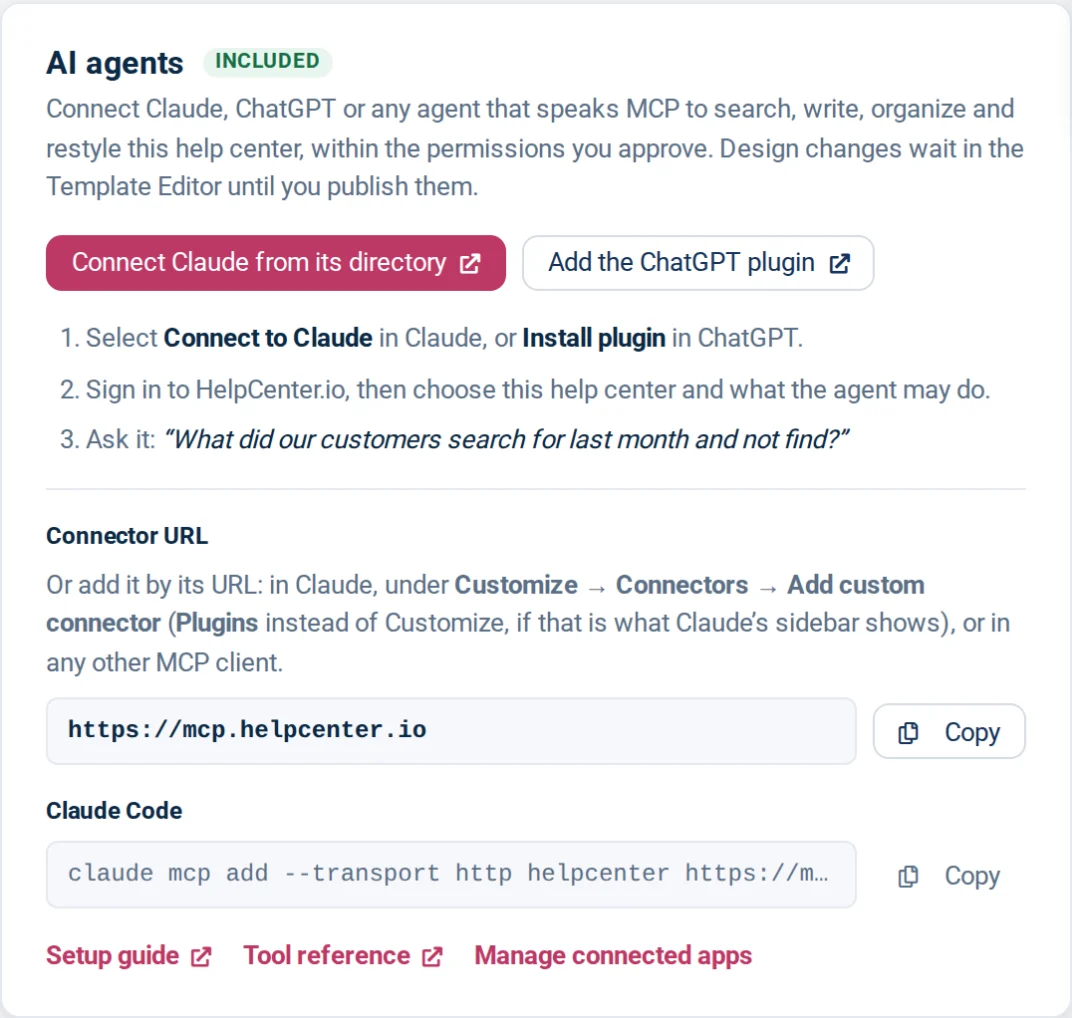
The AI agents card in a help center's Settings: buttons to connect Claude from its directory and to add the ChatGPT plugin, three setup steps, and the connector URL https://mcp.helpcenter.io

Available on: every plan

llms.txt, Markdown pages and crawler controls

Each public help center publishes /llms.txt, an index of its articles by category, and /llms-full.txt, every published article in one file. Every page also answers in Markdown at the same URL when a client asks with Accept: text/markdown: your words without the layout.

You decide what crawlers may do. With Allow search engines on (Search engine indexing in Settings), your robots.txt and ai.txt welcome search and AI answers but ask that your content not train models. Turn it off and they ask every crawler to stay away, and llms.txt and the public MCP server stop answering.

To decide who can read it at all, make it private or password-protected, or add an IP allowlist.

Access control available on: Growth and Catalyst

llms.txt and AI crawlers
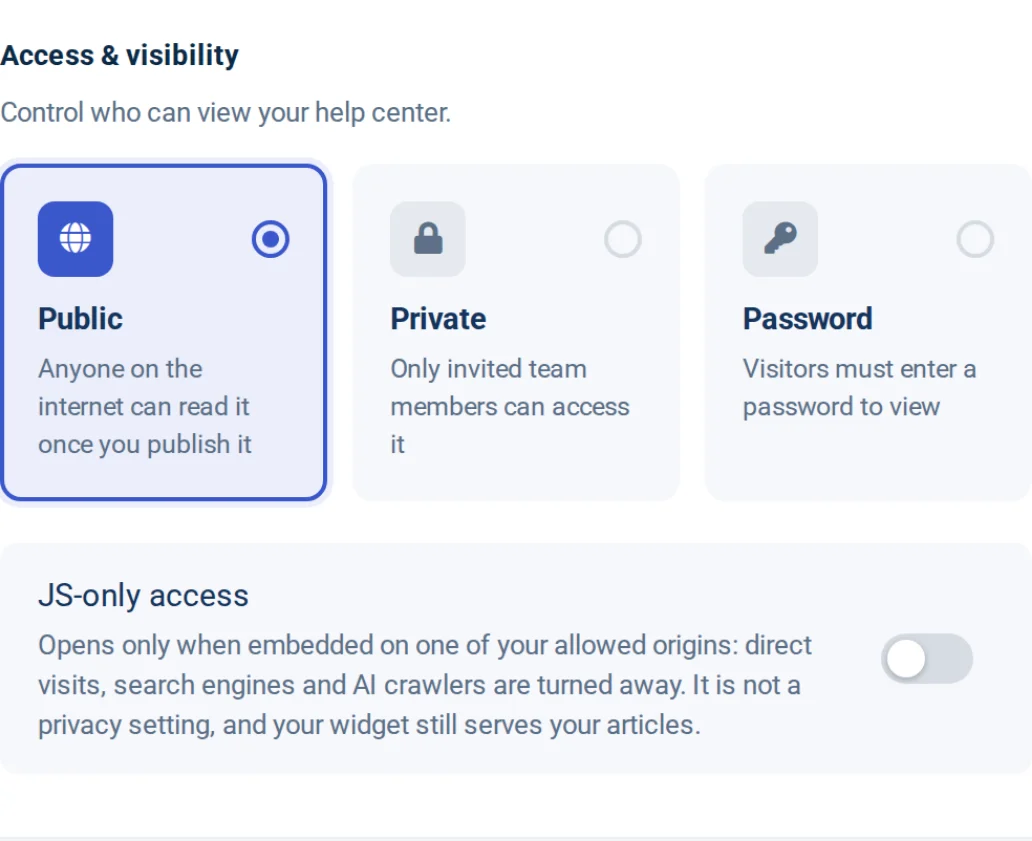
Access and visibility in a help center's Settings: the Public, Private and Password options, and the JS-only access switch, which opens the help center only where it is embedded and is not a privacy setting
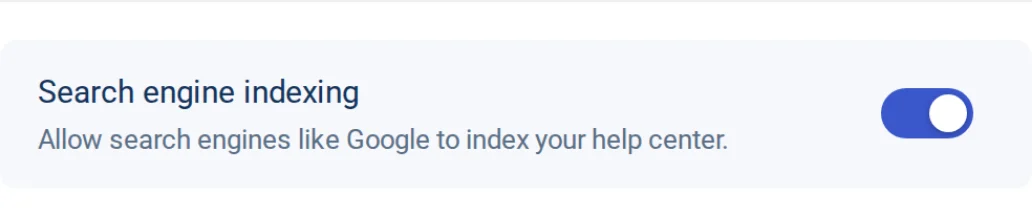
The Search engine indexing switch in Settings, turned on: allow search engines like Google to index your help center

Available on: included on Catalyst; add-on on Bootstrap and Growth

AI Answers and semantic search in your own help center

Not every reader brings an assistant of their own. AI Answers puts one in your help center and your AI Widget: a reader asks in their own words and gets an answer written only from your published articles, never the open web, with links to the articles it used. Semantic search finds articles by meaning, so a question can reach the right guide even when it shares none of its words.

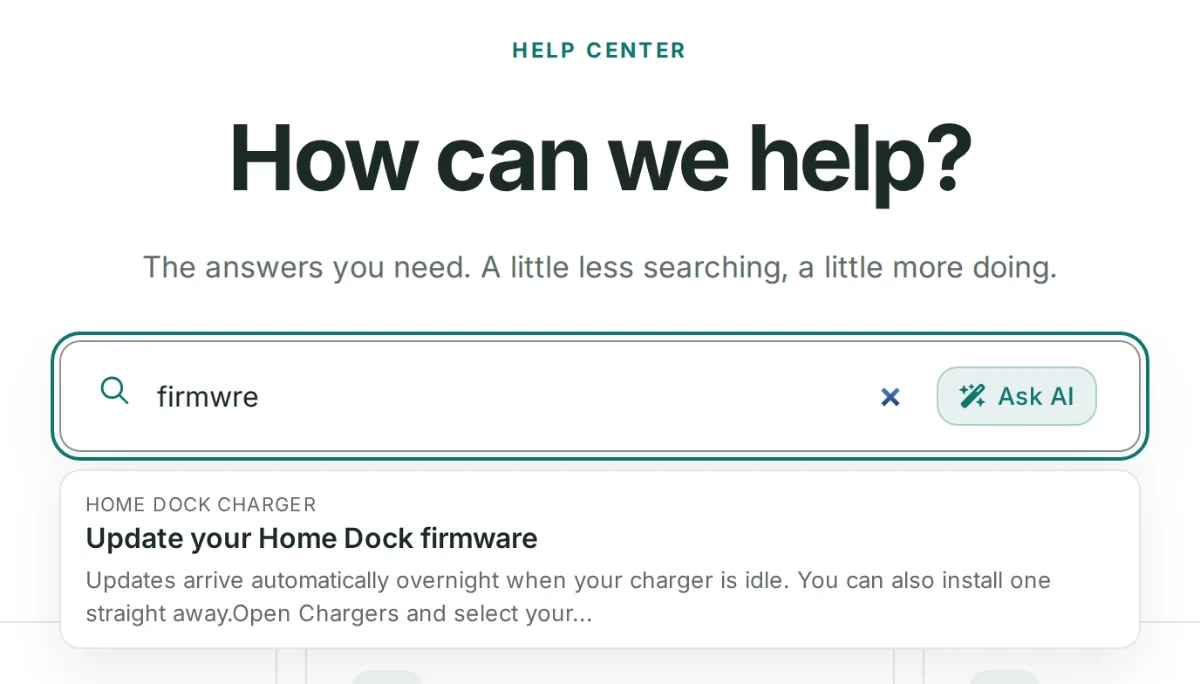
Typo-tolerant search is included on every plan, so a misspelled query like “firmwre” still finds the right article.

How AI Answers work
A demo help center's search box with the misspelled query firmwre, finding the article Update your Home Dock firmware, beside the Ask AI button

Available on: every plan; Catalyst adds chat

A help center that looks like your product

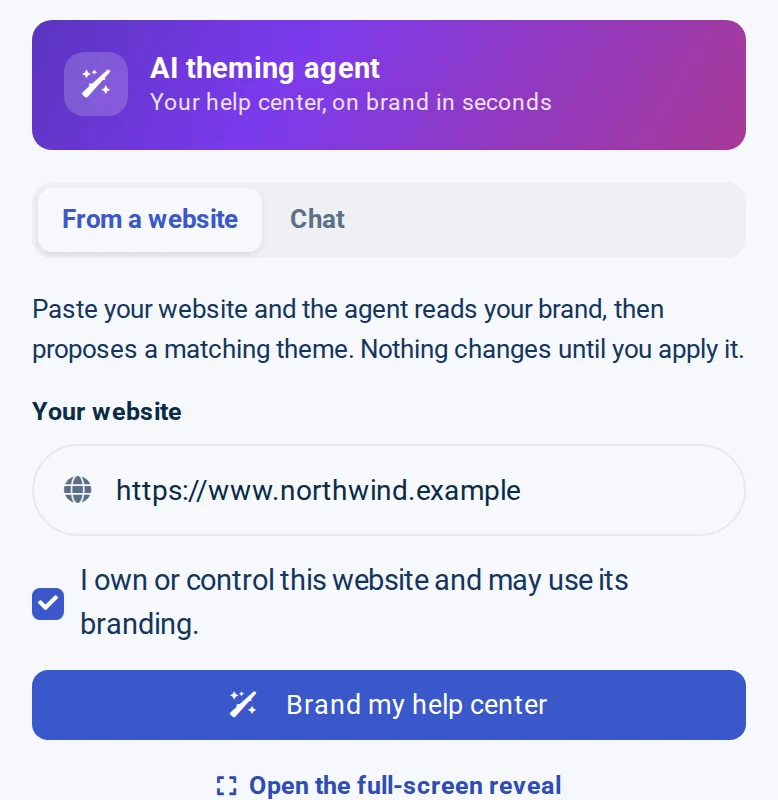
Docs that AI can read still have people reading them, and they should feel at home. Paste your website's address into the Template Editor and the AI Theming Agent reads your colors, fonts and logo, then proposes a matching light and dark theme. You first confirm that you own or control the site. Nothing changes until you apply the proposal, and applying it only updates your draft until you publish.

With chat, keep shaping it in plain language: colors, fonts, page layouts, navigation and components.

Meet the AI Theming Agent
The AI agent panel in the Template Editor: the AI theming agent's From a website tab with a website address entered, the ownership box checked and the Brand my help center button
Set up

Make your help center AI-ready in three steps

  1. Publish a public help center

    Keep Allow search engines on. Your llms.txt, Markdown pages and /mcp address go live with it.

    llms.txt and AI crawlers
  2. Share your MCP address

    Copy it from Settings. Opened in a browser, the same address shows readers setup steps for their assistant.

    The public MCP server
  3. Connect your team's assistant

    On Growth or Catalyst, add mcp.helpcenter.io to Claude, ChatGPT or your own agent.

    Connect an AI agent
llms.txt explained

What is llms.txt?

llms.txt is a plain-text file at the root of a website, proposed at llmstxt.org, that gives AI tools a short map of the site: a title, a one-line summary and links grouped under headings. We build yours from your published categories and articles, so you never edit it by hand.

Example: the start of a demo help center's llms.txt, shortened /llms.txt
# Northwind Help Center

> The answers you need. A little less searching, a little more doing.

Every page listed below also serves clean Markdown at the same URL when
requested with `Accept: text/markdown`.

AI assistants can also search and read this help center live through its
read-only MCP server at https://northwind.helpcenter.io/mcp

## Getting started

Everything you need for your first week with Northwind.

- [Welcome to Northwind](https://northwind.helpcenter.io/en/content/welcome-to-northwind)
- [Install the Northwind app](https://northwind.helpcenter.io/en/content/install-the-northwind-app)
Plans

Which plan fits

  • Bootstrap

    A public help center AI can read

    • Public MCP server
    • llms.txt and Markdown pages
    • Crawler controls
    • Typo-tolerant search
    • AI Answers as an add-on
  • Growth

    For teams working with AI agents

    • Everything in Bootstrap
    • MCP for your team at mcp.helpcenter.io
    • Access control
    • White-glove support
    • AI Answers as an add-on
  • Catalyst

    AI built in

    • Everything in Growth
    • AI Answers and semantic search included
    • 3 hours of manual customization

Compare every plan and price

FAQ

Questions about AI-ready docs

What is llms.txt?

A plain-text index at the root of a website, proposed at llmstxt.org, that tells AI tools what the site holds and where to find it. Every public help center with Allow search engines on publishes /llms.txt, plus /llms-full.txt with every published article, on every plan.

What is MCP and which plan has it?

MCP, the Model Context Protocol, is the open standard AI assistants use to reach outside tools and data. Every public help center has a read-only MCP server at its own /mcp address on every plan, including Bootstrap. The signed-in server at mcp.helpcenter.io, for your team's AI agents, is included in Growth and Catalyst.

Can ChatGPT or Claude read my help center?

Yes. Add your help center's /mcp address to Claude, ChatGPT or another assistant that supports MCP, and it can search and read your published articles. Assistants that browse can also read your llms.txt and ask for any page as Markdown.

Can I keep content away from AI crawlers?

Yes. Turn off Allow search engines and your robots.txt and ai.txt ask every crawler to stay away, and llms.txt and the public MCP server stop answering. Well-behaved crawlers follow those signals. To decide who can read your help center at all, use access control on Growth and Catalyst: a private or password-protected help center, or an IP allowlist.

Will AI assistants see drafts or private articles?

No. The public MCP server, llms.txt and Markdown pages only carry what an anonymous visitor can read: published, public articles. Drafts, private articles and categories, and internal notes stay out.

Give people and AI the same right answer

Publish once. Your customers read it, and so do their assistants.

14-day free trial · No credit card required