Up next
The video did not load.
Lesson 6 of 10 · 1:03
Check your custom CSS and code
From Move to the new Template Editor · Verified against the live product on Nov 3, 2026
This lesson
Your custom CSS comes across word for word. Update the selectors written for the classic class names.
Prefer to read? Follow it step by step
Moments in this lesson
 Length 0:26
Up next · 0:26
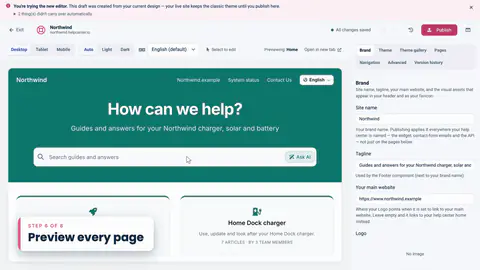
7. Preview every page
Check every kind of page at tablet and mobile sizes, and in dark mode.
Transcript
- 4:23Next, your custom code.
- 4:26I'll open Advanced.
- 4:28Northwind's custom CSS came across word for word, as an item called Custom CSS.
- 4:34And the style block from the footer became an item of its own.
- 4:37But look at the category cards.
- 4:39In the classic design, each card had a teal line along the top... and here, it's gone.
- 4:45The CSS is still there.
- 4:46It's just written for the classic design's class names, and the new editor uses different ones.
- 4:52So I'll click Edit... and point the rule at the new editor's category cards.
- 4:57And the teal line is back.
- 4:58The article "Custom CSS reference" lists the selectors you can rely on.
- 5:04Under Script injections is the script from the footer...
- 5:06and it still runs, just as before.
- 5:09If you'd ever like a fresh start, Reset draft makes the copy again from your classic design.
- 5:14Custom code is where a move needs the most care.
- 5:17If yours doesn't carry over cleanly, send it our way.
- 5:20Our team will help you rework it for the new editor.
Captions and this transcript come from the narration, word for word. Click any line to play from there.
About the course
Bring your classic design across, check what changed, and publish when you're ready. Your visitors see nothing until then.
What you'll learn
- What the new template editor adds, and what stays exactly the same
- How to start the move with Try the new editor, and why it's safe
- What comes across from your classic design on its own, in every language
- How to fix what doesn't, and update custom CSS written for the classic design
- How to preview every page at every size, and in dark mode
- Publishing the switch, restoring an earlier version, and switching back
- Who it's for
- Help centers still on the classic template editor.
- Format
- 10 lessons, 7:56 in all. English captions and a full transcript.
- Last verified
- Nov 3, 2026, on the live product with the Northwind demo help center
- Plans
- Everything in this course works on every plan.
Articles
Every lesson pairs with a help article, so you can read the steps at your own pace.
-
Move your help center to the new template editor self.helpcenter.io/content/move-to-the-new-template-editorGoes with these lessons
-
Which template editor does my help center use? self.helpcenter.io/content/which-template-editorGoes with
-
What carries over to the new template editor self.helpcenter.io/content/what-carries-over-to-the-new-template-editorGoes with these lessons
-
Custom CSS reference: selectors and examples self.helpcenter.io/content/custom-css-referenceGoes with
-
My custom CSS doesn't work self.helpcenter.io/content/custom-css-not-workingGoes with
-
Preview on phones, tablets and in dark mode self.helpcenter.io/content/preview-your-designGoes with
-
Publish your design self.helpcenter.io/content/publish-your-designGoes with
-
Switch back to the classic template editor self.helpcenter.io/content/switch-back-to-the-classic-editorGoes with
-
Contact HelpCenter.io support self.helpcenter.io/content/contact-supportGoes with