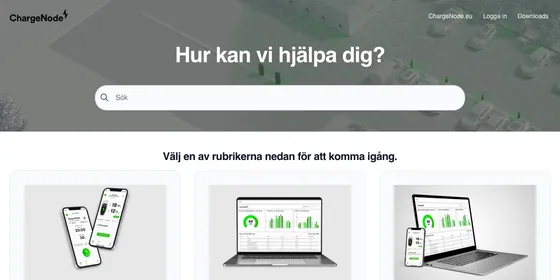
Up next
The video did not load.
Video course · 10 lessons · 7:56
Move to the new Template Editor
From Move to the new Template Editor · Verified against the live product on Nov 3, 2026
This lesson
Move from the classic template editor to the new one, with nothing changing for visitors until you're ready.
Prefer to read? Follow it step by step
Moments in this lesson
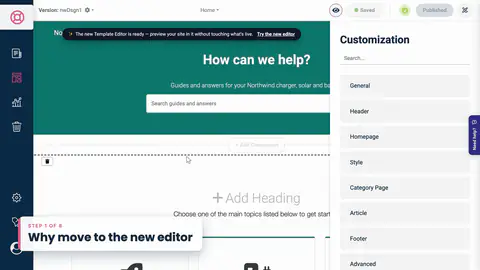 Length 0:46
Up next · 0:46
2. Why move to the new editor
Ready-made themes, a layout for every kind of page, dark mode, and a restore point every time you publish.
Transcript
Lesson 1 · Introduction
- 0:05Hi!
- 0:06In this video, I'll show you how to move your help center from the classic template editor to the new one... without your visitors seeing a thing until you're ready.
- 0:15We'll look at why it's worth it, and start the move.
- 0:18Then we'll see what comes across on its own, fix what doesn't, and check your custom code.
- 0:23Finally, we'll preview every page, publish...
- 0:26and I'll show you how to switch back, too.
- 0:29I'm signed in to Northwind, a demo help center that still uses the classic editor.
- 0:33Here's its live site... with a teal header, a footer of its own, and a little custom CSS.
- 0:40To open the editor, I'll go back to the dashboard...
- 0:43and click Template Editor in the menu on the left.
Lesson 2 · Why move to the new editor
- 0:50This is the classic template editor.
- 0:52The preview is on the left... and the Customization panel on the right.
- 0:56The new template editor gives you a lot more.
- 0:59Ready-made themes... a layout you can change for every kind of page...
- 1:04dark mode built in... and a restore point every time you publish.
- 1:08AI assistants connected to your help center can work on its design, too.
- 1:13And the move only changes how your help center looks.
- 1:16Your articles, categories and translations... your web addresses, search, the widget and your custom domain all stay exactly as they are.
- 1:24Best of all, it starts as a draft.
- 1:27You can look around for as long as you like...
- 1:29and nothing changes for your visitors until you publish.
Lesson 3 · Start the move
- 1:35Up here, the classic editor tells you the new one is ready.
- 1:38Owners and admins see this message.
- 1:41I'll click Try the new editor.
- 1:44And this is the new template editor, with Northwind's design already in it.
- 1:49The banner says I'm trying the new editor...
- 1:51and that my live site keeps the classic theme until I publish here.
- 1:55The editor made this draft from Northwind's latest classic design, including any changes saved there but never published.
- 2:02Here's where the new things live.
- 2:03The Theme gallery has the ready-made themes... Pages is where you change each page's layout... and Version history keeps your restore points.
- 2:12Above the preview, you can check your help center at desktop, tablet and mobile sizes... and in dark mode.
- 2:18Your draft saves as you work, and it'll be waiting when you come back.
- 2:22To leave for now, click Exit... and you're back in the classic editor.
Lesson 4 · What carried over
- 2:29Let's see what came across.
- 2:31The teal header is here, with its heading and subheading... and the search box.
- 2:36So are the menu links... and the Contact Us button, because Northwind has a contact form.
- 2:41Northwind's help center is in four languages, and every translated text came with it.
- 2:46On the Pages tab, Editing texts in says English.
- 2:49I'll switch it to Deutsch... and the heading is in German.
- 2:53On the Theme tab, Northwind's teal became the primary color...
- 2:56so buttons, links and highlights all keep it.
- 3:00And at the bottom of the page, Northwind's own footer came across too.
Lesson 5 · Fix what didn't carry over
- 3:06Not everything can come across on its own, and the banner lists what didn't.
- 3:11I'll open the list.
- 3:12The first item is just a note.
- 3:14A script from the footer moved into Script injections, because custom HTML in the new editor doesn't run scripts.
- 3:21We'll check it in the next chapter.
- 3:23The second is the text of the custom "page not found" message.
- 3:27In the new editor, you set it under the gear icon in the left menu... in Localization.
- 3:33One change isn't on the list.
- 3:35In the classic editor, Northwind's menu links opened in a new tab.
- 3:39Here, they open in the same tab.
- 3:41I'll open Navigation.
- 3:43Every link came across as an Internal link.
- 3:45For System status, I'll set Kind to External link... and it opens in a new tab again.
- 3:51The draft also starts with standard dark mode colors.
- 3:54To use your own, open Theme... and scroll down to Dark mode.
- 4:00A few classic settings have no direct match, like some footer and listing colors.
- 4:04The article "What carries over to the new template editor" lists every one.
- 4:09And if your classic design is heavily customized, you don't have to work through it alone.
- 4:14Our team can help you move it.
- 4:15Click Need help?
- 4:16in your dashboard... or email support at helpcenter dot io.
Lesson 6 · Check your custom CSS and code
- 4:23Next, your custom code.
- 4:26I'll open Advanced.
- 4:28Northwind's custom CSS came across word for word, as an item called Custom CSS.
- 4:34And the style block from the footer became an item of its own.
- 4:37But look at the category cards.
- 4:39In the classic design, each card had a teal line along the top... and here, it's gone.
- 4:45The CSS is still there.
- 4:46It's just written for the classic design's class names, and the new editor uses different ones.
- 4:52So I'll click Edit... and point the rule at the new editor's category cards.
- 4:57And the teal line is back.
- 4:58The article "Custom CSS reference" lists the selectors you can rely on.
- 5:04Under Script injections is the script from the footer...
- 5:06and it still runs, just as before.
- 5:09If you'd ever like a fresh start, Reset draft makes the copy again from your classic design.
- 5:14Custom code is where a move needs the most care.
- 5:17If yours doesn't carry over cleanly, send it our way.
- 5:20Our team will help you rework it for the new editor.
Lesson 7 · Preview every page
- 5:26Before you publish, check every kind of page.
- 5:29On the Pages tab, I'll open the Page menu.
- 5:32Home... Category... Article... Search... Contact... and Not found.
- 5:38Let's look at an article.
- 5:40Then try it at tablet size... and mobile.
- 5:44And in dark mode, too.
- 5:47Everything looks right... so it's time to publish.
Lesson 8 · Publish the switch
- 5:52When you're happy with it, click Publish.
- 5:55The editor tells you exactly what's about to happen.
- 5:58This publish switches your live site to the new template engine...
- 6:01and you can switch back to the classic editor at any time.
- 6:05I'll add a version note, so it's easy to find later... and click Publish.
- 6:10Published!
- 6:11Let's open the live help center... It's Northwind on the new template editor.
- 6:15Same articles... same address.
- 6:19From now on, Template Editor in the left menu opens the new editor.
- 6:23And your classic settings are kept, untouched.
Lesson 9 · Switch back if you need to
- 6:29If something isn't right after you publish, there are two ways back.
- 6:32The first is Version history.
- 6:35Every publish is a restore point here... and Restore puts an earlier one live again.
- 6:40The second takes you all the way back to the classic editor.
- 6:43I'll open Advanced... and scroll down to Classic editor.
- 6:47If you've only just published, reload the page first.
- 6:51I'll click Switch back to the classic editor.
- 6:54Visitors will see the classic design again right away, and nothing is deleted.
- 6:58I'll click Switch to classic.
- 7:02And Northwind is back in the classic editor.
- 7:05The work you did in the new one stays saved... so when you try the new editor again, it opens the design you published, not a fresh copy.
Lesson 10 · Wrap-up
- 7:15So that's the move.
- 7:16We started a draft from the classic design, saw what came across, and fixed what didn't.
- 7:22We brought the custom CSS up to date, previewed every page, published... and saw how to switch back.
- 7:28If your help center is heavily customized, or your code needs more than a quick fix, our team is here to help.
- 7:35Click Need help?
- 7:36on the right edge of your dashboard... or email support at helpcenter dot io.
- 7:41To learn everything else the new editor can do, watch our video guide to the Template Editor.
- 7:46Thanks for watching!
Captions and this transcript come from the narration, word for word. Click any line to play from there.
About the course
Bring your classic design across, check what changed, and publish when you're ready. Your visitors see nothing until then.
What you'll learn
- What the new template editor adds, and what stays exactly the same
- How to start the move with Try the new editor, and why it's safe
- What comes across from your classic design on its own, in every language
- How to fix what doesn't, and update custom CSS written for the classic design
- How to preview every page at every size, and in dark mode
- Publishing the switch, restoring an earlier version, and switching back
- Who it's for
- Help centers still on the classic template editor.
- Format
- 10 lessons, 7:56 in all. English captions and a full transcript.
- Last verified
- Nov 3, 2026, on the live product with the Northwind demo help center
- Plans
- Everything in this course works on every plan.
Articles
Every lesson pairs with a help article, so you can read the steps at your own pace.
-
Move your help center to the new template editor self.helpcenter.io/content/move-to-the-new-template-editorGoes with these lessons
-
Which template editor does my help center use? self.helpcenter.io/content/which-template-editorGoes with
-
What carries over to the new template editor self.helpcenter.io/content/what-carries-over-to-the-new-template-editorGoes with these lessons
-
Custom CSS reference: selectors and examples self.helpcenter.io/content/custom-css-referenceGoes with
-
My custom CSS doesn't work self.helpcenter.io/content/custom-css-not-workingGoes with
-
Preview on phones, tablets and in dark mode self.helpcenter.io/content/preview-your-designGoes with
-
Publish your design self.helpcenter.io/content/publish-your-designGoes with
-
Switch back to the classic template editor self.helpcenter.io/content/switch-back-to-the-classic-editorGoes with
-
Contact HelpCenter.io support self.helpcenter.io/content/contact-supportGoes with