Up next
The video did not load.
Video course · 5 lessons · 5:10
Keep articles accurate
From Keep articles accurate · Verified against the live product on Nov 12, 2026
This lesson
Three ways to keep help articles accurate as your product changes and more people edit them, shown on Northwind, a demo help center.
Prefer to read? Follow it step by step
Moments in this lesson
 Length 1:23
Up next · 1:23
2. See and restore earlier versions
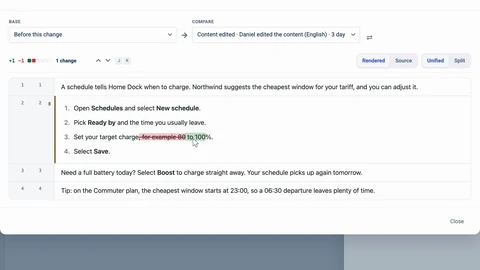
Open an article's Version History to see who changed what and when, see exactly what a change did, and restore an earlier version. How far back the history goes depends on your plan.
Transcript
Lesson 1 · Introduction
- 0:05Hi!
- 0:06In this video, I'll show you three ways to keep your help articles accurate... as your product changes, and as more people edit them.
- 0:14First, we'll open an article's version history, to see who changed what... and take a change back.
- 0:20Then we'll flag an article for a teammate to review.
- 0:23And finally, we'll rework a live article with staged changes, while readers keep seeing the published version.
- 0:29I'm signed in to Northwind, a demo help center we'll use the whole way through.
Lesson 2 · See and restore earlier versions
- 0:36A customer just told us this guide is wrong: step three says to charge the car to one hundred percent.
- 0:43Let's find out when that changed, and who changed it.
- 0:46Every article keeps a history of its changes.
- 0:48To see it, click Version History, above the article.
- 0:52Each entry says what changed, who changed it, and how long ago.
- 0:56The latest one: Daniel edited the content, three days ago.
- 1:00To see the change itself, click the compare icon next to it... What was removed is struck through in red, and what was added is green.
- 1:08So that's where one hundred came from.
- 1:10Split puts the old and the new side by side.
- 1:14Under an older entry, Compare with current shows everything that changed since then... And with Base and Compare, at the top, you can compare any two points in the history.
- 1:24Now let's take Daniel's change back.
- 1:26Click Restore next to it... and confirm with Restore.
- 1:29The text is back the way it was right before that change.
- 1:32And because this article is published, readers get the restored version straight away.
- 1:37The restore is listed as a new entry, so you can undo it the same way.
- 1:42How far back the history goes depends on your plan.
- 1:45Northwind is on Catalyst, which keeps a year.
- 1:48Pebble, a smaller help center on the Bootstrap plan, sees its latest changes... and a note below them: older changes are hidden by your plan's history window.
Lesson 3 · Flag an article for review
- 1:59When you're not sure an article is still right, ask a teammate to check it.
- 2:04Northwind's off-peak hours change in December, so I've opened the article that lists them.
- 2:09Click the arrow next to Update... and choose Flag for review.
- 2:13Under Assign to, you can leave Anyone on the team... or pick one person.
- 2:17I'll choose Priya.
- 2:19Then add a note that says what to check.
- 2:22Leave Notify the assignee by email ticked... and click Flag for review.
- 2:27Priya gets an email.
- 2:28And a banner on the article shows who flagged it, who it's assigned to, and the note.
- 2:34Back on Articles, the article is marked For review, with the reviewer's name... and the In review tab lists everything that's waiting.
- 2:42Now, Priya's side.
- 2:44She opens the article, checks it, and clicks Mark as reviewed... She adds a comment for the person who flagged it... and confirms.
- 2:51The flag is cleared.
- 2:53And Review history, in the same menu, keeps who asked, who reviewed, and what they said.
- 2:59For an article that goes out of date by itself, set a reminder instead.
- 3:04In the same menu, choose Schedule for review... It suggests thirty days, and shows the date they fall on.
- 3:10Click Schedule.
- 3:12On that date, the article's author gets an email, and the article shows up under In review again.
Lesson 4 · Rework a live article safely
- 3:20Usually, an edit to a published article goes live as soon as you click Update.
- 3:25On the Catalyst plan, you get staged changes: you can rework a live article for hours or days, while readers keep seeing the published version.
- 3:34Just edit the article as usual.
- 3:36The Commuter window will start an hour earlier, so in the table, I'll change twenty-three to twenty-two... and click Save draft.
- 3:44The edit is saved to a staged copy, and the banner says so: You're editing a staged copy.
- 3:50Readers still see the live version.
- 3:52If you simply stop typing, it saves by itself after a few seconds.
- 3:56Let's check.
- 3:57Here's the article signed out, the way a reader sees it... still twenty-three.
- 4:02You can leave it like this for as long as you need.
- 4:05On Articles, the article carries a Staged label... and the Pending changes view lists every article with staged work.
- 4:12A teammate who opens it carries on from the staged copy.
- 4:15When it's ready, click Compare with live... to see exactly what will change.
- 4:20Then click Publish changes... and your changes are live.
- 4:24Signed out again, after a reload: readers now see twenty-two.
- 4:29And Version History now keeps the previous live version too, with Compare... and Restore, to roll back to it.
Lesson 5 · Wrap-up
- 4:38So: Version History shows who changed what, and Restore takes a change back... Flag for review asks a teammate to check an article, and Schedule for review brings it back on a date... And on Catalyst, staged changes let you rework a live article while readers keep seeing the published one.
- 4:57To learn more, visit self dot helpcenter dot io.
- 5:00Thanks for watching!
Captions and this transcript come from the narration, word for word. Click any line to play from there.
About the course
See who changed what and take a change back, ask a teammate to review an article, and rework a live article with staged changes while readers keep seeing the published version.
What you'll learn
- Reading an article's Version History: what changed, who changed it and when
- Seeing exactly what a change did, and comparing any two points in the history
- Restoring an earlier version, and what readers see when you do
- How far back the history goes on your plan
- Flagging an article for a teammate to review, and finding it under In review
- Scheduling a review, so an article comes back for a re-check on a date
- Editing a live article as a staged copy, comparing it with the live version and publishing it
- Who it's for
- Teams whose help articles are edited by more than one person, and anyone who has to answer "who changed this?".
- Format
- 5 lessons, 5:10 in all. English captions and a full transcript.
- Last verified
- Nov 12, 2026, on the live product with the Northwind demo help center
- Plans
-
Works on every plan. One lesson covers a feature on a higher plan, and says so:
- Lesson 4 · Rework a live article safely Staged changes: Catalyst
Articles
Every lesson pairs with a help article, so you can read the steps at your own pace.
-
Keep your help center up to date self.helpcenter.io/content/keep-your-help-center-up-to-dateGoes with these lessons
-
See and restore earlier versions of an article self.helpcenter.io/content/article-versionsGoes with
-
Flag articles for review self.helpcenter.io/content/flag-for-reviewGoes with
-
Edit live articles safely with staged changes self.helpcenter.io/content/staged-changesGoes with