
Up next
The video did not load.
Lesson 4 of 5 · 1:18
Rework a live article safely
From Keep articles accurate · Verified against the live product on Nov 12, 2026
Staged changes: Catalyst
This lesson
With staged changes, edits to a published article are saved to a staged copy. Readers keep seeing the live version until you compare the two and click Publish changes.
Prefer to read? Follow it step by step
Moments in this lesson
 Length 0:33
Up next · 0:33
5. Wrap-up
Version History and Restore, Flag for review and Schedule for review, and staged changes on Catalyst: the three lessons in one breath.
Transcript
- 3:20Usually, an edit to a published article goes live as soon as you click Update.
- 3:25On the Catalyst plan, you get staged changes: you can rework a live article for hours or days, while readers keep seeing the published version.
- 3:34Just edit the article as usual.
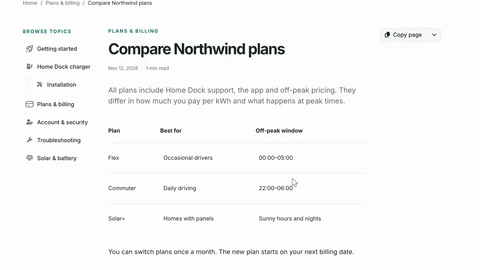
- 3:36The Commuter window will start an hour earlier, so in the table, I'll change twenty-three to twenty-two... and click Save draft.
- 3:44The edit is saved to a staged copy, and the banner says so: You're editing a staged copy.
- 3:50Readers still see the live version.
- 3:52If you simply stop typing, it saves by itself after a few seconds.
- 3:56Let's check.
- 3:57Here's the article signed out, the way a reader sees it... still twenty-three.
- 4:02You can leave it like this for as long as you need.
- 4:05On Articles, the article carries a Staged label... and the Pending changes view lists every article with staged work.
- 4:12A teammate who opens it carries on from the staged copy.
- 4:15When it's ready, click Compare with live... to see exactly what will change.
- 4:20Then click Publish changes... and your changes are live.
- 4:24Signed out again, after a reload: readers now see twenty-two.
- 4:29And Version History now keeps the previous live version too, with Compare... and Restore, to roll back to it.
Captions and this transcript come from the narration, word for word. Click any line to play from there.
About the course
See who changed what and take a change back, ask a teammate to review an article, and rework a live article with staged changes while readers keep seeing the published version.
What you'll learn
- Reading an article's Version History: what changed, who changed it and when
- Seeing exactly what a change did, and comparing any two points in the history
- Restoring an earlier version, and what readers see when you do
- How far back the history goes on your plan
- Flagging an article for a teammate to review, and finding it under In review
- Scheduling a review, so an article comes back for a re-check on a date
- Editing a live article as a staged copy, comparing it with the live version and publishing it
- Who it's for
- Teams whose help articles are edited by more than one person, and anyone who has to answer "who changed this?".
- Format
- 5 lessons, 5:10 in all. English captions and a full transcript.
- Last verified
- Nov 12, 2026, on the live product with the Northwind demo help center
- Plans
-
Works on every plan. One lesson covers a feature on a higher plan, and says so:
- Lesson 4 · Rework a live article safely Staged changes: Catalyst
Articles
Every lesson pairs with a help article, so you can read the steps at your own pace.
-
Keep your help center up to date self.helpcenter.io/content/keep-your-help-center-up-to-dateGoes with these lessons
-
See and restore earlier versions of an article self.helpcenter.io/content/article-versionsGoes with
-
Flag articles for review self.helpcenter.io/content/flag-for-reviewGoes with
-
Edit live articles safely with staged changes self.helpcenter.io/content/staged-changesGoes with