Up next
The video did not load.
Video course · 12 lessons · 9:57
FAQs and FAQ sections
From FAQs and FAQ sections · Verified against the live product on Nov 4, 2026
This lesson
Write an answer once, and show it under articles, on your help center's pages, and on your own site and app.
Prefer to read? Follow it step by step
Moments in this lesson
 Length 0:47
Up next · 0:47
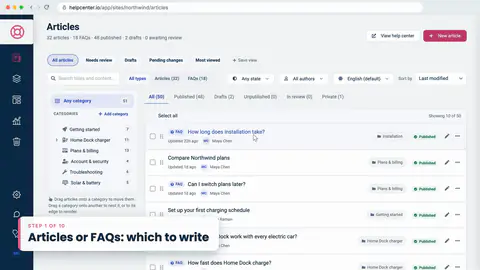
2. Articles or FAQs: which to write
An article walks through a task. An FAQ answers one question in a few sentences. Here's the rule of thumb.
Transcript
Lesson 1 · Introduction
- 0:05Hi!
- 0:06In this video, I'll show you how to write an answer once...
- 0:09and show it everywhere your customers look for it: under your articles, on your help center's pages, and on your own website and app.
- 0:18We'll start with when to write an FAQ instead of an article.
- 0:21Then we'll write a few, link them to articles, and group them into FAQ sections... and put those sections in an article, in the Template Editor, and on a pricing page, a product page, a checkout and an app.
- 0:34I'm signed in to Northwind, a demo help center we'll use the whole way through.
Lesson 2 · Articles or FAQs: which to write
- 0:41Your help center holds two kinds of content, and Articles lists both.
- 0:46The line at the top counts each kind.
- 0:48An article is a guide.
- 0:50It walks someone through a task, step by step, with as much detail as the task needs.
- 0:56An FAQ is one question, with a short answer.
- 0:59I'll show only the FAQs... and open one.
- 1:05So here's a rule of thumb.
- 1:06If the answer fits in a few sentences, and people ask it in those words, write an FAQ.
- 1:12If they need to follow steps, write an article.
- 1:15Search and Ask AI find both.
- 1:18But an FAQ can also go where an article can't: under an article, onto your help center's pages, and onto your own website.
Lesson 3 · Write an FAQ
- 1:28There's no separate button for FAQs.
- 1:31I'll click New article... type the question as the title, the way a customer would ask it... and a short answer below.
- 1:42Then, in the Details card, I'll set the Type to FAQ.
- 1:46FAQs stay short on purpose.
- 1:49If the text runs long, the editor keeps it an article until you shorten it.
- 1:53Like any article, an FAQ has a category, so I'll put this one in Home Dock charger... and Publish.
- 2:02Back in the list, it carries an FAQ badge.
- 2:05To fix a typo later, Quick edit opens the question and the answer, right here.
Lesson 4 · Link FAQs to an article
- 2:13Now let's put FAQs where people need them.
- 2:16I'll open Book a certified installer.
- 2:21On the right, the Related FAQs card holds the questions that belong with this article.
- 2:26To attach one I've already written, I'll search... and pick it.
- 2:31I can also write a new one right here.
- 2:33I'll click New... type the question... and a short answer... then Create FAQ.
- 2:43An FAQ written here is published straight away, in the article's category, so it's live as soon as you create it.
- 2:50In the help center, the article now ends with Frequently asked questions, and each one opens in place.
- 2:56They're also added to the page as FAQ structured data, which search engines and AI assistants can read.
Lesson 5 · Extend a long article with FAQs
- 3:05A long article answers lots of small questions that are hard to spot inside it.
- 3:10Understand your Northwind bill is one of them.
- 3:13I'll click Derive FAQs from this article... The AI reads the article, and drafts a few questions and answers from what's already there.
- 3:21They arrive as drafts, marked with a wand, so nothing goes live until you've read them.
- 3:26Once they read right, one click on Publish drafts puts them live.
- 3:30Derive FAQs is one of the AI features.
- 3:33It comes with the Catalyst plan, or as an add-on on the other plans.
- 3:38And when an article changes after its FAQs were written, the card flags them with Needs review.
- 3:44I'll check this one... it's still right... so I'll mark it up to date.
Lesson 6 · Put an FAQ section inside an article
- 3:51Related FAQs belong to one article.
- 3:54An FAQ section is a named set of FAQs that you can show in many places at once.
- 3:59Let's start inside an article.
- 4:02In Compare Northwind plans, I'll type a slash... and choose FAQ section.
- 4:07Saved sections lists the ones you've made, and Build custom would put a new set together, right here.
- 4:13I'll pick Plans and pricing... and Insert section.
- 4:17To change its questions later, go to Embeddables, then FAQ sections.
- 4:22For now, I'll click Publish changes to put the article live.
- 4:26In the help center, the section sits in the article's text, and it takes the help center's own look, like everything else on the page.
Lesson 7 · FAQs in the Template Editor
- 4:35Your help center's own pages can show FAQs too.
- 4:39I'll open the Template editor... and go to Pages.
- 4:44For category pages, there are two ways to show FAQs.
- 4:48Expand FAQs shows each answer under its question, right in the article list.
- 4:53Or Separate FAQs lifts them into an accordion at the top, before the articles.
- 4:59That's the one I'll turn on.
- 5:00The home page takes a component.
- 5:02In the main area, I'll click Add component... and choose FAQs.
- 5:09Under FAQ section, Every FAQ article shows all of them.
- 5:13I'll pick Common questions instead.
- 5:18Then Publish... and our home page answers the most common questions, under its categories and articles.
- 5:24Here too, the questions follow your help center's theme, and when a section's questions change, the page follows, without another Publish.
- 5:32And Plans and billing now opens with its FAQs, at the top.
Lesson 8 · Design an FAQ section
- 5:39On your own website, a section can have a design of its own.
- 5:42In Embeddables, FAQ sections lists every section, with its FAQs and its design.
- 5:49A Full section shows all your FAQs, by category.
- 5:52A Custom section shows only the FAQs you pick, and its badge counts them.
- 5:57Ours are all Custom.
- 5:59I'll click Design on Plans and pricing.
- 6:02There are twenty-seven templates: accordions, cards, lists, tabs and conversations.
- 6:08I'll pick Duet, a two-column accordion.
- 6:11Under Style, I'll set the accent color to Northwind teal...
- 6:15round the corners a little more...
- 6:17switch the expand icon to a plus... and set the color scheme to Auto, to follow each visitor's light or dark setting.
- 6:25The preview shows it on a light page... on a dark page... and on a phone.
- 6:30For anything more, Custom CSS takes your own rules.
- 6:33Start each one with this section's class, to keep it to this section.
- 6:38And Save design.
- 6:40It's live on every site that embeds this section, and the snippet stays the same.
Lesson 9 · FAQs on your pricing and product pages
- 6:47Now, our pricing page.
- 6:49The widget's snippet is already on every page of our site, so a section needs one more line.
- 6:55Install shows it... and I'll copy it.
- 6:57In the pricing page's code, I'll paste it where the questions should go, right under the plans... and save.
- 7:04I'll reload the page... and there it is, in Duet and Northwind teal, right where people choose a plan.
- 7:11Our product page has its own section, Home Dock questions, in the Glass design.
- 7:16One snippet per site, and as many sections as you need.
- 7:19A section shows only on the sites listed under its Display on URLs, and always in your help center.
- 7:25Plans and pricing lists our website, so it shows here.
Lesson 10 · FAQs at checkout and in your app
- 7:31At checkout, an answer to the last question before paying can save the order.
- 7:36But a help button there would only distract.
- 7:39So in the checkout page's snippet, I'll set widgetEnabled to false.
- 7:43The loader still draws FAQ sections, just without the help button.
- 7:47Then the line for Before you pay.
- 7:50Save... reload... and the questions sit beside the order, in Haiku, without a title, and with no help button.
- 7:58Next, the settings screen of our app.
- 8:00Its code already has the line for Charging help.
- 8:03Our app draws each screen after the page loads.
- 8:06So when it shows a new screen, it calls hcWidget.refresh, and the loader draws any new sections.
- 8:13But in the app, nothing shows yet, because the section doesn't list the app's address under Display on URLs.
- 8:20In Embeddables, I'll open its menu... Edit details...
- 8:23and add my dot northwind dot example.
- 8:26A leading dot would cover every subdomain too.
- 8:29Then Update section.
- 8:32Back in the app, I'll reload... and there are the questions, in Finder, on a dark theme to match the app.
Lesson 11 · Edit once, see it change everywhere
- 8:41All these places show the same FAQs.
- 8:44So when an answer changes, you change it once.
- 8:47Say the answer to Is there a minimum contract should also mention that you can pause a plan, for up to three months.
- 8:54In Articles, I'll Quick edit it... add that... and Save changes.
- 9:02On our pricing page, I'll reload... and the new answer is there.
- 9:06In the help center, it's changed in Compare Northwind plans...
- 9:10and under every article it's attached to.
- 9:12Sections load fresh with every page, so there's nothing to re-publish, and no snippet to touch.
Lesson 12 · Wrap-up
- 9:21So: write an FAQ when the answer is short.
- 9:24Link it under the articles it belongs with, or let the AI draft FAQs from a long article.
- 9:30Group FAQs into sections, and show them in your articles, on your help center's pages, and anywhere on your own website or app, each in its own design.
- 9:39And when an answer changes, change it once.
- 9:42You'll find more guides and answers at self dot helpcenter dot io.
- 9:47Thanks for watching!
Captions and this transcript come from the narration, word for word. Click any line to play from there.
About the course
Write each answer once, and show it wherever your customers ask.
What you'll learn
- When to write an FAQ, and when an article is the better fit
- Writing an FAQ, and editing it with Quick edit
- Related FAQs: attach saved ones, or write new ones under an article
- Drafting FAQs from a long article with AI
- FAQ sections in articles, on your help center's pages, and on your website
- A section's design: 27 templates, light, dark and phone previews
- Editing one answer, and seeing it change everywhere
- Who it's for
- Support and content teams who answer the same questions in many places.
- Format
- 12 lessons, 9:57 in all. English captions and a full transcript.
- Last verified
- Nov 4, 2026, on the live product with the Northwind demo help center
- Plans
-
Works on every plan. One lesson covers a feature on a higher plan, and says so:
- Lesson 5 · Extend a long article with FAQs AI-drafted FAQs: Catalyst or AI add-on
Articles
Every lesson pairs with a help article, so you can read the steps at your own pace.
-
Write FAQs and add them to articles self.helpcenter.io/content/write-faqs
-
Write faster with AI writing help self.helpcenter.io/content/ai-writing-helpGoes with
-
Embed FAQ sections on your website self.helpcenter.io/content/faq-sections
-
Add, move and remove components self.helpcenter.io/content/componentsGoes with