Up next
The video did not load.
Lesson 6 of 13 · 1:58
Pages, regions and components
From The Template Editor · Verified against the live product on Oct 20, 2026
This lesson
The six kinds of pages, their layouts, and how to add, move and reuse components in each region.
Prefer to read? Follow it step by step
Moments in this lesson
 Length 0:25
Up next · 0:25
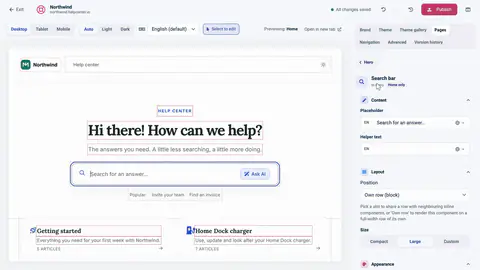
7. Edit right in the preview
Turn on Select to edit, type over any text in the preview, and click anything to open its settings.
Transcript
- 4:11Next, let's look at how your help center is put together.
- 4:14I'll open the Pages tab.
- 4:16Your help center has six kinds of pages:
- 4:19the home page, category pages, article pages, search results, the contact page...
- 4:25and the page people see when something can't be found.
- 4:28I choose which one to edit right here.
- 4:30Each page has a layout.
- 4:32A single column... or with a sidebar, a rail, or a docked sidebar.
- 4:37Every page is divided into regions.
- 4:40The header at the top... the hero... an optional sidebar...
- 4:44the main content... the footer... and a utility region for extras.
- 4:48The numbers show how many components each region holds.
- 4:52And inside every region are components... the building blocks of your pages.
- 4:57The main region of the home page holds a category grid... and an article list.
- 5:01Click a component to open its settings.
- 5:04Let's open the category grid.
- 5:06I can change how the categories are laid out.
- 5:08Vertical cards... horizontal cards... or a simple list.
- 5:12I'll go with horizontal.
- 5:14And I can choose what each card shows.
- 5:16I'll add a link to browse the whole category.
- 5:19To get back to the list, I'll click Main, up here.
- 5:23Now let's add something new.
- 5:24I'll click Add component.
- 5:26Here's everything you can add, grouped by what it does: layout pieces, ways to show your categories and articles... forms, and blocks for your own content.
- 5:36I'll search for FAQs... and add it.
- 5:40New components land at the end of the region.
- 5:43I'll go back to the list... and move it up with the arrow.
- 5:46You can also drag a component by its handle.
- 5:49Some components can hold others.
- 5:51The hero, for example, holds a small label, the search bar, and a row of popular links... so they move and style together, as one block.
- 6:00And if you want a region to look the same on every page, like the header, you can apply it to other pages... and keep them in sync.
Captions and this transcript come from the narration, word for word. Click any line to play from there.
About the course
Make your help center look exactly the way you want: themes, colors, pages, components and your own HTML.
What you'll learn
- Where the Template Editor is, and how the preview, settings and drafts work
- How to try a theme, keep what you like, and go back with Reset draft
- Brand, colors, fonts, spacing and corner radius
- The six page types, their layouts and regions, and how components fit together
- Select to edit: change text right in the preview
- Custom HTML, plus custom CSS that follows your theme's colors
- Header links, mobile and dark mode checks, publishing and version history
- Who it's for
- Anyone who owns the look of a help center, from a first-day trial to a redesign.
- Format
- 13 lessons, 10:35 in all. English captions and a full transcript.
- Last verified
- Oct 20, 2026, on the live product with the Northwind demo help center
- Plans
- Everything in this course works on every plan.
Articles
Every lesson pairs with a help article, so you can read the steps at your own pace.
-
Get started with the template editor self.helpcenter.io/content/template-editorGoes with these lessons
-
Choose a theme self.helpcenter.io/content/choose-a-themeGoes with
-
Which theme is right for you? self.helpcenter.io/content/theme-galleryGoes with
-
Add your logo, favicon and brand name self.helpcenter.io/content/logo-and-brandGoes with
-
Change colors, fonts and spacing self.helpcenter.io/content/colors-and-fontsGoes with
-
Pages, regions and shared headers explained self.helpcenter.io/content/pages-and-regionsGoes with
-
Add, move and remove components self.helpcenter.io/content/componentsGoes with
-
Edit text right in the preview self.helpcenter.io/content/edit-in-previewGoes with
-
Customize the article page self.helpcenter.io/content/article-pageGoes with
-
Add custom CSS self.helpcenter.io/content/custom-cssGoes with
-
Custom CSS reference: selectors and examples self.helpcenter.io/content/custom-css-referenceGoes with
-
Add links to your header and footer self.helpcenter.io/content/navigation-linksGoes with
-
Customize the header and footer self.helpcenter.io/content/header-and-footerGoes with
-
Preview on phones, tablets and in dark mode self.helpcenter.io/content/preview-your-designGoes with
-
Light and dark mode self.helpcenter.io/content/dark-modeGoes with
-
Publish your design self.helpcenter.io/content/publish-your-designGoes with
-
Restore an earlier design self.helpcenter.io/content/restore-a-designGoes with