Up next
The video did not load.
Lesson 4 of 13 · 0:25
Your brand
From The Template Editor · Verified against the live product on Oct 20, 2026
This lesson
Site name and tagline, your logo, a logo for dark mode, the favicon, and how you look in search results.
Prefer to read? Follow it step by step
Moments in this lesson
 Length 0:56
Up next · 0:56
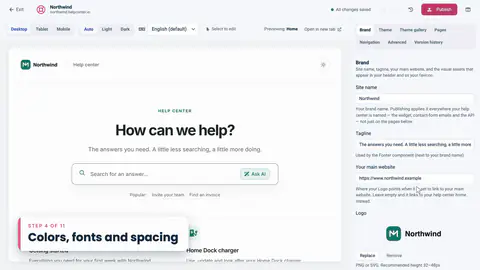
5. Colors, fonts and spacing
Set your primary color and watch every highlight follow, then fonts, spacing and dark mode colors.
Transcript
- 2:50Next, the Brand tab.
- 2:52This is where your help center's identity lives.
- 2:55Here's the site name and the tagline that appear around your help center.
- 2:59Further down, you can upload your logo... a lighter version for dark mode...
- 3:04and the small favicon that shows up in browser tabs.
- 3:07And below that are your search settings:
- 3:09the page title and description that people see in Google results.
Captions and this transcript come from the narration, word for word. Click any line to play from there.
About the course
Make your help center look exactly the way you want: themes, colors, pages, components and your own HTML.
What you'll learn
- Where the Template Editor is, and how the preview, settings and drafts work
- How to try a theme, keep what you like, and go back with Reset draft
- Brand, colors, fonts, spacing and corner radius
- The six page types, their layouts and regions, and how components fit together
- Select to edit: change text right in the preview
- Custom HTML, plus custom CSS that follows your theme's colors
- Header links, mobile and dark mode checks, publishing and version history
- Who it's for
- Anyone who owns the look of a help center, from a first-day trial to a redesign.
- Format
- 13 lessons, 10:35 in all. English captions and a full transcript.
- Last verified
- Oct 20, 2026, on the live product with the Northwind demo help center
- Plans
- Everything in this course works on every plan.
Articles
Every lesson pairs with a help article, so you can read the steps at your own pace.
-
Get started with the template editor self.helpcenter.io/content/template-editorGoes with these lessons
-
Choose a theme self.helpcenter.io/content/choose-a-themeGoes with
-
Which theme is right for you? self.helpcenter.io/content/theme-galleryGoes with
-
Add your logo, favicon and brand name self.helpcenter.io/content/logo-and-brandGoes with
-
Change colors, fonts and spacing self.helpcenter.io/content/colors-and-fontsGoes with
-
Pages, regions and shared headers explained self.helpcenter.io/content/pages-and-regionsGoes with
-
Add, move and remove components self.helpcenter.io/content/componentsGoes with
-
Edit text right in the preview self.helpcenter.io/content/edit-in-previewGoes with
-
Customize the article page self.helpcenter.io/content/article-pageGoes with
-
Add custom CSS self.helpcenter.io/content/custom-cssGoes with
-
Custom CSS reference: selectors and examples self.helpcenter.io/content/custom-css-referenceGoes with
-
Add links to your header and footer self.helpcenter.io/content/navigation-linksGoes with
-
Customize the header and footer self.helpcenter.io/content/header-and-footerGoes with
-
Preview on phones, tablets and in dark mode self.helpcenter.io/content/preview-your-designGoes with
-
Light and dark mode self.helpcenter.io/content/dark-modeGoes with
-
Publish your design self.helpcenter.io/content/publish-your-designGoes with
-
Restore an earlier design self.helpcenter.io/content/restore-a-designGoes with