Up next
The video did not load.
Lesson 2 of 6 · 1:43
Install the plugin and sign in
From Run your help center from Claude and ChatGPT · Verified against the live product on Nov 10, 2026
AI agents: Growth and Catalyst
This lesson
Add HelpCenter.io in Claude or ChatGPT, sign in, and tick the help centers it may work on. A help center on a plan without AI agents is locked.
Prefer to read? Follow it step by step
Moments in this lesson
 Length 1:00
Up next · 1:00
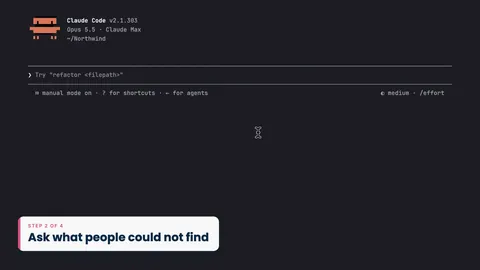
3. Ask what people could not find
Ask "What did people search for and not find?" and get every failed search, how often it failed, and why. The Stats page shows the same numbers.
Transcript
- 0:37Connecting an AI agent is included in the Growth and Catalyst plans, and in their free trials.
- 0:43Everything you need is in Settings, on the AI agents card... with a button for Claude... and one for ChatGPT.
- 0:50The Claude button opens HelpCenter.io in Claude's directory... or find it there yourself.
- 0:56In Claude, open Customize, then Connectors... choose Discover, and search for HelpCenter... Open HelpCenter.io... and select Connect to Claude.
- 1:07Then HelpCenter.io asks you to sign in, if you aren't already... and shows exactly what Claude is asking to do.
- 1:14Under Help centers to share, tick each help center Claude may work on... Pebble is on the Bootstrap plan, which doesn't include AI agents, so it's locked.
- 1:24Click Allow... and HelpCenter.io sends you back to Claude, connected.
- 1:29In any chat, open the plus menu, then Connectors... and HelpCenter.io is there, switched on.
- 1:36In ChatGPT, open Plugins in the sidebar... search for HelpCenter... open HelpCenter.io, and select Install plugin... then Connect HelpCenter.io.
- 1:47ChatGPT brings you to this same page.
- 1:50Choose your help centers, and click Allow.
- 1:53Back in ChatGPT, the plugin is installed... and you can mention HelpCenter with an at sign, in any chat.
- 2:00On a help center whose plan doesn't include AI agents, the card tells you so... with a button to View plans.
- 2:07To see or remove what you've connected, click Manage connected apps, at the bottom of the card... Each app lists the help centers it can reach, with a Disconnect button.
Captions and this transcript come from the narration, word for word. Click any line to play from there.
About the course
Connect Claude or ChatGPT to your help center, ask what readers couldn't find, and have it draft the missing article for you to publish.
What you'll learn
- Installing the HelpCenter.io plugin in Claude or ChatGPT, and choosing which help centers it can reach
- Asking what people searched for and didn't find, and checking the same numbers on the Stats page
- Having Claude draft the missing article as a draft, then reviewing and publishing it yourself
- Seeing and removing connected apps
- Letting your readers' own assistants answer from your help center, with a link back to the article
- Who it's for
- Anyone who runs a help center and works in Claude or ChatGPT.
- Format
- 6 lessons, 5:37 in all. English captions and a full transcript.
- Last verified
- Nov 10, 2026, on the live product with the Northwind demo help center
- Plans
-
Works on every plan. These lessons cover features on higher plans, and say so:
- Lesson 2 · Install the plugin and sign in AI agents: Growth and Catalyst
- Lesson 3 · Ask what people could not find AI agents: Growth and Catalyst
- Lesson 4 · Draft the missing article AI agents: Growth and Catalyst
Articles
Every lesson pairs with a help article, so you can read the steps at your own pace.
-
Connect Claude, ChatGPT and other AI agents self.helpcenter.io/content/connect-ai-agentsGoes with these lessons
-
What AI agents can do in your help center self.helpcenter.io/content/ai-agent-toolsGoes with these lessons
-
Let readers use your help center in their AI assistant self.helpcenter.io/content/public-mcp-serverGoes with