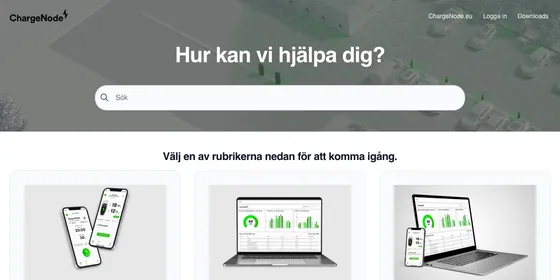
Up next
The video did not load.
Lesson 2 of 5 · 1:53
Create your account and name your help center
From Set up a help center from scratch · Verified against the live product on Nov 10, 2026
This lesson
Sign up with no credit card, keep or change the suggested address, and answer a short setup. Your dashboard opens with a checklist for the rest.
Prefer to read? Follow it step by step
Moments in this lesson
 Length 1:22
Up next · 1:22
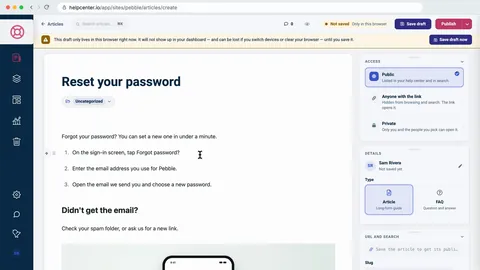
3. Write and publish your first article
Write an article with numbered steps, a heading and a screenshot, choose its category, save a draft and publish it.
Transcript
- 0:30Everything starts at helpcenter dot io slash app slash signup.
- 0:35Your fourteen-day free trial starts here, and you don't need a credit card.
- 0:40You can sign up with Google... or with your email, as I'll do here.
- 0:43Enter your Work email... then Your name.
- 0:47It's shown as the author on the articles you publish... and a Password, of at least eight characters.
- 0:52Tick I agree to the Terms of Service... and click Create my account.
- 0:57Next, choose your help center's address.
- 0:59It's suggested from your work email: pebble dot helpcenter dot io.
- 1:04Keep it, or make it your own.
- 1:05You can rename it later, or connect your own domain.
- 1:09Click Create my help center.
- 1:11A short setup follows.
- 1:12It takes about three minutes, and you can skip any step.
- 1:15First: What are you building?
- 1:17Pebble's is for its customers, a public help center... so I'll click Continue.
- 1:22Name your help center.
- 1:24Pebble is already filled in... and it's shown in the header, the browser tab and search results.
- 1:31If you're moving from another tool, paste its address here... or connect Notion, or upload files.
- 1:37We're starting from nothing, so choose Start fresh... six starter categories, ready to fill in.
- 1:43Pick a starting look.
- 1:44Compass is recommended... and you can switch templates, or fine-tune colors and fonts, in the Template editor later.
- 1:53You can invite your team now... or skip this step and do it later, from Settings.
- 1:59And Pebble is set up.
- 2:04Pebble is ready.
- 2:05Only your team can see it while you get it ready... and we'll publish it at the end of this video.
- 2:10Click Go to my dashboard.
- 2:12Your dashboard opens on Articles, with a checklist: Get Pebble live.
- 2:17It shows what's left to do... and we'll follow it the rest of the way.
Captions and this transcript come from the narration, word for word. Click any line to play from there.
About the course
From a new account to a help center anyone can read: sign up, write and publish your first article, then publish your help center.
What you'll learn
- Signing up with no credit card and choosing your help center's address
- The short setup: what you're building, its name, starter categories and a starting look
- Writing an article with steps, a heading and a screenshot, and choosing its category
- Saving a draft, publishing it, and seeing your help center the way your team sees it
- Confirming your email, activating your plan and publishing your help center
- Checking it signed out, the way a customer sees it
- Who it's for
- Anyone starting a help center on HelpCenter.io, from the signup page to a help center customers can read.
- Format
- 5 lessons, 5:28 in all. English captions and a full transcript.
- Last verified
- Nov 10, 2026, on the live product with the Northwind demo help center
- Plans
- Everything in this course works on every plan.
Articles
Every lesson pairs with a help article, so you can read the steps at your own pace.
-
Set up your help center: a first-hour checklist self.helpcenter.io/content/set-up-your-help-centerGoes with these lessons
-
Create your HelpCenter.io account self.helpcenter.io/content/create-your-account
-
Write and publish your first article self.helpcenter.io/content/write-your-first-articleGoes with
-
Publish your help center self.helpcenter.io/content/make-your-help-center-publicGoes with