Up next
The video did not load.
Lesson 2 of 5 · 1:01
Paste your website, get a theme
From Match your brand from your website · Verified against the live product on Nov 12, 2026
This lesson
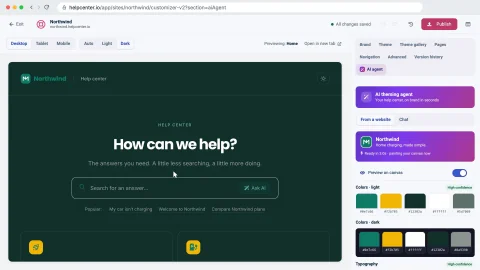
Open the AI agent in the Template Editor, paste your website, tick the box that says the site is yours, and watch the agent read your colors, fonts, logo and favicon.
Prefer to read? Follow it step by step
Moments in this lesson
 Length 1:13
Up next · 1:13
3. Review light and dark before you apply
Compare the proposal with your help center as it is, check dark mode, read how confident the agent is, untick what you would rather keep, and apply the rest to your draft. Nothing is live yet.
Transcript
- 0:36In your dashboard, open the Template editor from the menu on the left... and choose the AI agent tab.
- 0:43Make sure From a website is selected.
- 0:46It's included on every plan, including the fourteen-day trial.
- 0:49Copy your website's address from your browser, and paste it into Your website.
- 0:54Then tick the box: I own or control this website and may use its branding.
- 0:59The agent brings your logo and your colors into your help center, so point it at a site that's yours.
- 1:04Now click Brand my help center... The agent opens your site, reads its colors and fonts, and picks up your logo and favicon.
- 1:12It only takes a few seconds.
- 1:14And here's the proposal.
- 1:16Northwind's colors, for light mode and for dark... its fonts, Poppins for headings and Inter for text... and on the left, the preview already shows them, with the logo in the header.
- 1:28Nothing in your help center has changed yet.
- 1:30This is only a proposal... so let's look at it properly.
Captions and this transcript come from the narration, word for word. Click any line to play from there.
About the course
Paste your website's address, review the light and dark theme the AI theming agent proposes, then apply it to your draft and publish.
What you'll learn
- Opening the AI agent in the Template Editor and pasting your website
- What the agent reads from your site: colors, fonts, your logo and your favicon
- Comparing the proposal with your help center as it is, in light and in dark
- Reading how confident the agent is about your colors and fonts, and unticking what you would rather keep
- Applying the proposal to your draft, retrying with a hint, and undoing it
- Publishing the new design, and restoring an earlier version
- Who it's for
- Anyone with a help center on HelpCenter.io and a website of their own. Every plan, including the 14-day trial.
- Format
- 5 lessons, 4:00 in all. English captions and a full transcript.
- Last verified
- Nov 12, 2026, on the live product with the Northwind demo help center
- Plans
- Everything in this course works on every plan.
Articles
Every lesson pairs with a help article, so you can read the steps at your own pace.
-
Make your help center look like your brand self.helpcenter.io/content/customize-your-help-centerGoes with these lessons
-
Brand your help center from your website with the AI theming agent self.helpcenter.io/content/brand-from-your-websiteGoes with these lessons
-
Preview on phones, tablets and in dark mode self.helpcenter.io/content/preview-your-design
-
Publish your design self.helpcenter.io/content/publish-your-designGoes with
-
Restore an earlier design self.helpcenter.io/content/restore-a-designGoes with