Up next
The video did not load.
Lesson 3 of 5 · 1:04
Write the article that is missing
From Find what customers search for and cannot find · Verified against the live product on Nov 12, 2026
This lesson
Start from Write it on your Overview, keep your readers' words in the title and the text, publish, then search signed out and find it.
Prefer to read? Follow it step by step
Moments in this lesson
 Length 1:05
Up next · 1:05
4. Turn on AI Answers
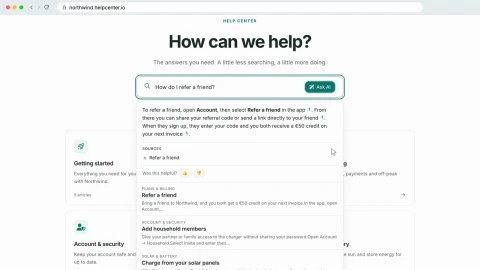
Switch on AI Answers in Settings, and see what a reader gets from Ask AI: an answer written from your articles, its sources, and the matching articles under it.
Transcript
- 1:44You can start from your Overview, too.
- 1:46The Visitor pulse card lists the same searches... under Searched for, not found.
- 1:51Each one has a button: Write it.
- 1:54I'll click it for refer a friend.
- 1:56A new article opens, with the search as its title.
- 1:59Those are your readers' own words, and search matches the words in the title and the text... so keep them.
- 2:05I'll only give it a capital letter.
- 2:07Then write the answer.
- 2:08Readers also searched for referral code... so I'll use that phrase in the steps as well.
- 2:18Now give it a category.
- 2:20Click Uncategorized... and pick Plans and billing.
- 2:23Then click Publish... and it's live.
- 2:27Let's check it the way a reader would: signed out, on the help center.
- 2:31I'll search for refer a friend again... and there's the new article.
- 2:35Referral code finds it too.
- 2:38Your statistics are updated overnight.
- 2:41So look at Content gaps again in a week or two... and you'll see this gap close.
Captions and this transcript come from the narration, word for word. Click any line to play from there.
About the course
See what readers search for and which searches fail, write the article that is missing in their own words, and turn on AI Answers so a whole question gets an answer.
What you'll learn
- Opening Statistics and reading What people search for: successful and failed searches
- Telling a search that found nothing from one whose results nobody opened
- Finding your Content gaps, the searches that fail the most
- Starting the missing article from Write it on your Overview, with the search as its title
- Publishing it and checking, signed out, that search finds it
- Turning on AI Answers, and what a reader gets from Ask AI: an answer, its sources and the matching articles
- Who it's for
- Anyone who runs a help center and decides what to write next.
- Format
- 5 lessons, 4:22 in all. English captions and a full transcript.
- Last verified
- Nov 12, 2026, on the live product with the Northwind demo help center
- Plans
-
Works on every plan. One lesson covers a feature on a higher plan, and says so:
- Lesson 4 · Turn on AI Answers AI answers: Catalyst or AI add-on
Articles
Every lesson pairs with a help article, so you can read the steps at your own pace.
-
See what people search for self.helpcenter.io/content/search-statisticsGoes with these lessons
-
Read your help center statistics self.helpcenter.io/content/statisticsGoes with
-
Search can't find an article self.helpcenter.io/content/search-cant-find-an-articleGoes with
-
How search works in your help center self.helpcenter.io/content/how-search-worksGoes with these lessons
-
Turn on AI Answers self.helpcenter.io/content/ai-answersGoes with