Up next
The video did not load.
Lesson 3 of 6 · 0:56
Translate an article by hand
From Your help center in more than one language · Verified against the live product on Nov 12, 2026
Multiple languages: Growth and Catalyst
This lesson
Open an article, choose the new language in the Language bar, and type the title and the text. Turn on Released when it reads well, then see from Articles how much of the language is translated.
Prefer to read? Follow it step by step
Moments in this lesson
 Length 1:02
Up next · 1:02
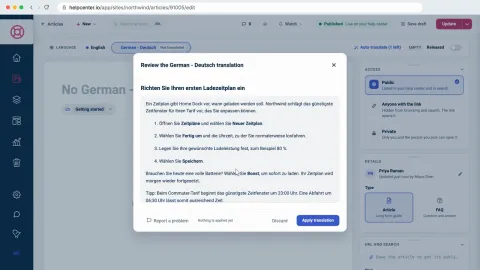
4. Translate with AI
Auto-translate drafts the translation, and nothing is applied until you review it. Apply it, polish it in the editor like any other text, and release it.
Transcript
- 1:49With a second language, every article gets a Language bar above its title.
- 1:54In Articles, I'll open one... and click German.
- 1:57There's nothing in German yet.
- 1:59So type the title... and then the text, as you would write any article.
- 2:07Readers still see only the English version.
- 2:10A translation stays hidden until you release it.
- 2:13When it reads well, turn on Released.
- 2:16Northwind is on Catalyst, where changes to a published article are staged first... so I'll finish with Publish changes.
- 2:23On Growth, there's no staging: turning on Released asks you to confirm, with Update and release.
- 2:30To see how far a language has come, go back to Articles, and open the language menu... German: one article translated.
- 2:37Choose it... and every article that still needs translating is marked Not translated.
Captions and this transcript come from the narration, word for word. Click any line to play from there.
About the course
Add a language, translate articles by hand or with AI, release them when they are ready, and see what readers see.
What you'll learn
- Adding a language under Localization, and what Bootstrap shows instead
- Adding the Language switcher to your design, so readers can change language
- Translating an article's title and text in the editor's Language bar, and releasing it
- Having AI draft a translation, reviewing it before anything is applied, and polishing it
- Releasing every waiting translation of a language at once
- What readers get: addresses with a language code, search in their language, and the widget in the language you set
- Who it's for
- Teams whose customers read in more than one language, on the Growth or Catalyst plan. Translating with AI needs Catalyst.
- Format
- 6 lessons, 5:34 in all. English captions and a full transcript.
- Last verified
- Nov 12, 2026, on the live product with the Northwind demo help center
- Plans
-
Works on every plan. These lessons cover features on higher plans, and say so:
- Lesson 2 · Add a language Multiple languages: Growth and Catalyst
- Lesson 3 · Translate an article by hand Multiple languages: Growth and Catalyst
- Lesson 4 · Translate with AI Automatic AI translations: Catalyst
- Lesson 5 · Release translations and see what readers see Multiple languages: Growth and Catalyst
Articles
Every lesson pairs with a help article, so you can read the steps at your own pace.
-
Add a language to your help center self.helpcenter.io/content/add-a-languageGoes with these lessons
-
Translate an article self.helpcenter.io/content/translate-an-articleGoes with
-
Translate articles with AI self.helpcenter.io/content/ai-translationGoes with
-
Release translations and change your default language self.helpcenter.io/content/manage-languages
-
How readers see other languages self.helpcenter.io/content/languages-for-readers
-
Translate buttons and labels self.helpcenter.io/content/interface-translationsGoes with
-
Translate texts in your design self.helpcenter.io/content/translate-design-textsGoes with